
Transfer data from old phone to new phone easily; follow this simple step-by-step guide for a smooth switch.
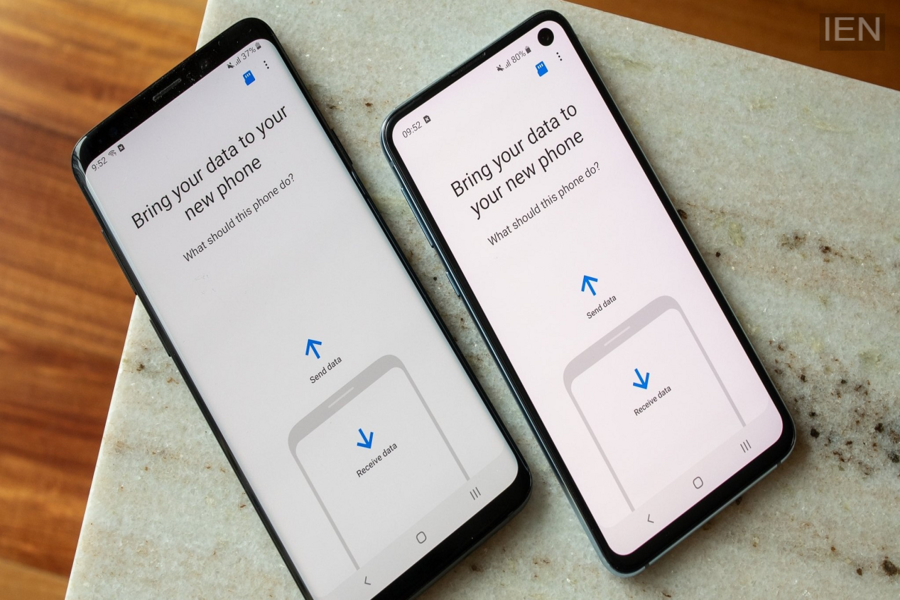
Data Transfer from One Phone to Another: Transferring data from an old phone to a new one is now easy. Contacts, photos, messages, and apps can be easily transferred between both Android and iPhone devices.
Data Transfer from One Phone to Another: A full phone storage can be a hassle for anyone. The real challenge often isn't buying the new phone itself, but figuring out how to move essential items—like photos, contacts, messages, and other important data—from the old device to the new one. Since not everyone knows how to do this, many people end up carrying both phones around.
Modern smartphones come packed with new features, including tools that make transferring data from one device to another incredibly simple. All you need is for both phones to be charged to at least 50%; the transfer process takes time and relies on Wi-Fi, which can quickly drain the battery. Additionally, any interruption during the transfer could cause complications.
How do you transfer data from one Android phone to another?
Transferring data when switching from one Android phone to another is very straightforward. During the initial setup after turning on your new phone, you will be asked if you want to copy data from your old device. Simply select "Yes" and sign in with your Google account. A QR code will appear on both phones; scanning it connects the two devices. You can then choose which items—such as contacts, photos, messages, or apps—you wish to transfer. This process can take anywhere from 30 minutes to several hours, so it is important to keep both phones fully charged and close to each other to avoid any interruptions during the transfer.
Transferring Data Between Android and iPhone
If you are switching phone platforms—moving from Android to iPhone or vice versa—there is no need to worry; data transfer is a straightforward process. To move from Android to iPhone, you can use Apple's dedicated "Move to iOS" app. Simply download the app on your old Android phone, enter the code displayed on your new iPhone, and the devices will connect via a temporary Wi-Fi network. Items such as contacts, messages, and photos will then transfer automatically. Conversely, to switch from iPhone to Android, select the "Copy from iPhone" option during the new Android phone's setup process and connect both devices using a cable or Wi-Fi.
Things to Keep in Mind Before Transferring
People often mistakenly believe that transferring phone data automatically includes WhatsApp messages and documents, but that is not always the case. Transferring WhatsApp chats and documents frequently requires scanning a separate QR code. Additionally, music, PDFs, and certain notes may not transfer automatically; these often need to be downloaded manually using cloud services like Google Drive or Dropbox.
