
PNG Bill Online: Here is How You Can Pay Your PNG Bill Online—The Process is Extremely Simple
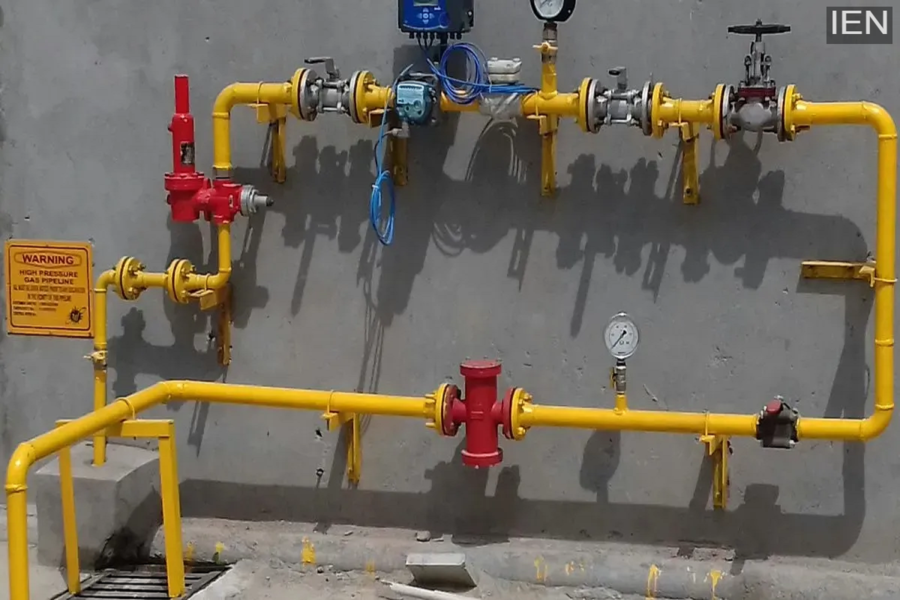
PNG Bill Payment Online: The Central Government has issued an order stating that users whose homes are located near a PNG (Piped Natural Gas) facility must obtain a PNG connection; otherwise, their supply of LPG cylinders will be discontinued. If you find yourself concerned—having already obtained a new PNG connection but unsure how to pay the associated bill—we are here to provide you with the necessary information.
For your convenience, please note that you do not need to download the gas company's dedicated app to do this; you can simply pay your PNG bill using your regular UPI application. If you have Google Pay (GPay) or PhonePe installed on your device, you can pay your bill with ease.
Essential Requirements Before Paying Your Bill Online
To pay your PNG bill online, you will need your BP Number—a unique 10-digit Business Partner (BP) identification number. You can locate this BP Number at the very top of the left-hand side of the physical PNG bill delivered to your home.
How to Pay Your PNG Bill Using Google Pay (GPay)
- Open the Google Pay (GPay) app and navigate to the 'Utility' section.
- Click on the 'Piped Gas' option corresponding to the bill you wish to pay.
- In this section, enter your Customer Number and BP Number; you will also be required to enter a nickname for the connection.
- Proceed to the 'Pay Bill' option and complete the transaction just as you would for any other online payment.
Additionally, should you encounter any difficulties while attempting to pay your PNG bill, simply follow the specific instructions provided within the 'Bill Payment' section of the Google Pay app to complete the process step-by-step.
How to Pay Your PNG Bill Using PhonePe
- Open the PhonePe app on your mobile device and navigate to the 'Recharge and Bills' section.
- Scroll down within the 'Recharge and Bills' section to locate the 'Utility' category, and then click on the 'Piped Gas' option.
- Here, select your specific gas provider (e.g., IGL – Indraprastha Gas Limited). If you are an IGL customer, you will need to enter your BP number after selecting IGL.
- As soon as you enter your BP number, the customer's name, bill number, and bill date will appear.
- Once all the details are displayed, you can make the payment by clicking on 'Proceed to Pay'.
- In this way, you can easily pay your PNG bill online using PhonePe and G Pay.
