
Is your iPhone repeatedly entering SOS Mode? Here’s how to fix it
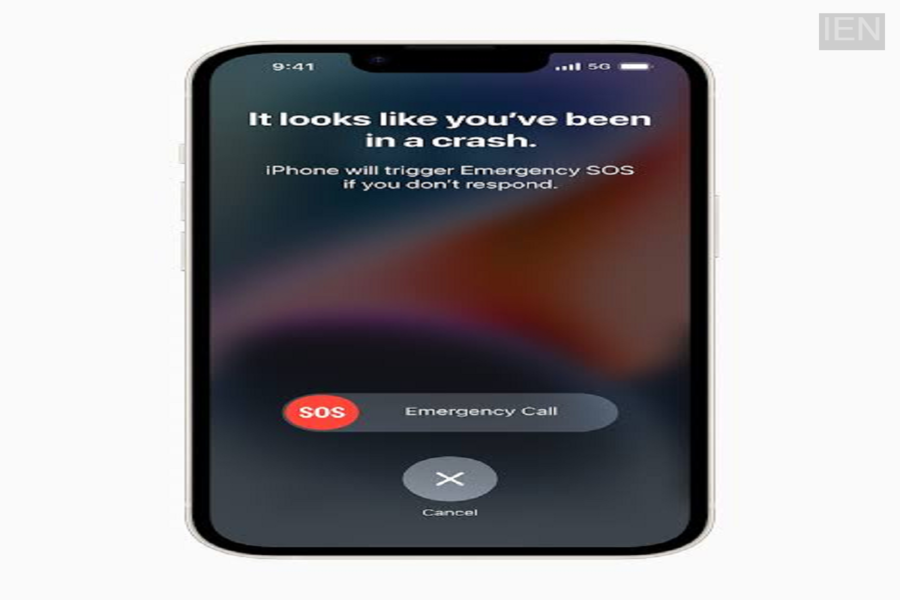
iPhone SOS Mode: SOS Mode appears on an iPhone when the device fails to connect to your mobile operator’s network.
iPhone SOS Mode: iPhones offer advanced features that enhance the user experience. One such feature is SOS Mode, which indicates that your phone cannot connect to the network. Users often get frustrated when their iPhone repeatedly enters SOS Mode without knowing how to resolve the issue. Here, we explain why this happens and how you can fix it.
What is SOS Mode?
SOS Mode appears on your iPhone when it cannot connect to your mobile operator’s network. However, you can still make emergency calls while in this mode. In contrast, if the phone shows “No Service,” you cannot make any calls at all.
Use Airplane Mode
If SOS Mode suddenly appears on your iPhone, the easiest fix is to toggle Airplane Mode on and off. Turn on Airplane Mode for about 15 seconds, then turn it off. Within a few seconds, the phone will search for the network again. Often, this simple step resolves the issue automatically.
Check for iOS Updates
Network-related issues can sometimes arise due to outdated software. Therefore, you should first check for iOS updates on your iPhone.
To update, go to Settings and tap on General. Look for Software Update and tap on it to update your phone’s software. If a new iOS version is available, install it; this can help prevent future issues.
Restart Your iPhone
If toggling Airplane Mode doesn’t solve the problem, restarting your iPhone is a good next step. Restarting the phone reloads network settings and often resolves various issues automatically.
Check the SIM Card and eSIM
If your iPhone uses multiple SIMs or eSIMs, ensure the correct line is active. Go to Settings > Cellular and verify that the SIM you intend to use is turned on. If you are using a physical SIM, remove it and reinsert it correctly; an improperly seated SIM can sometimes cause the device to display “SOS Mode.”
Run Diagnostics via the Apple Support App
If your iPhone is running iOS 18 or a newer version, you can easily check the device using the Apple Support app. The app includes diagnostic tools that help identify issues related to the network and hardware.
Why Does “SOS Mode” Appear When Traveling Abroad?
If you are traveling internationally and see “SOS Mode,” a common reason is that Data Roaming is turned off. When you visit another country, your phone needs to connect to a local network; if Data Roaming is disabled, the device cannot connect to that foreign network. Therefore, you should enable Data Roaming.
To do this:
Go to Settings > Cellular. Tap on Cellular Data Options and select Data Roaming to turn it on. Please note that enabling Data Roaming may incur additional charges, so it is advisable to check your mobile plan’s international service details before traveling abroad.
Additionally, if you are using a travel eSIM, ensure that it is selected for data usage. You can also enable the Allow Cellular Data Switching feature if necessary to achieve better network coverage.
