
How to play videos from your phone on a Smart TV? Here’s an easy way.
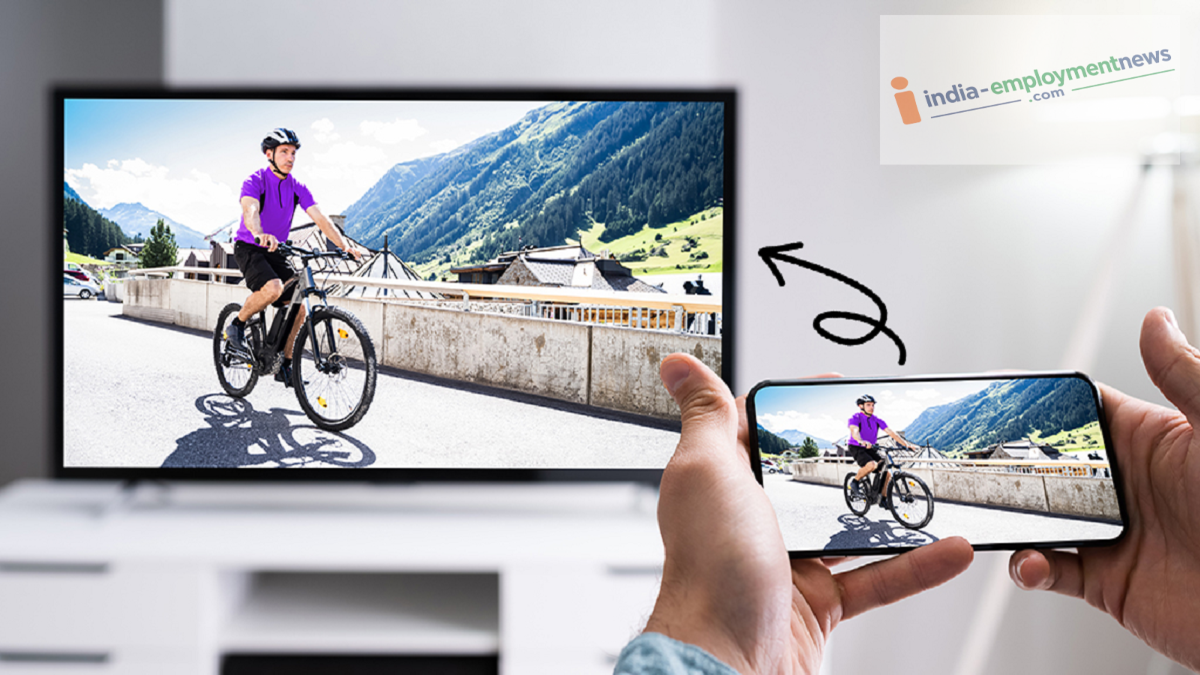
If your Smart TV supports casting, simply tap the Cast icon on your phone.
Nowadays, there are many smart devices available in the market that people use according to their needs. It is common for people to download movies, web series, and videos onto their smartphones. However, watching long videos or movies on a small phone screen can be difficult. If you have a Smart TV at home, you can easily play movies stored on your phone on the larger TV screen. You don't need to download the movie separately onto the TV each time. Let’s look at how to do this.
Connect your phone and TV to Wi-Fi
First, connect both your Smart TV and smartphone to the same Wi-Fi network. This is important because many screen-sharing and casting features work best when devices are on the same network.
Next, open the movie or video on your phone that you want to watch on the TV. Look for options like Cast, Screen Cast, Smart View, or Wireless Display within the video player. The name of this feature may vary depending on the phone model.
Playing movies using the Cast feature
If your Smart TV supports casting, tap the Cast icon on your phone. A list of nearby compatible devices will appear; select your Smart TV from the list.
A request for connection permission will appear on the TV screen. Once you grant permission, the video playing on your phone will appear on the large TV screen. You can then use your phone like a remote to play, pause, or fast-forward/rewind the video.
Screen Mirroring on Android phones
Many Android smartphones come with a built-in Screen Cast or Screen Mirroring option. You can usually find this option in the phone's Quick Settings panel.
Tap on Screen Cast and select your TV. Once connected, your phone's entire screen will be mirrored on the TV. You can now play a movie on your phone and watch it on the large TV screen.
AirPlay for iPhone Users
If you have an iPhone and an AirPlay-compatible Smart TV, you can stream videos to the TV using AirPlay. To do this, connect both your iPhone and TV to the same Wi-Fi network. Then, select the AirPlay option within the video and choose your TV's name. On some TVs, you may need to enable AirPlay in the settings first.
