
How to Change Your Home Location in Google Maps? Here’s an Easy Way
Saving the correct Home Location in Google Maps offers several benefits to users.
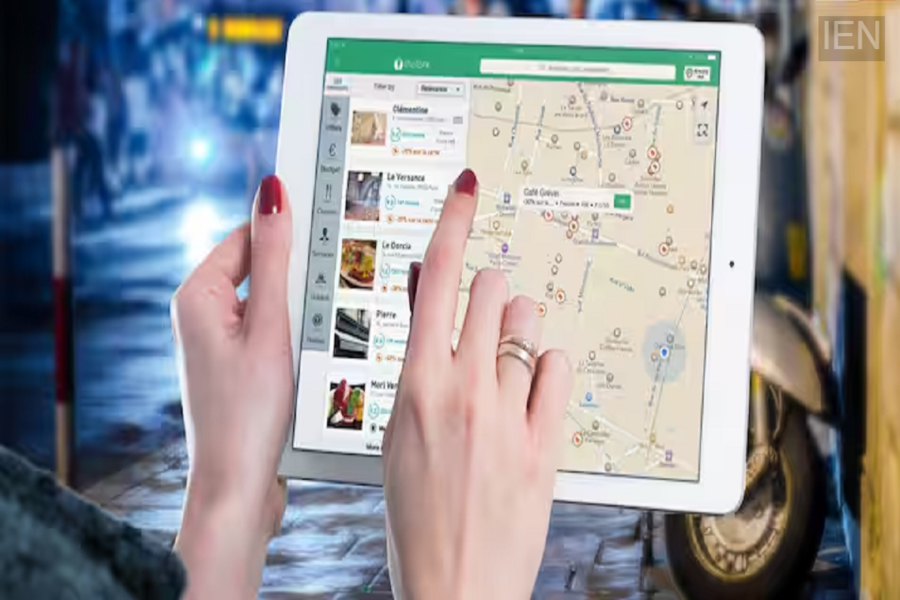
It is common for users to save their 'Home' and 'Work' locations in Google Maps. This feature allows users to save specific locations, eliminating the need to type the home address every time and enabling navigation with just a single tap. However, many users do not know how to update this information if they have moved to a new home or if the address was saved incorrectly previously. Let us show you how to change your home location on Google Maps.
Saving the correct Home Location in Google Maps provides numerous advantages. It helps significantly in checking commute times, receiving traffic updates, and finding the fastest route home. Conversely, if an incorrect location is saved, you will continue to receive wrong directions. Therefore, if your location has changed, you can easily update and save the new address in Google Maps.
If you use Google Maps on Android or iPhone, you can change your location by following these simple steps: First, open the Google Maps app and tap on your profile photo (visible at the top or bottom). Next, go to the 'Your Profile' or 'Your Places' section. Here, you will see the 'Home' option.
If an address is already saved, tap the 'Edit' icon next to it. Now, type the new address or select the correct location on the map. Once you select the correct address, it will be saved automatically. From then on, whenever you search for 'Home', Google Maps will provide directions to the newly saved location.
Changing the Home Location is also quite easy if you use Google Maps on a laptop or desktop. To do this, first open Google Maps in your browser and log in with the Google account where the Home Location is saved.
Then, click on 'Saved' or 'Your Places' from the menu on the left. Now, go to the 'Labeled' tab and click the 'Edit' option next to 'Home'. Enter the new address and save it. The changes you make will then sync across all your devices linked to the same Google account.
Removing a previously saved address is also quite simple. Just tap the 'Remove' or 'Delete' option next to 'Home'. You can then add a new address if you wish. It is worth noting that there are a few important things to keep in mind when changing your home location on Google Maps.
Always ensure you are logged into the correct Google account. Instead of typing the address manually, select the suggestion provided by Google to ensure greater location accuracy. If your new home is in a newly developed area, you can select the precise location by placing a pin on the map. After making the change, search for 'Home' to verify that the correct address has been saved.
For your information, your home location in Google Maps is saved only to your Google account. This information remains private unless you choose to share it with others. However, if someone else gains access to your phone, you should use a screen lock and Google account security settings to ensure your safety.
