
Google Maps Showing Incorrect Location on PC? Here’s Why This Glitch Happens
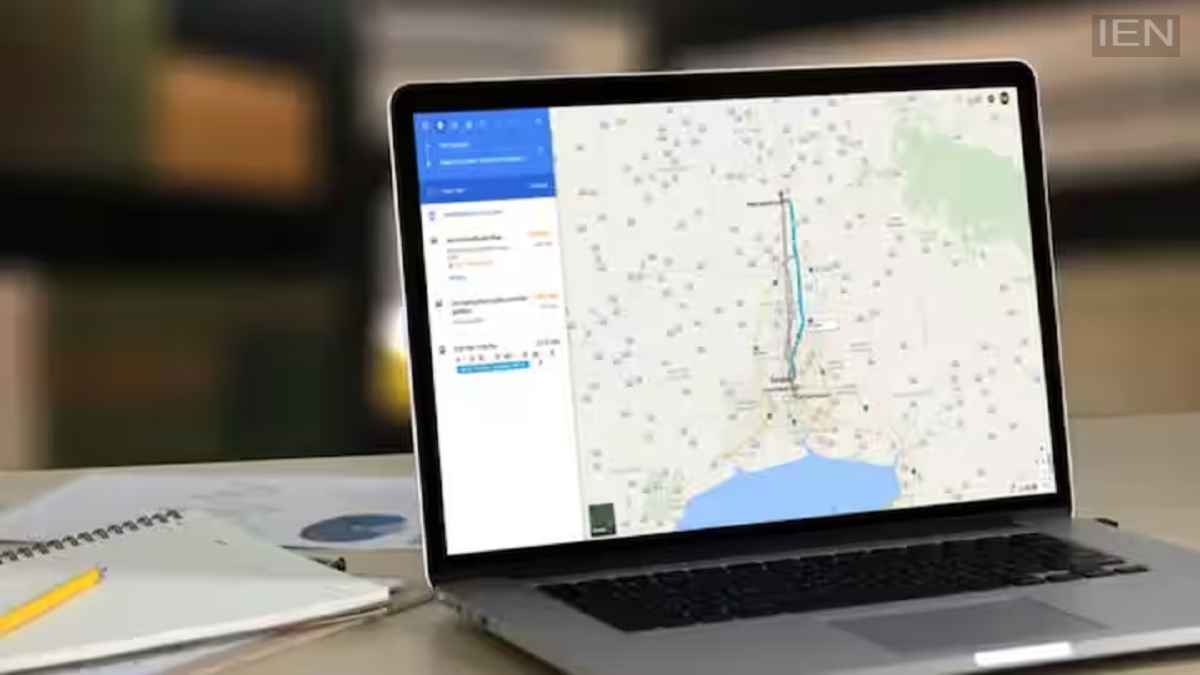
Google Maps: When your computer connects to the internet, your Internet Service Provider (ISP) assigns it an IP address.
When you use Google Maps on a smartphone, it determines your precise location using the phone's built-in GPS. However, most desktop computers and laptops lack GPS hardware. Consequently, Google Maps has to rely on your IP address, Wi-Fi network data, and other information from the operating system to estimate your location. This is why Google Maps on a PC sometimes displays a location different from your actual whereabouts.
It is worth noting that when your computer connects to the internet, your Internet Service Provider (ISP) assigns it an IP address, which is then used to estimate your location. However, IP-based location tracking is not always precise; it often provides accuracy only down to the city or PIN code level. Additionally, errors can exist in the databases from which this information is sourced, leading Google Maps to display an incorrect location.
Furthermore, it is not just the IP address; Windows and web browsers also utilize data such as Wi-Fi information, system diagnostics, and GPS signals to better estimate your location. If the data from any of these sources is incorrect or outdated, the location displayed on Google Maps may also be inaccurate.
Nowadays, many companies create digital profiles of users based on their online activity and location to deliver personalized advertisements. Tracking user activity becomes more difficult if precise location data is unavailable; consequently, many people prefer not to share their exact location to maintain their privacy.
Accurate location data is crucial when you are in a new city, looking for directions to a hotel, restaurant, or shop, or planning a trip. Having an accurate location on your PC allows you to plan routes and prepare better for your travels. If Google Maps is showing an incorrect location, first go to Windows Settings, navigate to Privacy & Location, and then turn on Location Services under the Location section. You can also specify which apps are permitted to use your location. Often, simply enabling this setting resolves the issue.
