
Does Your Mobile Data Run Out in Just a Few Hours? Change These Settings to Make Your Internet Last All Day
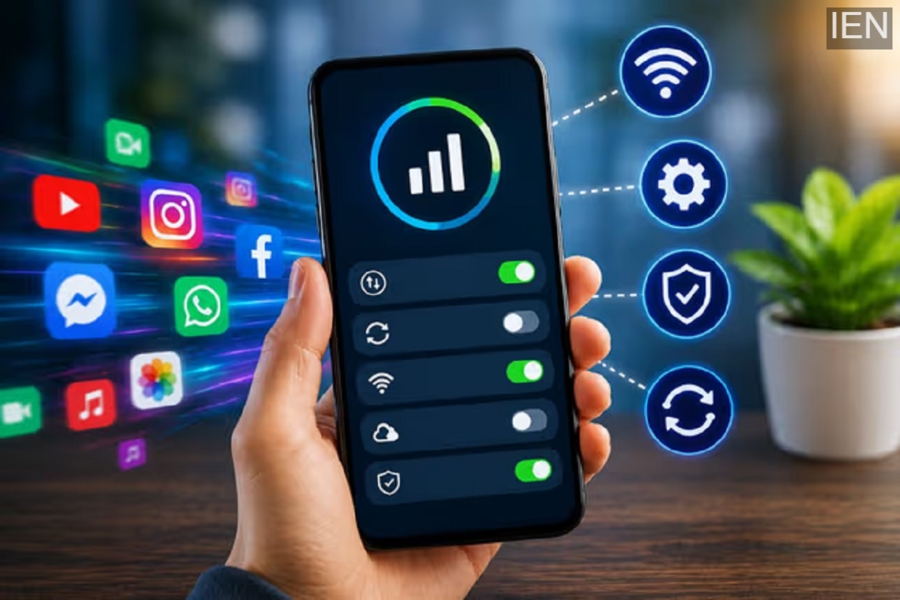
If your mobile data also runs out within just a few hours, the culprit might not simply be excessive internet usage, but rather certain settings on your phone. Here, you can learn about essential settings that—by disabling or adjusting them—allow you to easily conserve your internet data for a much longer duration.
Did you turn on your mobile data in the morning, browse social media for a while, watch a few videos, and—before you knew it—receive a “Daily Data Limit Exhausted” notification on your phone? If this happens to you frequently, understand that it isn’t just your active internet usage; certain phone settings are also silently draining your data in the background. Many apps continuously consume internet data in the background, causing your entire data pack to deplete much faster than anticipated. The good news is that by tweaking a few simple smartphone settings, you can easily make your internet data last throughout the entire day.
Make Sure to Enable Data Saver Mode
Nowadays, most smartphones feature a “Data Saver Mode” designed to prevent your mobile data from being consumed unnecessarily. Many apps continue to run in the background on your phone, consuming internet data without you even realizing it. This is precisely why your data runs out so quickly. If you enable Data Saver Mode on your phone, only the apps you are actively using at that moment will be able to access the internet. To enable this, simply go to your phone’s Settings and toggle on the Data Saver option. This will ensure your internet data lasts significantly longer than it did before.
Immediately Disable the Auto-Update Feature
Often, apps installed on your phone begin updating automatically. The “Auto-Update” feature within the Google Play Store can silently consume a significant portion of your internet data. This is particularly true when large apps are updating, as hundreds of megabytes of data can be depleted in just a few minutes. To conserve data, navigate to the Settings within the Play Store, go to Network Preferences, and disable the Auto-Update Apps option. Once disabled, you can manually update your apps via Wi-Fi whenever necessary.
Disable WhatsApp’s Auto-Download Feature
Throughout the day, you likely receive a constant stream of photos, videos, GIFs, and documents on WhatsApp. If the Media Auto-Download feature is enabled, every file begins downloading automatically. This is why your mobile data often gets consumed even without you having watched any videos. To prevent this, go to WhatsApp’s Settings, open the ‘Storage and Data’ section, and turn off Media Auto-Download. Once disabled, only those files that you manually open will be downloaded.
Keep an Eye on Background Apps
Many apps remain continuously active in the background, even when you are not actively using your phone. These apps not only consume mobile data but also drain your battery rapidly. By navigating to your phone’s Settings, you can disable ‘Background Data Access’ for apps that do not require constant connectivity. Doing so will prevent unnecessary data consumption and ensure your internet pack lasts longer.
Small Changes, Big Savings
People often assume that excessive data consumption is solely caused by watching videos or playing games; however, certain phone settings are also responsible for this. If you follow the simple tips outlined above, not only will your data last longer, but you will also find yourself needing to recharge your data pack less frequently.
