
Adjust These Google Maps Settings Before You Leave Home for a Smoother Journey
Google Maps Tricks: If you are setting out on a road trip, tweaking a few settings in Google Maps can make your journey much more pleasant.
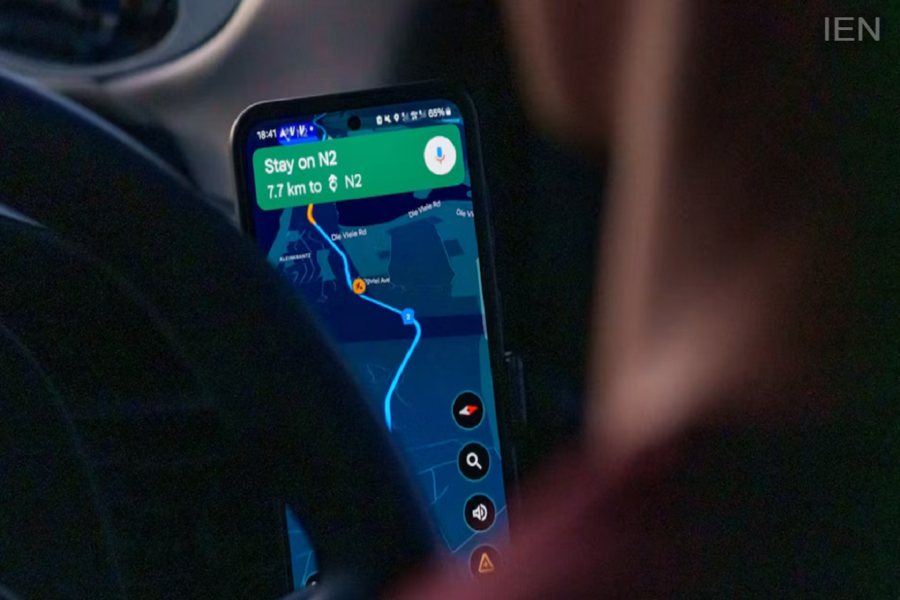
Google Maps Tricks: Google Maps can be your reliable companion on unfamiliar routes. While there have been instances where it led people astray, it is generally highly accurate when it comes to navigation. If you love exploring new places and rely on Google Maps while driving, here are some tricks for you. Adjusting a few settings before you leave home ensures Google Maps shows you the right path, helps you save money, and can even prevent traffic fines.
Download Offline Maps
Although connectivity has improved significantly, finding a mobile network everywhere along every route remains difficult. Therefore, if you are visiting a place for the first time, it is advisable to download offline maps. This ensures you continue to receive directions even without an internet connection, thereby reducing the risk of getting lost.
Configure Route Options
Google Maps allows you to customize your route preferences. You can choose whether or not to avoid toll plazas and highways. It also displays the shortest distance, helping you determine the quickest route to your destination.
A Setting to Make Driving More Comfortable
In the navigation settings, you can enable options to display both your current speed and the speed limit. This allows you to view your vehicle's speed and the highway's speed limit directly on your phone screen. Doing so helps you avoid speeding and prevents potential traffic fines. Since speed limit signs are often missed while driving, this Google Maps feature proves incredibly useful in such situations.
Prioritizing Privacy Is Also Important
It is important to be mindful of your privacy while using Google Maps. Through Location History, Google tracks the places you visit or have visited. From a privacy standpoint, this is highly sensitive data. To disable this feature, go to your Google Account and adjust your location settings. Here, you will find options to either turn off the Timeline completely or select a specific time window. You can choose the option that best suits your needs.
