
Your smartphone will come in handy during an emergency! Follow these steps to enable Emergency SOS..
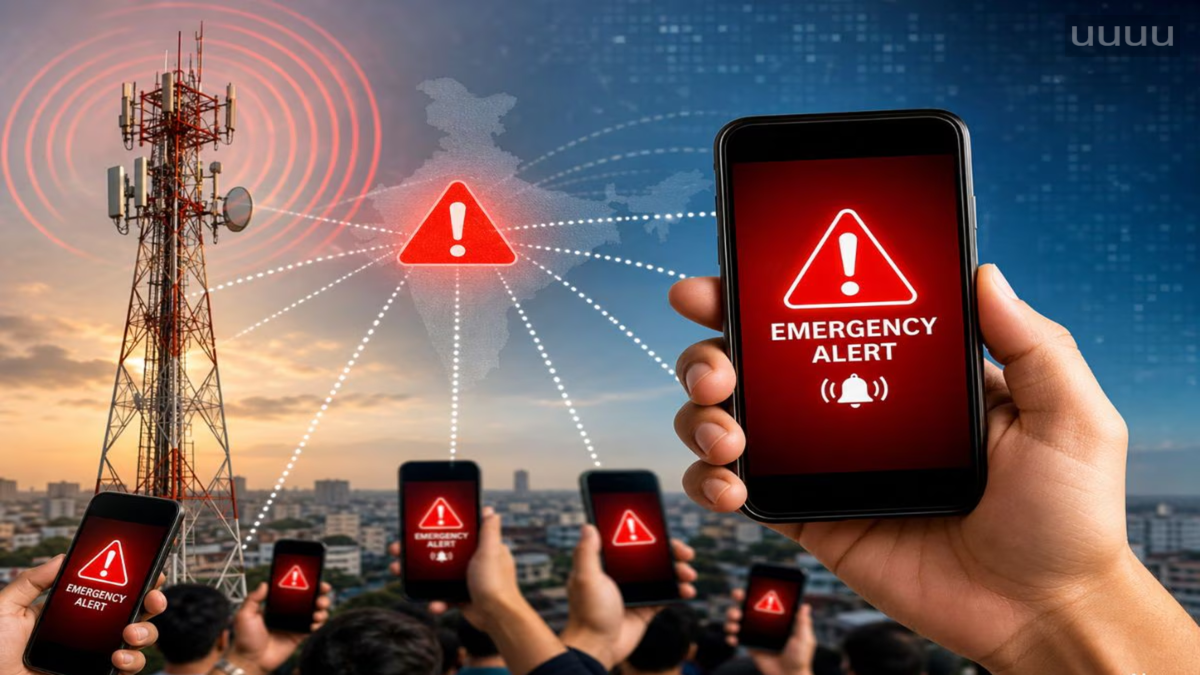
Trouble never gives warning, so it is best to keep your phone ready for emergencies. The Emergency SOS feature found on iPhones and Android devices offers an easy way to summon help during a crisis. By pressing a few buttons, you can call emergency services and send alerts along with your location to your designated contacts.
However, simply having the feature on your phone isn't enough. Before using it, you may need to add emergency contacts, configure the trigger settings, and enable the necessary location options. Let’s look at how to set this up on iPhone and Android.
What is Emergency SOS and how does it work?
Imagine you have fallen, are involved in a road accident, or find yourself in a situation where unlocking your phone is difficult. In such moments, Emergency SOS can help you get assistance. When activated, the phone can call emergency services. Depending on your settings, it can also send alerts and your location details to your emergency contacts.
Some devices offer additional features like displaying medical information on the lock screen, detecting crashes or falls, and recording emergency videos. However, not all features are available on every phone.
How to set up Emergency SOS on an iPhone?
On an iPhone, first configure the SOS trigger method, then add your medical information and contacts in the Health app.
Open **Settings** and go to **Emergency SOS**.
Enable **Call with Hold and Release**. With this enabled, pressing and holding the side button and either volume button starts a countdown; releasing the buttons as instructed places the emergency call.
For a backup option, enable **Call with 5 Presses**. This allows you to bring up the SOS screen by rapidly pressing the side button five times.
If the option is available on your iPhone, you can also enable **Call After Severe Crash**.
Now, open the **Health** app, tap your profile, go to **Medical ID**, and select **Edit**.
Enter your medical information and enable **Show When Locked**.
Go to **Emergency Contacts** and add the people who should be alerted in an emergency.
Finally, go to **Settings > Emergency SOS** and enable **Share During Emergency Call**, if the option is available. The iPhone 14 and certain subsequent models offer satellite-based SOS functionality. This can be helpful in areas without mobile network or Wi-Fi coverage, though availability depends on the specific model, country, and service provider.
How to set up Emergency SOS on Android?
Menu names on Android devices may vary depending on the manufacturer and software version.
Go to **Settings** and open **Safety & emergency** (or a similar option).
Add at least one trusted person to your **Emergency contacts**.
Enter your medical information and enable the option to display it on the lock screen, if available.
Open **Emergency SOS** and select **Start setup**.
Configure the trigger method. On many Android phones, SOS is activated by rapidly pressing the power button five times.
Enable location sharing so your contacts can access your location in an emergency.
If supported by your phone, you can also enable the emergency video recording option.
Finally, tap **Done** to save your settings.
On Google Pixel phones, features like SOS, emergency sharing, and medical information are accessible via the **Personal Safety** app. On Samsung phones, these settings are typically found in the **Safety and emergency** section.
Things to check after setup
Once setup is complete, verify whether your medical information appears on the lock screen. Inform your emergency contacts that you have added them to the list. Also, keep your phone's software updated, as updates can alter menus and features.
What if Emergency SOS doesn't work?
There could be several reasons for this:
Emergency contacts have not been added.
Location sharing is turned off.
The phone's software is outdated.
Network coverage is unavailable, and the device does not support satellite SOS.
Battery saver or other Android settings are interfering with certain features.
Note: SOS settings and functionality may vary based on the phone model, Android/iOS version, and your region. Be sure to read the instructions provided on your device before using it.
Disclaimer: This content has been sourced and edited from TV9. While we have made modifications for clarity and presentation, the original content belongs to its respective authors and website. We do not claim ownership of the content.
