
Your smartphone will be a lifesaver in an emergency! Here’s how to enable Emergency SOS on iPhone and Android..
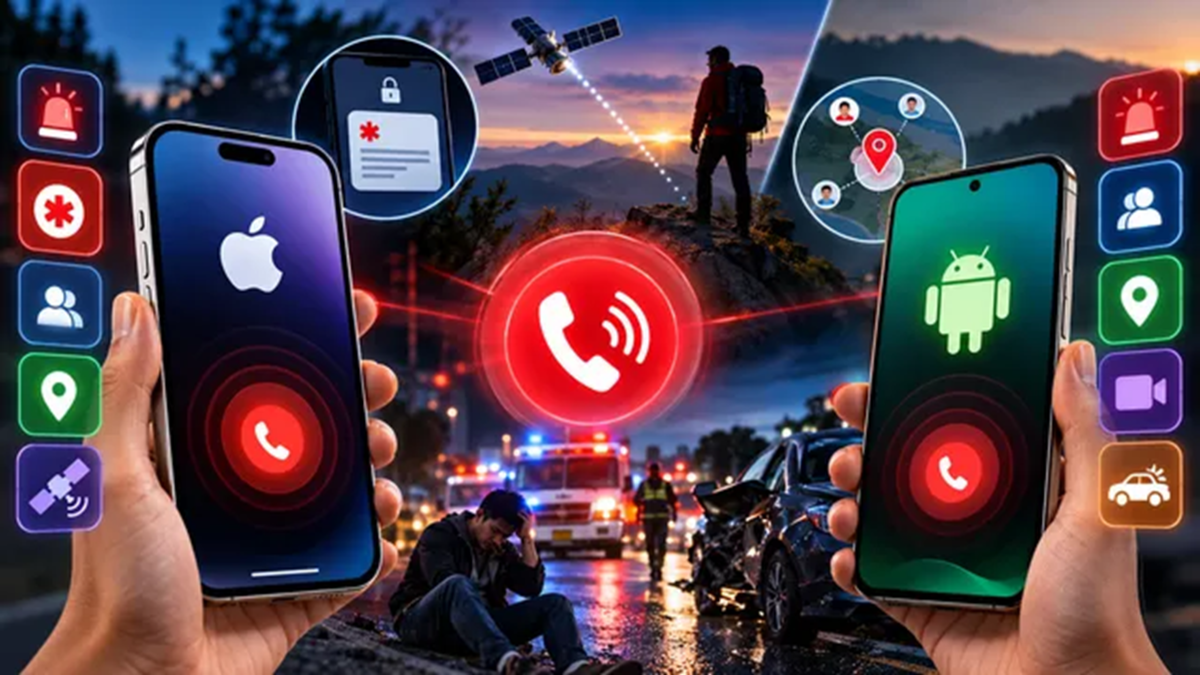
Knowing how to set up Emergency SOS on your smartphone is far more important than almost any other setting on your device. Emergency SOS is a built-in safety feature available on both iPhone and Android that allows you to call for help by pressing specific buttons, even when the screen is locked. It automatically shares your live location and alerts your pre-designated emergency contacts. The catch is that this feature doesn't work right out of the box; to use it, you must first add emergency contacts, configure how the feature is triggered, and enable location sharing. Configuring it on either platform takes less than 10 minutes, but skipping this step could mean losing precious seconds during an emergency. Here, we outline the complete process for both platforms and explain the capabilities and limitations of each version.
What is Emergency SOS and how does it work?
Emergency SOS is designed for situations where you cannot easily unlock your phone to call for help—such as after a fall, a car crash, or when you feel unsafe. When triggered, it calls local emergency services, displays your Medical ID information for first responders, and—after the call ends—sends your live location to your chosen emergency contacts, followed by continuous location updates for a period of time. On newer iPhones and certain flagship Android phones, it can even function without a cellular signal by utilizing satellite connectivity or crash/fall detection sensors.
How do I set up Emergency SOS on an iPhone?
Setting up Emergency SOS on an iPhone involves two steps: enabling the trigger method and adding your Medical ID and emergency contacts via the Health app.
Follow these steps:
Open Settings and tap on Emergency SOS.
Turn on "Call with Hold and Release." Press and hold the side button along with either volume button, wait for the countdown, then release the buttons to auto-dial emergency services.
Enable "Call with 5 Presses" as a backup trigger. Rapidly press the side button five times to bring up the emergency slider.
If your iPhone supports it, enable "Call After Severe Crash," so the phone can automatically call for help during a serious car crash, even if you are unable to respond.
Open the Health app, tap your profile picture, then tap "Medical ID" and select "Edit."
Add your medical conditions, allergies, medications, and blood group, and enable "Show When Locked" so first responders can view this information from your lock screen without unlocking the phone.
Scroll to "Emergency Contacts," tap "Add Emergency Contact," and select the people who should be alerted.
Go back to Settings > Emergency SOS and enable "Share During Emergency Call" so your selected contacts automatically receive your location once the SOS call ends.
The iPhone 14 series adds "Emergency SOS via satellite" functionality, allowing you to message emergency services even without cellular or Wi-Fi signals. This is a vital lifeline while hiking, driving in remote areas, or traveling abroad.
How to set up Emergency SOS on Android?
Setting up Emergency SOS on Android works similarly, though menu names may vary slightly depending on the manufacturer (Samsung, Pixel, etc.).
Open Settings and go to "Safety & emergency" (on some devices, it is labeled "Safety and emergency," or in older Android versions, it can be found under "Advanced settings").
Tap "Emergency contacts" and then "Add contact" to select the people who should be notified in an emergency. You must save at least one contact for this feature to work. Add your medical information in that same 'Safety & Emergency' menu, and if the option is available...
Disclaimer: This content has been sourced and edited from Dainik Jagran. While we have made modifications for clarity and presentation, the original content belongs to its respective authors and website. We do not claim ownership of the content.
