
Your Samsung Phone Will Restart Automatically—No Need to Do It Manually Every Time; Here’s How
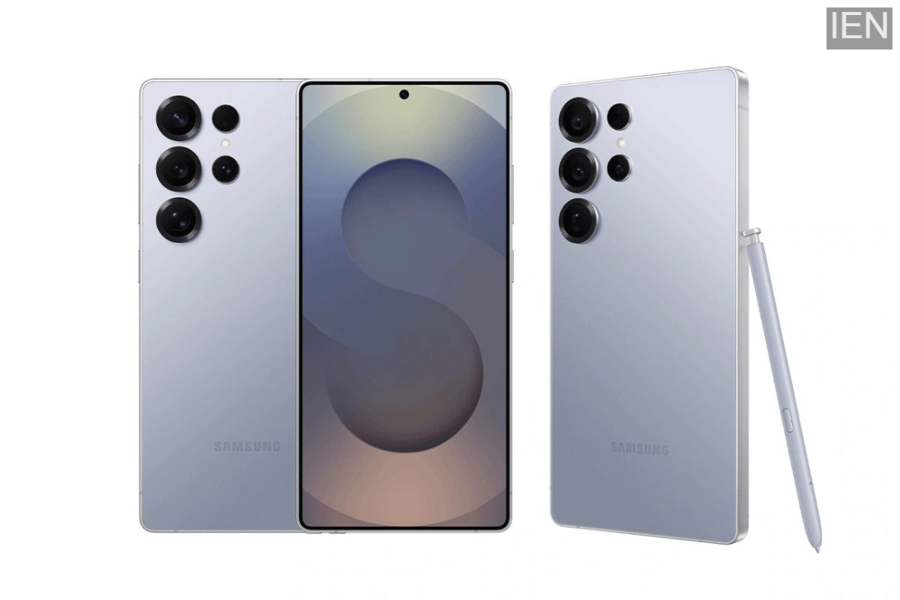
If your Samsung phone has started slowing down, a simple setting can resolve this issue. The "Auto Restart" feature automatically refreshes your phone at a scheduled time. This helps minimize problems such as lagging, freezing, and unresponsiveness. Let's explore the step-by-step process for enabling this feature.
It is completely normal for smartphones to slow down over time. Gradually, apps running in the background, accumulated cache data, and increasing system processes begin to impact the phone's overall performance. Consequently, even flagship devices can occasionally start to lag or freeze. While clearing storage space and uninstalling unnecessary apps can be helpful, performing these tasks manually every time is not always convenient.
The good news is that regularly restarting your phone offers an incredibly simple and effective solution to this problem. Specifically on Samsung Galaxy smartphones, you can automate this process to ensure your device continues to run smoothly at all times.
What Are the Benefits of Restarting Your Phone?
Regularly restarting your phone clears out temporary files, refreshes the RAM, and terminates unnecessary background processes. In essence, this gives your smartphone a fresh start, allowing it to operate faster and more smoothly once again.
What is the "Auto Optimisation" Feature on Samsung Phones?
Samsung has made this task even easier. Galaxy smartphones come equipped with a feature called "Auto Optimisation." This feature automatically restarts your phone at periodic intervals. The best part is that these restarts typically occur during times when you are not actively using your device.
This ensures that your smartphone regularly refreshes itself, thereby maintaining smooth performance. If you are a heavy user who relies on your phone throughout the day, this feature serves as an excellent safeguard against issues such as freezing and lagging.
How to Set Up Automatic Restart on Your Samsung Phone?
First, open the Settings app on your Samsung Galaxy phone.
Now, scroll down a little and tap on "Battery and Device Care."
Next, navigate to the "Additional Care" section.
Here, you will find the "Auto Optimisation" option; tap on it.
Now, toggle on "Auto Restart."
If you wish, you can also set the specific day and time for the phone to restart, according to your convenience.
These Conditions Must Be Met First
According to Samsung, a Galaxy smartphone will only restart automatically when certain essential conditions are met. These include the phone not being in use, the screen being turned off, the battery level being above 30%, and the SIM lock being disabled. In other words, the company has designed this feature in such a way that it does not cause any interruption to your important tasks or daily usage.
