
Your phone keeps track of every location you visit: How to disable tracking on Android and iPhone?
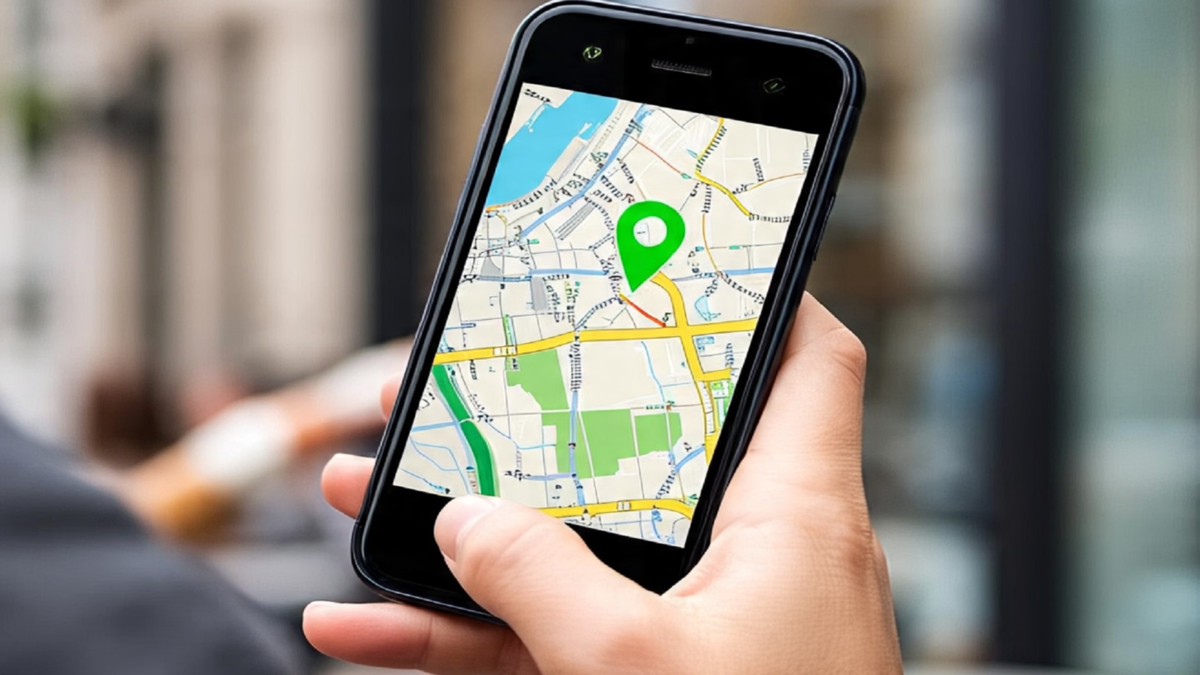
Today, smartphones have become an essential part of our lives. We use them for shopping, navigating, ordering food, and accessing social media. In the process, many apps request access to our location. Often, users grant this permission without much thought. This can reveal to apps where we live, where we work, and the places we frequently visit. Fortunately, both Android and iPhone offer settings that allow you to control location sharing.
How iPhone users can disable location access
If you use an iPhone, go to 'Settings'. Tap on 'Privacy & Security' and then open 'Location Services'. You will see a list of all the apps that have been granted location access. Tap on the specific app for which you want to change the location access settings. You will see options such as 'Never', 'Ask Next Time Or When I Share', 'While Using the App', and 'Always'. For most apps, it is best to select 'While Using the App', which ensures the app can only access your location while it is actively in use. For apps that do not require your location, you can select 'Never'.
On the same screen, you will also find an option for 'Precise Location'. Disabling this means the app will only receive an approximate location rather than your exact coordinates. Additionally, under 'Location Services', you can navigate to 'System Services' and disable 'Significant Locations'. This feature keeps a record of the places you visit frequently.
How to change settings on Android phones
Android users can go to 'Settings', select 'Location', and then open 'App Location Permissions' or 'App Permissions' (the exact name may vary depending on the device). You will see a list of apps that have been granted location access. Tap on an app to choose between 'Allow only while using the app', 'Ask every time', or 'Don't allow'. You also have the option to disable 'Use Precise Location', which restricts the app to receiving only an approximate location. You can turn off the 'Location' tile in your Quick Settings to temporarily disable location access for all apps.
Simply revoking app permissions is not enough.
If you use Google Maps or other Google services, check your Google Account settings as well. Additionally, ensure you take the following steps:
Turn off Google Timeline: Open Google Maps, tap your profile photo, go to 'Timeline' settings, and disable it.
Check 'Web & App Activity': Go to the 'Data & Privacy' section of your Google Account and review your 'Web & App Activity' settings.
Keep an eye on your location data: If 'Web & App Activity' is enabled, information related to your general location and IP address may be saved while you use search or various apps.
Essential steps for privacy: To prevent location-related information from being saved, adjust these settings according to your preferences.
What are the downsides of disabling location access?
Restricting location permissions may affect certain features. For instance, it could hinder accurate navigation, the ability to identify your location for services like cab bookings or food deliveries, and the receipt of local weather alerts. Therefore, instead of completely disabling location access for every app, grant permissions only as needed. Periodically review the permissions granted to social media, shopping, and gaming apps. It is also advisable to remove any apps from your phone that you no longer use.
Disclaimer: This content has been sourced and edited from News18 Hindi. While we have made modifications for clarity and presentation, the original content belongs to its respective authors and website. We do not claim ownership of the content.
