
Your Google Account will remain safe even if your password leaks! Here’s how to enable Two-Factor Authentication..
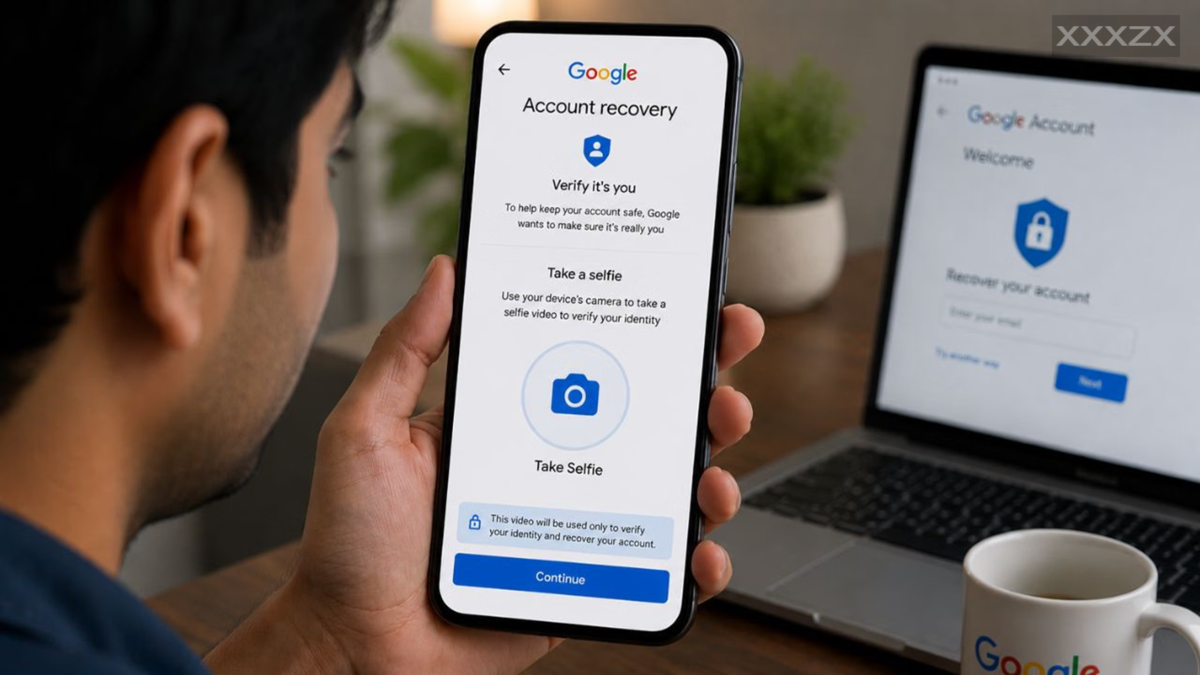
Google accounts are often linked to multiple Google platforms, allowing you to easily use various company services with a single account. For instance, you can log in to services like Google Docs, Google Drive, and Gmail using the same Google account and password. Consequently, if your Google account is hacked, not only Gmail but also your important data linked to Google Drive, Photos, Docs, and even the Play Store could be at risk—especially if payment details are saved on your account. Two-Factor Authentication (2FA) can help secure your Google account. Here is a simple, step-by-step guide to enabling it.
Benefits of Enabling Two-Factor Authentication on Your Google Account
Two-Factor Authentication adds an extra layer of security to protect your account from hackers and unauthorized access. Even if someone discovers, leaks, or steals your Google account password, they will not be able to log in directly; they would still need to complete a second verification step to gain access. This makes unauthorized logins difficult and reduces the risk of your account being compromised.
Since your Google account stores important information and personal data (such as your name, address, and financial details), Two-Factor Authentication helps prevent this data from being stolen. Furthermore, if someone with malicious intent attempts to coerce you into revealing your password to commit fraud via your Google account, the two-step verification process can prevent them from successfully hacking your account.
How to Enable Two-Factor Authentication on Your Google Account
First, open Google Chrome or another browser on your PC or smartphone.
Tap on your profile photo visible at the top-left corner of the screen.
Next, click on the "Manage your Google Account" option. You can also click here to go directly to the Google Account page.
Now, tap on the 'Security & sign-in' option in the menu on the left.
Next, go to the 'How you sign in to Google' section and tap on '2-Step Verification'.
Enter your Google Account password. A new page will open where you will see the 'Second steps' option.
Here, you can set up a second verification step for your Google Account by choosing from options such as Passkeys and security keys, Google prompt, Authenticator, Phone number, or Backup codes.
Disclaimer: This content has been sourced and edited from TV9. While we have made modifications for clarity and presentation, the original content belongs to its respective authors and website. We do not claim ownership of the content.
