
Wi-Fi Tips: If your phone has slow Wi-Fi, change a 'secret setting', know here..
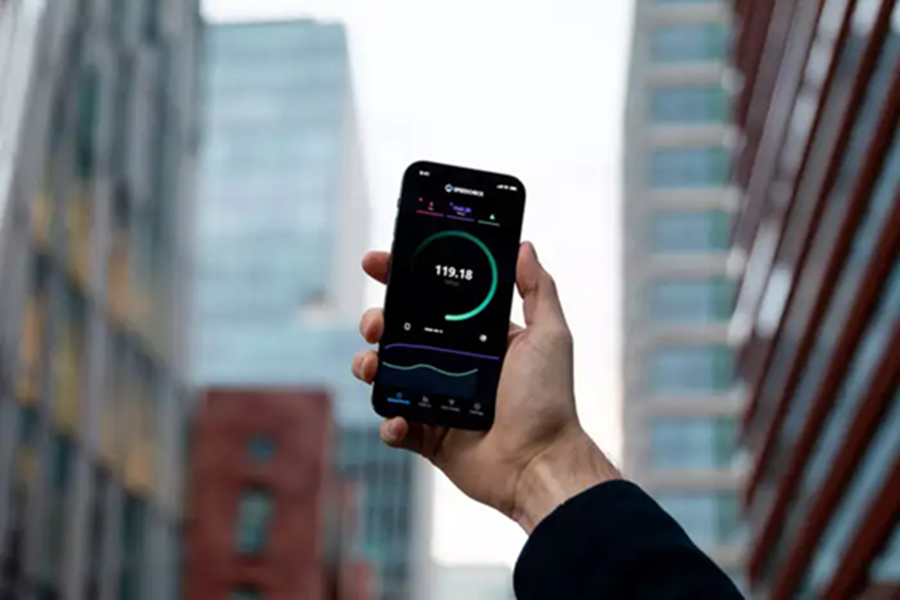
Despite being surrounded by technology, we often miss the little things. The same thing happened to me. Even though I was right in front of my Wi-Fi router, my phone's internet speed was incredibly slow. After trying almost everything, I discovered a hidden setting on my phone that made my internet speed rocket-fast. Turning it on not only improved the signal but also made a huge difference in browsing speed. If you're also facing this problem, let me share the secret of that setting with you today.
Let me tell you, this special setting isn't easily found on your phone. First, you'll need to enable a hidden menu called Developer Options. Let's discuss this in detail.
Why does Wi-Fi speed slow down on Android phones?
Every phone is designed to strike a balance between performance and battery life. No phone can deliver peak performance and drain its battery in just a few hours. That's why Google added the Wi-Fi Scan Throttling feature to Android. This feature prevents the phone from constantly searching for Wi-Fi networks. However, this sometimes results in slow network speeds even when you're close to the router. The problem isn't with the bandwidth, but rather with Android slowing down the network response to save battery. In simple terms, the problem isn't with your network, but with the Android system, which is preventing it from consuming too much battery.
How to prevent your phone from slowing down Wi-Fi?
If you're willing to sacrifice a little battery life for faster internet, you can enable a hidden setting on your phone. This setting won't be found in the regular Settings menu. You'll need to enable the Developer Options settings on your phone. This contains settings that are not meant for the average user but for developers.
How to enable the Developer Options menu on your phone
To do this, first:
Open your phone's Settings app, then scroll down to About Phone. (Note that this may vary slightly depending on your phone's brand, but generally, you need to find the Software Information option.)
Once you find this option, tap on it and then quickly tap the Build Number entry 7 times in a row.
As you tap, Android will show a countdown indicating that you are getting closer to "developer" status.
After the final tap, you will be prompted to enter your device's PIN.
After confirming the PIN, a small notification will appear indicating that Developer Options are now unlocked.
Now, understand how to disable Wi-Fi Scan Throttling
After unlocking Developer Options, go back to the main Settings screen. You will see a new option called Developer Options at the bottom of System Settings. Open it.
Inside, keep scrolling down until you find the Networking section. Scroll further down, and among many complex settings, you will find a toggle called "Wi-Fi scan throttling." This is usually enabled by default.
Simply turn this switch off, and this will remove the Android limitation that prevents apps from scanning for nearby networks. This will allow your phone to detect nearby networks faster. However, this may consume slightly more battery power.
Disclaimer: This content has been sourced and edited from Navbharat Times. While we have made modifications for clarity and presentation, the original content belongs to its respective authors and website. We do not claim ownership of the content.
