
Who is using your Wi-Fi? Find out in 5 minutes.
Wi-Fi Hack: In such a scenario, an unauthorized person could connect to your network to monitor your online activity or exploit security vulnerabilities.
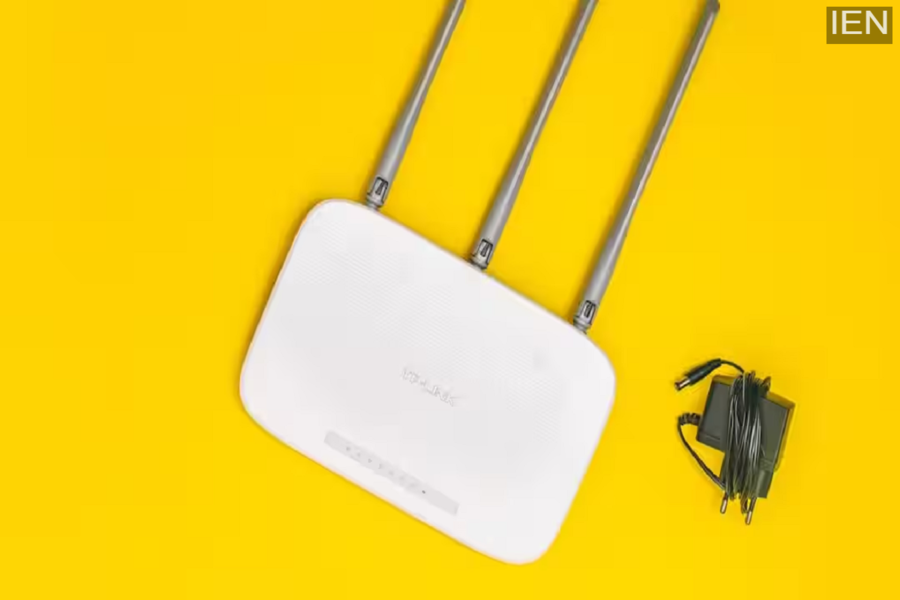
Wi-Fi Hack: Nowadays, home Wi-Fi has become an integral part of our daily lives. Everything—from online classes and office work to video streaming and smart devices—relies on the internet. But have you ever wondered if a stranger might be using your Wi-Fi network without you even realizing it?
Weak passwords, outdated router security settings, or sharing your Wi-Fi password with others can leave your network exposed to outsiders. This affects not only your internet speed but can also put your personal information at risk.
Signs that there is an intruder on your Wi-Fi
If your internet has suddenly slowed down, videos are buffering repeatedly, or your data is running out faster than usual, it could indicate that someone else is using your network.
In such a situation, an unauthorized person could connect to your network to monitor your online activity or exploit security vulnerabilities. According to cybersecurity experts, vulnerabilities in routers and smart IoT devices are on the rise, making the threat even more serious.
How to find out who is connected to your Wi-Fi?
Follow the simple steps below to see which devices are connected to your Wi-Fi network.
Log in to the router's admin panel.
Open a browser on any connected device and enter the router's IP address in the address bar. Common addresses include 192.168.1.1 or 10.0.0.1.
Enter the admin username and password.
Use the login details found on the sticker on the back of the router or those provided by your internet service provider. Check the list of connected devices.
Look for these options after logging in:
Connected Devices
Attached Devices
DHCP Client List
Here, you will see a list of all devices currently connected to your Wi-Fi.
Identify which devices are yours.
Compare the devices on the list with your mobile phone, laptop, TV, smart speaker, or other gadgets. Spotting an unknown device could be a cause for concern.
Some devices may appear under the manufacturer's name:
Espressif: Usually smart home devices like smart plugs.
Murata: Gaming consoles or other electronic devices.
If this process seems difficult, you can easily get information about connected devices using network scanning apps.
What to do immediately if you spot an unknown device?
If you see a suspicious or unknown device, change your Wi-Fi password immediately. Also, go to your router's security settings and enable WPA3 encryption. This is considered a modern and highly secure wireless standard that helps prevent unauthorized access.
Additionally, if you have ever shared your Wi-Fi password with guests or neighbors, change it right away. Old passwords remain valid until you change them.
A setting that can significantly boost security
Simply changing the Wi-Fi password isn't enough. Make sure to enable Two-Factor Authentication (2FA) on your important online accounts. This ensures that even if someone discovers your password, they won't be able to easily log into your account.
Also, keep your router's firmware updated regularly. Many cyberattacks succeed simply because users continue to rely on outdated and insecure software.
Treat your Wi-Fi password like a PIN.
Most people set their Wi-Fi password once and don't change it for years. This can prove to be a major mistake. It is best to change your password every few months, avoid sharing it unnecessarily with anyone, and periodically check the devices connected to the network.
