
Troubled by your phone's storage filling up? Here’s how to stop the auto-download of photos and videos on WhatsApp..
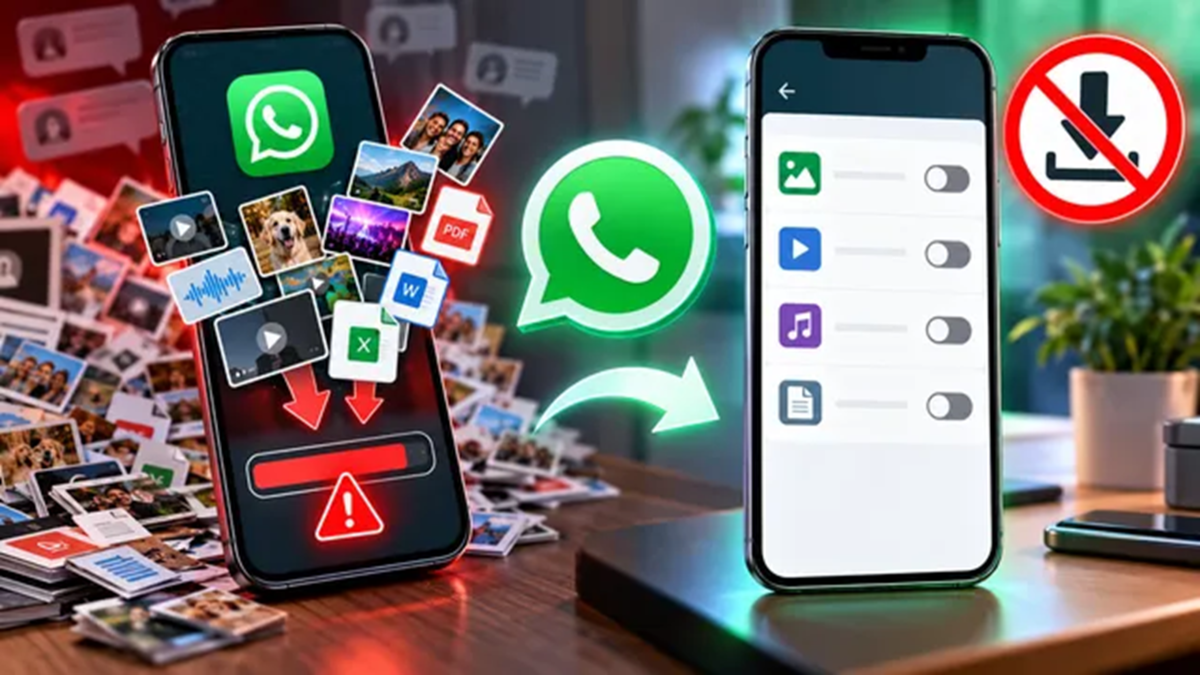
WhatsApp offers a range of excellent and useful features to its users. However, if you aren't careful, these features can become a nuisance rather than a help. For instance, WhatsApp includes an auto-download feature for photos, videos, audio files, and documents. If you are part of multiple groups or receive numerous files in personal chats daily, this auto-download feature can quickly fill up your device's storage. Consequently, you are forced to delete unwanted files one by one after they have been automatically downloaded. Fortunately, you can choose to disable auto-downloading on WhatsApp.
If you are wondering how to stop WhatsApp from automatically downloading photos, videos, audio files, and documents, we have prepared a step-by-step guide to assist you.
How to stop photos and videos from auto-downloading across all chats and groups?
Open WhatsApp on your device.
Go to your profile by tapping on your profile picture located in the bottom-right corner of the screen.
Scroll down within the WhatsApp settings menu to manage media file auto-downloads.
Tap on the "Storage and data" option to adjust these settings.
Scroll to the bottom of the screen.
Here, under the "Media auto-download" section, you can disable auto-downloading for various file types.
Tap on "Photos" to prevent WhatsApp from automatically downloading images.
If you wish to turn off auto-downloading completely, select the "Never" option.
Alternatively, you can tap on "Wi-Fi" to allow auto-downloading of photos only when connected to a Wi-Fi network.
You can follow these same steps to disable the auto-download feature for audio files, videos, and documents based on your preferences and needs. Additionally, you can reset auto-download settings by tapping the button at the bottom of the screen.
How do you stop photos from a specific chat or group from downloading automatically?
Open WhatsApp on your device.
Open the group chat or personal chat for which you want to prevent photos from automatically saving to your phone.
Next, tap on the contact or group name to open their profile.
Scroll down until you see the 'Save to Photos' menu.
Tap on the 'Save to Photos' button and set the option to 'Default (Off)' or 'Never'.
Disclaimer: This content has been sourced and edited from Dainik Jagran. While we have made modifications for clarity and presentation, the original content belongs to its respective authors and website. We do not claim ownership of the content.
