
Tips: How to make audio and video calls on WhatsApp Web? Follow this easy method to make calls from your laptop..
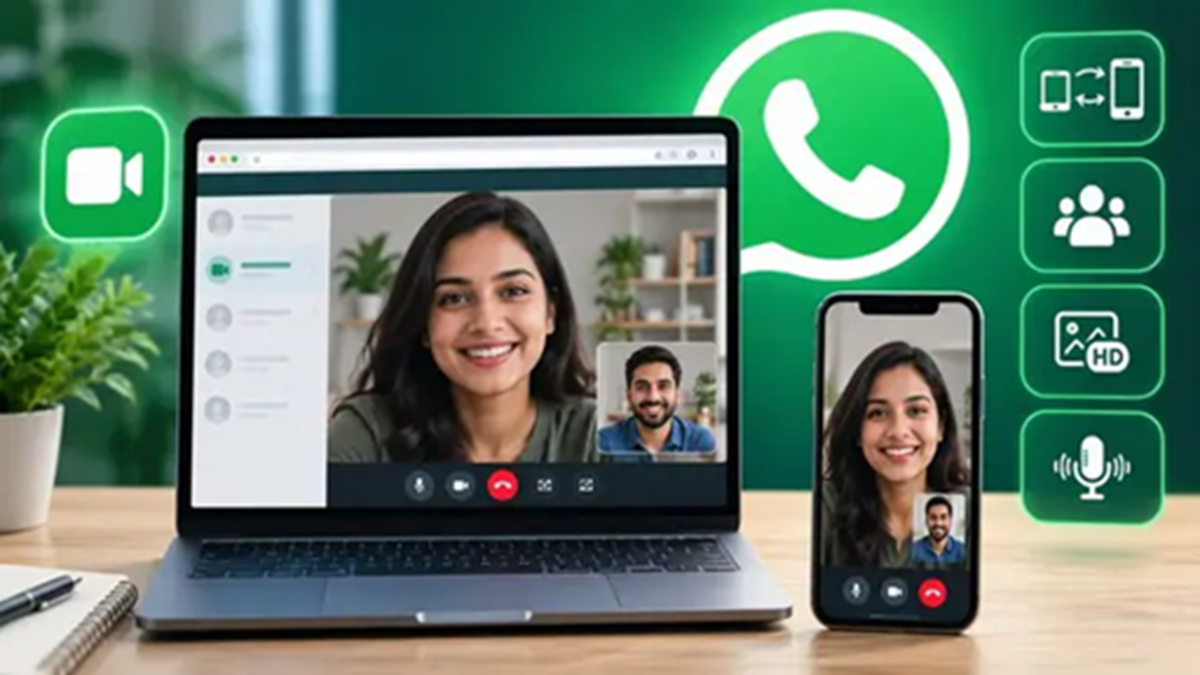
Millions of WhatsApp Web users can now make audio and video calls directly from their web browsers without needing to download a mobile or desktop app. On July 28, Meta—WhatsApp's parent company—made a major announcement officially launching the audio and video calling feature for WhatsApp Web. Let’s take a look at the highlights of this new feature and how you can use it.
**Key features accompanying video calling on the web version**
Along with rolling out the audio-video calling feature on WhatsApp Web, the company has introduced several new capabilities:
**Encryption:** All audio and video calls made via WhatsApp Web will be fully end-to-end encrypted. This ensures your conversations remain secure, preventing any third party from listening in.
**Call Transfer:** During a call on WhatsApp Web, you can transfer the call in real-time to your mobile, tablet, or desktop, making it easy to switch devices mid-call.
**Waiting Room:** You can now share links for group calls that require your approval for participants to join, giving you better privacy control over group calls.
**Quick HD:** Upon starting a video call, the video will appear in High Definition (HD) for the first few seconds.
**Noise Suppression:** WhatsApp will now automatically filter out background noise during video calls, enhancing your overall calling experience.
**What do you need to make calls via WhatsApp Web?**
A functional microphone and webcam on your computer or laptop.
An active, high-speed internet connection.
Permission for the web browser to access your microphone and camera.
**How to make audio or video calls on WhatsApp Web?**
If this feature is available on your WhatsApp account, making a call is very simple.
Step 1: Open web.whatsapp.com in any browser on your computer.
Step 2: Log in to your WhatsApp account by scanning the QR code. Step 3: Open the chat with the person you want to speak to.
Step 4: New icons for Voice Call and Video Call will now appear in the top-right corner of the chat window.
Step 5: Click the phone icon for an audio call and the camera icon for a video call.
Step 6: When making a call for the first time, the browser will ask for permission to access the microphone and camera. Click 'Allow'.
Step 7: The conversation will begin as soon as the other person answers the call.
Disclaimer: This content has been sourced and edited from Amar Ujala. While we have made modifications for clarity and presentation, the original content belongs to its respective authors and website. We do not claim ownership of the content.
