
Tips: Do you know these five ways to take screenshots on laptops and PCs? Discover the easiest keyboard shortcuts..
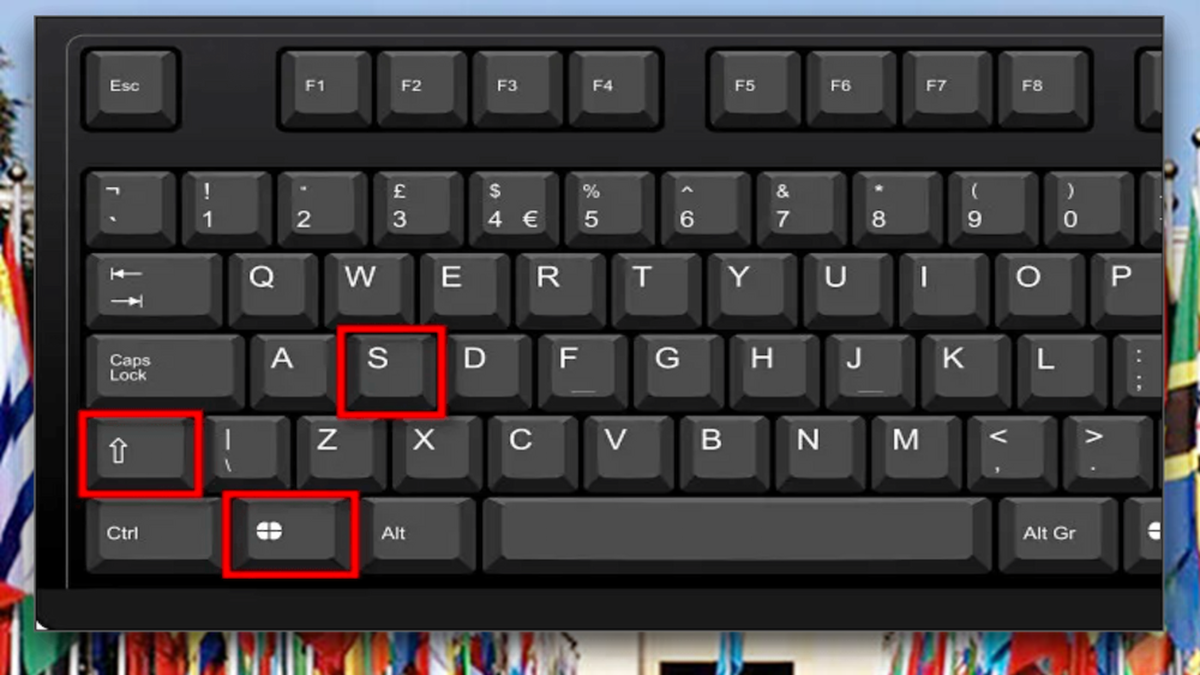
Taking a screenshot while working on a laptop or PC often becomes necessary. Whether you need to save proof of an online payment, preserve an important document, or share an error message visible on your screen with someone else, screenshots come in handy. While most people simply use the 'Print Screen' button, Windows laptops offer five excellent and easy ways to take screenshots, auto-save them, and capture specific areas of the screen.
**Full-screen screenshot using PrtScn**
To capture the entire screen, press the 'PrtScn' (Print Screen) button on your keyboard. This copies the full screen to the clipboard. You can then paste the screenshot into applications like Paint, Word, WhatsApp Web, or others by pressing 'Ctrl + V'. Depending on the keyboard, this button might be labeled as 'PrtSc', 'PrtScn', or 'Print Screen'. On some laptops, you may need to press 'Fn + PrtScn' to use this function.
**Save screenshots directly**
If you prefer to save the screenshot directly to your computer instead of repeatedly copying and pasting it, press the 'Windows' key + 'PrtScn'. This captures the entire screen and automatically saves it as a file in the 'Screenshots' folder within your 'Pictures' library. Microsoft designates the 'Windows' + 'PrtScn' combination as the shortcut for saving full-screen captures directly as files. This method is particularly useful when you need to take multiple screenshots in quick succession.
**Screenshot of a specific screen area**
If you do not wish to capture the entire screen but only a specific section, press 'Windows' + 'Shift' + 'S'. The screen will dim slightly, and you will be given the option to select the area you want to capture. This tool offers various modes, such as Rectangular Snip, Freeform Snip, Window Snip, and Full-screen Snip. You can use your mouse to select the specific area of the screen you wish to capture. Once captured, the image is copied to the clipboard and can be pasted anywhere using the `Ctrl + V` keys. If needed, you can also edit, crop, or save the image within the Snipping Tool.
**Screenshot of the Active Window Only**
If you have multiple windows open on your laptop or PC but only want to capture a specific one, press `Alt + PrtScn`.
This captures only the window that is currently active. The screenshot is then copied to the clipboard, allowing you to paste it into Paint, Word, or any other application using `Ctrl + V`.
This method is particularly useful when you want to share information from a specific app or window without revealing your entire desktop screen.
**Taking Screenshots with the Snipping Tool**
The Snipping Tool, built into Windows, offers an easy way to take screenshots. You can open it by searching for it in the Start menu. It allows you to capture a specific section of the screen, a particular window, or the entire screen.
After capturing the screenshot, you have access to tools for cropping, highlighting, drawing, and saving. This means you can edit the relevant part of the capture and save or share it immediately.
**Which Method Should You Use?**
If you need to quickly copy the entire screen, use `PrtScn`; to save the screenshot directly, use `Windows + PrtScn`; to capture a specific area, use `Windows + Shift + S`; and to capture only the active window, `Alt + PrtScn` is the easiest option. In short, you don't have to rely solely on the `PrtScn` button to take screenshots; these built-in Windows shortcuts and the Snipping Tool can make the process much faster and easier.
Disclaimer: This content has been sourced and edited from Amar Ujala. While we have made modifications for clarity and presentation, the original content belongs to its respective authors and website. We do not claim ownership of the content.
