
Tech Tips: What is Android Auto and how does the system work? know..
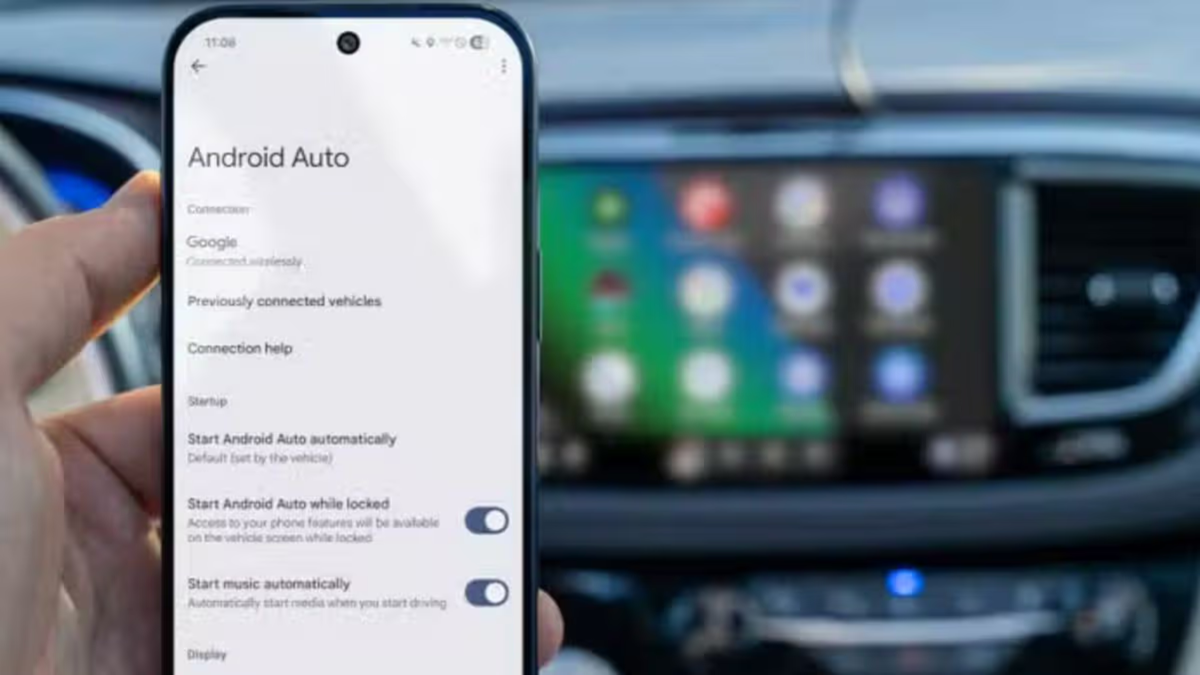
Using a phone or frequently glancing at the infotainment screen while driving can be distracting. To address this, Android Auto safely brings various smartphone features directly to your car's display. With the addition of Google's new AI assistant, Gemini, this experience has become even more seamless and natural. Users can now accomplish tasks quickly using conversational language, without needing to memorize specific commands. Let’s find out how.
What is Android Auto and how does it work?
Android Auto is a Google system that allows you to use key features of your Android phone on your car's infotainment display. It enables drivers to handle tasks like navigation, calls, messaging, and music playback using the car's screen or voice commands, thereby reducing the need to pick up the phone for every action.
To use Android Auto, both your phone and car must be compatible with the system. It can be connected via a USB cable or a wireless connection (which typically requires Bluetooth and Wi-Fi). Once connected, the Android Auto interface appears on the car's screen, allowing you to access compatible apps.
The system aims to make phone features more conveniently accessible while driving. However, it remains essential to keep your attention on the road while using it.
How to use voice commands with Gemini and "Hey Google"?
With Gemini integrated into Android Auto, you can perform various tasks using voice commands. Once the phone is connected to the car and the necessary settings are enabled, the driver can simply say "Hey Google" and state their request. Tasks such as asking for directions, making calls, or sending messages can all be handled using your voice. To use this, you may need to set Gemini as your phone's digital assistant. Both your phone and car must be compatible with Android Auto. Additionally, the "Hey Google" and "Voice Match" settings must be enabled.
Once set up, there is no need to memorize specific commands for every task; users can simply speak naturally, as if in a normal conversation. Gemini understands the context of the conversation and can assist with follow-up questions.
For instance, if you ask for directions to a location, you can subsequently ask about the availability of charging stations along the route. Based on available features and app support, you can retrieve relevant information and start navigation.
How to use Android Auto via steering wheel buttons?
Some cars feature a dedicated button on the steering wheel for voice commands. This allows the driver to activate the voice assistant without saying "Hey Google." You may need to press and hold the voice command button until you receive a signal that Gemini or the voice assistant has activated. Afterward, the driver can state their request. This method enables tasks such as finding directions, calling contacts, sending messages, changing music, or asking questions, thereby reducing the need to repeatedly touch the phone or car screen.
If voice commands aren't working, check the car's volume, the microphone, and the voice button on the steering wheel. In some vehicles, you may need to press and hold the button rather than just pressing it once.
How to control navigation using voice commands?
Android Auto is also excellent for navigation. It allows drivers to find routes and start turn-by-turn directions using voice commands—simply by speaking—within Google Maps or other compatible navigation apps. To use this, you simply need to speak the name of an address, a shop, or another location. You can also use voice commands to ask for traffic updates, information about nearby places, or other relevant details.
If you need to make a stop during your journey, you can use voice commands to add a new stop. The system can also help find an alternative route if necessary. Additionally, you can use your voice to report road incidents—such as roadworks or stalled vehicles—in Google Maps.
The availability of these features may depend on the app, language, region, and system support. The advantage of using voice commands for navigation is that the driver does not need to repeatedly tap the screen to change the route or search for a new location.
What should you keep in mind while using Android Auto?
Android Auto is designed to make using your phone easier while driving, but it cannot completely eliminate the risk of distraction. Voice commands may not always yield the desired result, and some features might require selecting options on the screen.
Therefore, it is advisable to set up navigation, music, and necessary connections before starting your journey. If a task requires you to look at the screen or touch your phone, pull over to a safe location first.
Disclaimer: This content has been sourced and edited from Amar Ujala. While we modified it for clarity and presentation, the original content belongs to its respective authors and website. We do not claim ownership of the content.
