
Tech Tips: Is Your Laptop Overheating Frequently? These Mistakes Can Degrade Performance—Here's How to Extend Your Device's Lifespan..
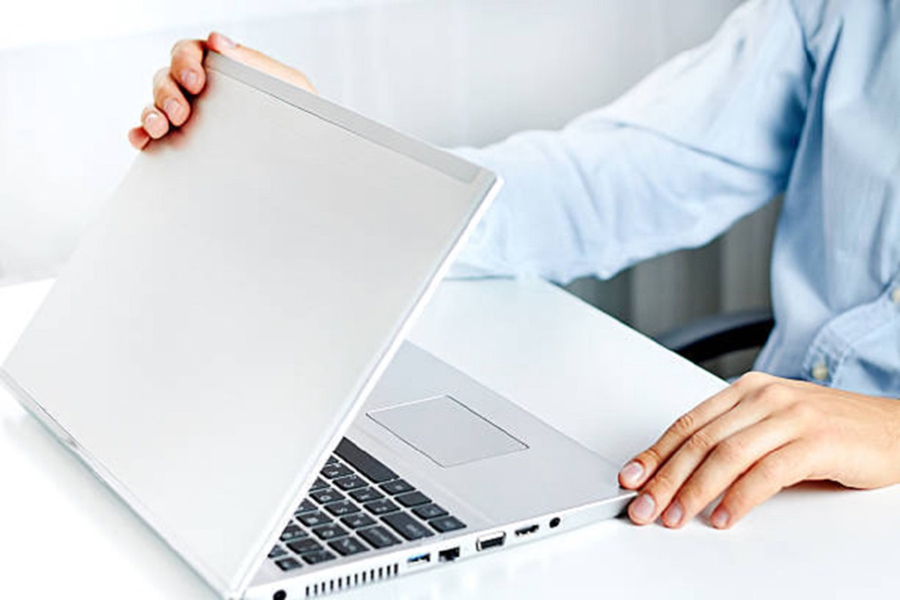
Laptop Overheating Solution: Inside a laptop, components such as the processor, graphics chip, and battery are constantly active, generating heat in the process. Typically, the internal fan and air vents work to expel this heat; however, if airflow becomes obstructed or the system is placed under excessive load, the internal temperature can rise rapidly. Eventually, this can lead to system failure or a complete shutdown. Dust accumulation, running resource-intensive software, prolonged gaming sessions, and using the laptop on unsuitable surfaces are considered the most common causes of overheating.
**Using a Laptop on a Bed or Pillow**
Many people place their laptops on a bed, pillow, or blanket to work in comfort. However, this blocks the air vents located on the underside of the device, preventing hot air from escaping. Consequently, the system's internal temperature begins to rise rapidly. Experts therefore recommend that laptops should always be used on a hard, flat surface.
**Essential for Gaming and Editing**
If you play high-graphics games, perform video editing, or use resource-intensive software, a cooling pad can prove to be extremely beneficial. A cooling pad works by directing a stream of cool air from beneath the laptop, which helps regulate the temperature and reduces the strain on the system.
**Why is Cleaning the Fan and Air Vents Important?**
Over time, dust tends to accumulate within a laptop's fan and air vents. This impedes airflow and prevents the cooling system from functioning effectively. Technical experts recommend cleaning the fan and air vents every 2 to 3 months to ensure the laptop's cooling efficiency remains optimal.
**Running Too Many Apps Simultaneously Can Be Harmful**
Many users work with dozens of browser tabs, software applications, and background processes open simultaneously. This places excessive strain on the processor and RAM, causing the system to overheat. Therefore, you should close any apps or tabs that are not currently in use. This not only helps reduce heat generation but can also lead to improved system performance.
**How Does Power Saver Mode Help?** Windows laptops feature "Power Saver" and "Balanced" modes, which help maintain a balance between battery and processor usage. This ensures the system does not consume excessive power, thereby keeping temperatures within a normal range. If the laptop is being used for general tasks, the Balanced mode is considered the optimal choice.
When is Servicing Required?
If your laptop overheats significantly even during light usage, shuts down frequently, or experiences a sudden drop in performance, getting it serviced immediately would be a prudent decision.
This Charging Mistake Can Prove Costly
Many users continue to engage in hours of gaming or perform intensive tasks while their laptops are plugged in and charging. This places increased strain on both the battery and the processor, leading to excessive heat generation. According to experts, it is advisable—whenever possible—to keep the battery charge level between 40% and 80%. Additionally, in older laptops, dried-out thermal paste can contribute to increased overheating; therefore, periodic inspection of this component is essential.
Disclaimer: This content has been sourced and edited from Amar Ujala. While we have made modifications for clarity and presentation, the original content belongs to its respective authors and website. We do not claim ownership of the content.
