
Smartphone Tips: Two settings drain your phone's battery day and night; turning them off will extend its battery life..
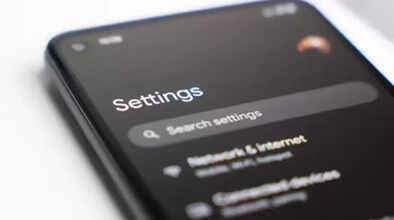
How to Increase Smartphone Battery Life: Everyone wants their smartphone to last all day. But sometimes, for various reasons, the phone's battery starts draining quickly. One such reason is background scanning. If your smartphone is scanning for Wi-Fi networks and Bluetooth devices in the background, it will drain the battery quickly. You should turn this task off. Both options can be turned off in the phone's settings. Here's how to do it.
How Scanning Drains Battery
According to a report by MakeUseOf (Ref.), the phone's Wi-Fi, Bluetooth, and other sensors keep running in the background. They constantly search for nearby networks, devices, or signals. When this happens, the phone's battery is used, and sometimes data is also consumed, even when the screen is off. The scanning process becomes even more intense in areas with weak network coverage. This leads to faster battery drain. Even if you have turned off Wi-Fi or Bluetooth, the phone continues to scan. These settings are enabled by default to ensure accurate location tracking and quick device connectivity.
What is Deep Sleep Mode?
Deep Sleep mode allows the phone to rest when you are not using it. Apps that you haven't opened are completely shut down. The processor reduces its power consumption. Background activities like data checks or syncing are minimized. This saves battery, especially when the screen is off or the phone is idle. If scanning remains enabled, the phone doesn't enter deep sleep mode, and the battery continues to drain unnecessarily.
How to Turn Off These Settings on Android Phones?
It's easy on Android phones. Open the Settings app. Tap on Location. Then go to Location Services. Tap on Wi-Fi Scanning and turn it off. Then go to Bluetooth Scanning and turn that off as well. Turning these off allows the phone to enter deep sleep mode more effectively. Background activity is reduced, and battery life improves immediately. The menu might be slightly different on different phones, but you can find the option by searching for Location Services in the settings.
How to turn off this setting on an iPhone?
It's easy on an iPhone, too. Open the Settings app. Go to Privacy and Security. Tap Location Services. Scroll down and select System Services. Turn off Networking and Wireless. A pop-up will appear; tap Turn Off. This also saves battery. There will be no problem connecting to Wi-Fi and Bluetooth.
Disclaimer: This content has been sourced and edited from Navbharat Times. While we have made modifications for clarity and presentation, the original content belongs to its respective authors and website. We do not claim ownership of the content.
