
Smartphone Tips: How To Fix Smartphone Microphone Problems If It Doesn't Work Properly..
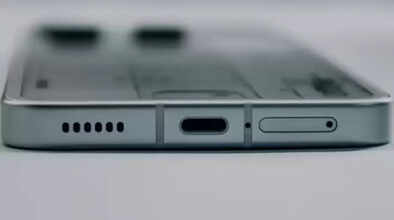
How to Fix Smartphone Microphone Issues: Companies include microphones in phones so that your voice is clearly audible to the person on the other end of the call. Sometimes, as a smartphone gets older, the microphone starts producing low volume. This isn't always due to a major defect. If you're experiencing low volume issues during calls, video meetings, and voice recordings, this problem has become quite common in today's digital age. Often, it's not due to hardware failure but rather settings, permissions, software bugs, or dust and dirt. You can easily fix this at home. In this article, we'll explain why the microphone might not be working properly and how to fix it. Let's find out.
Why does the microphone volume decrease?
Dust or dirt accumulating in the microphone hole can cause the volume to decrease. Keeping the phone in a bag can cause dust to collect in the microphone hole, muffling the sound during calls. Additionally, the phone cover or tempered glass can sometimes cover the microphone, preventing the sound from being transmitted properly. If you're not getting sound when making calls through an app, you may not have granted microphone permission to that app, or a software bug or outdated update could be the cause. Water or moisture can also affect the microphone, leading to reduced volume.
First, clean the microphone.
If your phone's microphone isn't working or the volume is low, first clean the microphone. You can use a soft brush for this. You can also clean the microphone hole with a toothpick or an air blower.
Try removing the phone cover.
You should try removing your phone cover and then making a call. Sometimes, the phone cover covers the microphone, preventing clear sound transmission.
Outdated software can also cause problems.
Sometimes, an outdated phone update can also cause low microphone volume. Therefore, you should keep your phone updated with the latest software. To do this, go to your phone's settings and then click on Software Update. Then install the latest update. If you're experiencing problems with an app
Here's the solution:
If you're not hearing any sound when making calls through an app like WhatsApp, you should check your settings to see if you've granted the app permission to access the microphone. To do this, go to Settings, then tap on Apps. Now tap on Permissions and then tap on the Allow option for the microphone.
Restarting can also fix the problem:
Sometimes, bugs can cause such problems in your phone. Occasionally, simply restarting your smartphone can fix this microphone issue.
Disclaimer: This content has been sourced and edited from Navbharat Times. While we have made modifications for clarity and presentation, the original content belongs to its respective authors and website. We do not claim ownership of the content.
