
Smart TV: What is the correct way to update a smart TV? A small mistake could end up costing you the price of a new TV..
If you think that updating a smart TV is the same as updating a smartphone, then this is a completely wrong assumption. Although smart TVs run on the Android OS, it is crucial to take certain precautions while updating them. A small mistake while updating your smart TV can corrupt its operating system and leave you with the unexpected expense of buying a new TV.
Today, we will tell you about all the precautions you should take while updating your TV. So, without further ado, let's understand how to update a smart TV.
Why is it necessary to update a smart TV?
Before learning about the precautions to take while updating a smart TV, let's find out why updating a smart TV is necessary. You might wonder what would happen if the TV weren't updated at all.
The simple answer is that it is necessary to update your smart TV periodically to improve its performance. Companies provide updates to fix bugs in their smart TVs and to introduce new features. If your TV has any problems related to sound, picture quality, or security and privacy, these updates will fix them.
In addition, over time, hackers or online fraudsters try to exploit vulnerabilities in the Android system to target people. To protect their customers from these threats, companies also release security updates. For all these reasons, updating your TV becomes extremely important.
Stable Internet Connection
The most important thing when updating a smart TV is a stable internet connection. If your internet connection fails while the TV is updating, the update can get stuck midway and corrupt the entire TV's operating system.
In most cases, this also damages the TV's motherboard. Therefore, if possible, connect the TV with a LAN cable while updating. This can provide a stable internet connection to the TV.
Do not turn off the TV during the update.
It is very important to ensure that the smart TV does not turn off during the update. If you experience frequent power outages in your area, use your TV with a power outlet that has an inverter connection. If the TV shuts off during an update, there's a high probability that its software, specifically the Android OS, will become corrupted.
Ensure the Update Source is Reliable
It has been observed that people sometimes try to update their smart TVs by downloading firmware files from the internet. This is often done to enable new features or features present in other, more expensive smart TVs. Doing so can damage your TV and may result in you having to buy a new one.
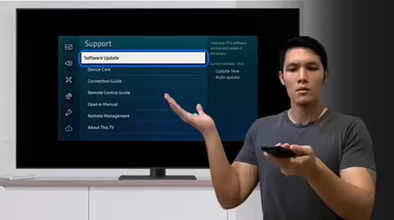
Always use OTA (Over-The-Air) updates to update your TV. OTA updates are provided by the TV manufacturers themselves. You can check for available OTA updates for your smart TV by going to the TV's settings and tapping on Software Update.
Clear Storage and Background Apps
Whenever you update your smart TV, a file is saved in your TV's storage. It's essential that your TV has enough storage space available for the update file you're about to download. Therefore, before updating your TV, delete any unnecessary apps.
Additionally, most smart TVs have 1GB of RAM. For a demanding task like a software update, it's crucial that no apps are running in the background. So, close any background apps before updating your TV.
What to Do After Updating the TV
After the new software update is installed on your TV, turn it off and then on again. Make sure to leave the TV off for a few minutes before turning it back on. After that, you can start using the TV.
If you experience any problems with your TV after the update, try performing a factory reset.
Disclaimer: This content has been sourced and edited from Navbharat Times. While we have made modifications for clarity and presentation, the original content belongs to its respective authors and website. We do not claim ownership of the content.
