
Smart TV Tips: Change these 6 settings as soon as you turn on your new Smart TV to enhance your viewing experience..
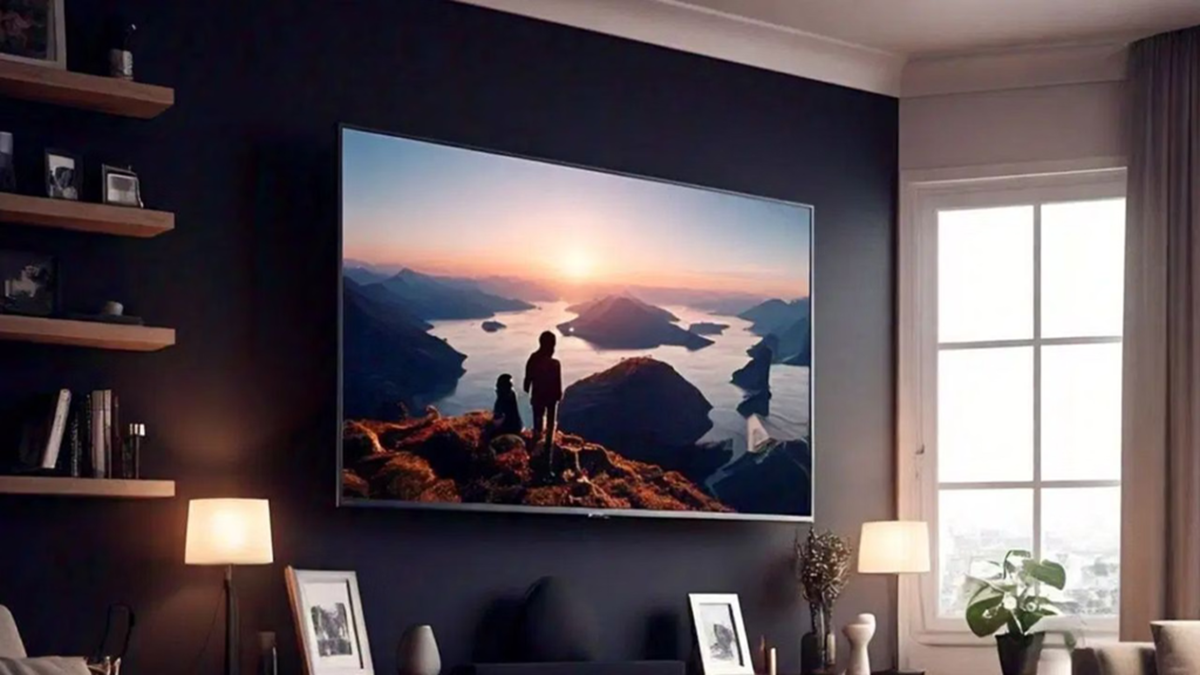
Buying a smart TV is like upgrading your entertainment experience. With a large screen, superior resolution, and excellent sound quality, watching TV becomes far more enjoyable. However, to get the most out of your smart TV, you should tweak some of its default settings. Many TVs come with pre-enabled settings that aren't necessarily ideal for every user. Adjusting these can significantly enhance your picture, sound, and gaming experiences. Let’s look at the settings you should consider changing...
1. Turn off Motion Smoothing
If the picture looks unnaturally smooth or video-like while watching a movie, "Motion Smoothing" could be the culprit. This feature adds extra frames to move appear more fluid. While useful for sports and gaming, it can create the "Soap Opera Effect" in movies. Therefore, it is best to turn it off for movies and web series. Different brands use different names for this feature—such as "TruMotion" on LG TVs and "Auto Motion Plus" on Samsung TVs. You might also want to try "Filmmaker Mode" if available.
2. Customize Sound Settings
A great screen isn't enough; sound quality is equally important. Adjust the bass and treble to suit your preferences. If you are using a soundbar or home theater system, be sure to check the ARC or eARC options. These allow the TV's audio to be transmitted more effectively to your external sound system.
3. Check for Software Updates
Even a brand-new TV might have software that is a few months old. Therefore, always check for software updates after setting it up. Updates can fix bugs and improve system stability, app performance, and security. Enabling "Auto Update" is a convenient option if available.
4. Review Energy Saving Mode
While "Power Saving Mode" is useful for conserving electricity, it can reduce screen brightness. This may make the picture appear somewhat dull, especially when viewing HDR content. If your priority is superior picture quality, consider turning off this setting and trying out modes like Standard, Filmmaker, or any available Calibrated mode.
5. Enable Game Mode for Gaming
If you use a PlayStation or Xbox for gaming, be sure to enable Game Mode. It helps reduce input lag by minimizing unnecessary image processing. Additionally, on TVs that support HDMI 2.1, the "Enhanced HDMI" option can help you make the most of features like 4K resolution and high refresh rates.
6. Don't Overlook Privacy Settings
A Smart TV is more than just a device for displaying content; features such as apps, voice assistants, and content recognition can process data related to your usage habits. Therefore, after setting up the TV, take the time to review options like privacy settings, user agreements, voice permissions, and targeted advertising. You can disable any features you do not need.
Small Changes Make a Big Difference
You don't have to settle for your new Smart TV's default settings. Spending just 10–15 minutes reviewing these options can result in a more natural picture, audio tailored to your preferences, and a more responsive gaming experience. It is a smart move to check these six settings first after purchasing a new TV.
PC Social Media
