
Save the cost of buying a new webcam! Turn your Android phone into a wireless webcam for your PC—here’s how to set it up..
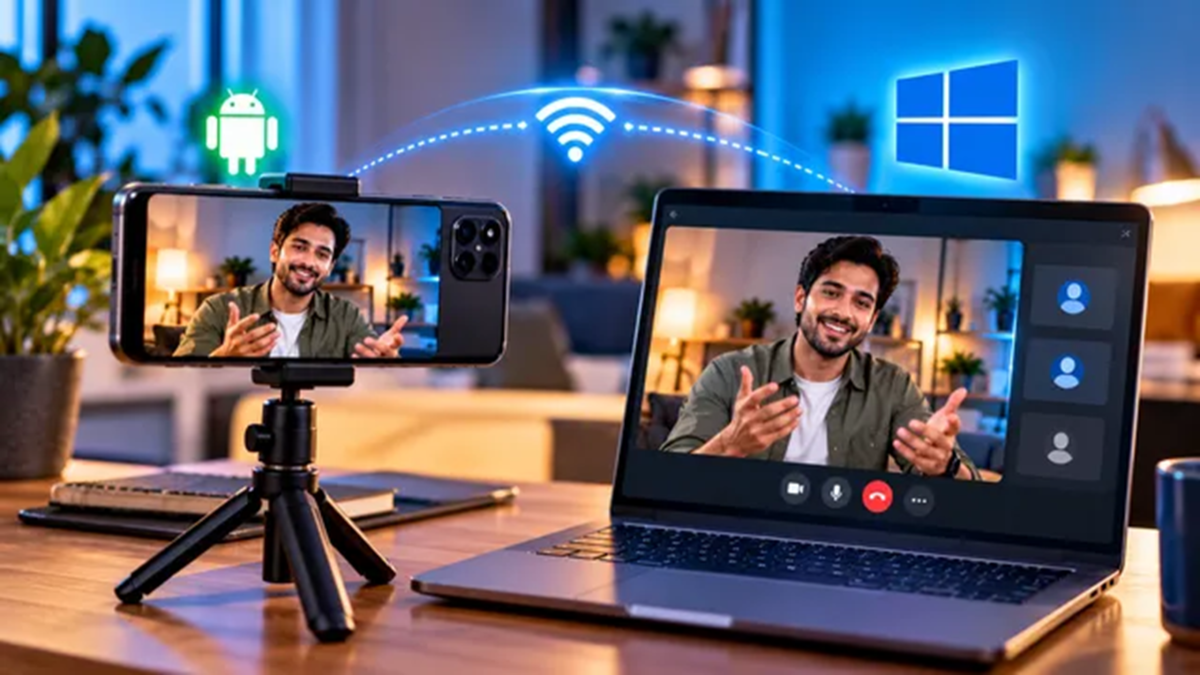
A new function has recently been added to Windows that allows you to connect your Android smartphone to a Windows 11 PC and use it as a webcam. With this new feature, you no longer need to download third-party apps—which can often pose risks to your privacy and security—for this purpose. Furthermore, if you don't currently own a separate webcam, there is no need to buy one, as you can simply connect your phone to your PC and use it as a camera. Smartphone cameras are generally considered far superior to integrated webcams; therefore, using your phone as a PC camera can prove to be a great option for specific occasions.
If you are wondering how to use your Android smartphone as a webcam on Windows 11, we have prepared a simple step-by-step guide to help you.
Benefits of using an Android phone as a webcam on Windows 11:
There are several significant advantages to using your Android phone as a webcam on Windows 11. Android phones feature superior rear camera setups capable of recording video and capturing photos in high resolution. Most laptops come with basic IR webcams that offer, at best, Full-HD resolution; consequently, when you need better image quality, your Android phone can serve your needs much more effectively.
Additionally, if you use a desktop PC, you would typically have to spend money on a separate external webcam. While some monitors do come with built-in IR webcams, they often suffer from the same poor image quality issues found in laptops. Thus, using your Android smartphone as a webcam is a smart choice, as it saves you from having to purchase a new, dedicated webcam for your PC.
Moreover, laptop webcams are fixed in a single position. To adjust the framing, you are usually limited to simply tilting your laptop screen back and forth. However, with a wirelessly connected Android phone, you won't face this issue, as you can place the phone anywhere you like to easily set the perfect frame.
Since your Android phone connects to the Windows 11 PC using Bluetooth for pairing and Wi-Fi for the actual connection, you don't need a cable—eliminating the clutter often associated with PC peripherals. Finally, if you live-stream on YouTube, you can use your Android phone as a secondary webcam positioned at a different angle than your primary one.
Requirements for using your phone as a webcam on Windows 11:
According to Microsoft, there are three main requirements for using your Android phone as a webcam on Windows 11:
Your PC must be running Windows 11 or a later version.
Your Android smartphone must be running Android 10 or a newer OS version.
Additionally, if you are using the "Link to Windows" app to connect to the PC, ensure you are using version 1.24022.0 or a later version.
If your devices meet these requirements, you can proceed with the next steps.
How to use your Android phone as a webcam on Windows 11:
First, download the "Link to Windows" app on your Android phone.
Next, open the "Phone Link" app on your PC.
Now, sign in to the app on your PC.
Once signed in, the app will display a QR code.
Scan this QR code using the "Link to Windows" app on your phone to establish a wireless connection between the two devices. Alternatively, you can also connect your Android handset directly to your Windows PC via Bluetooth.
Once both devices are connected, open the Settings app on your PC.
Go to the 'Bluetooth & devices' section and look for your Android phone's name.
Now, tap on your Android handset's name; this will open a new screen.
Here...
Disclaimer: This content has been sourced and edited from Dainik Jagran. While we have made modifications for clarity and presentation, the original content belongs to its respective authors and website. We do not claim ownership of the content.
