
Password: Forgot your Android phone's password or pattern? Unlock it from the comfort of your home..
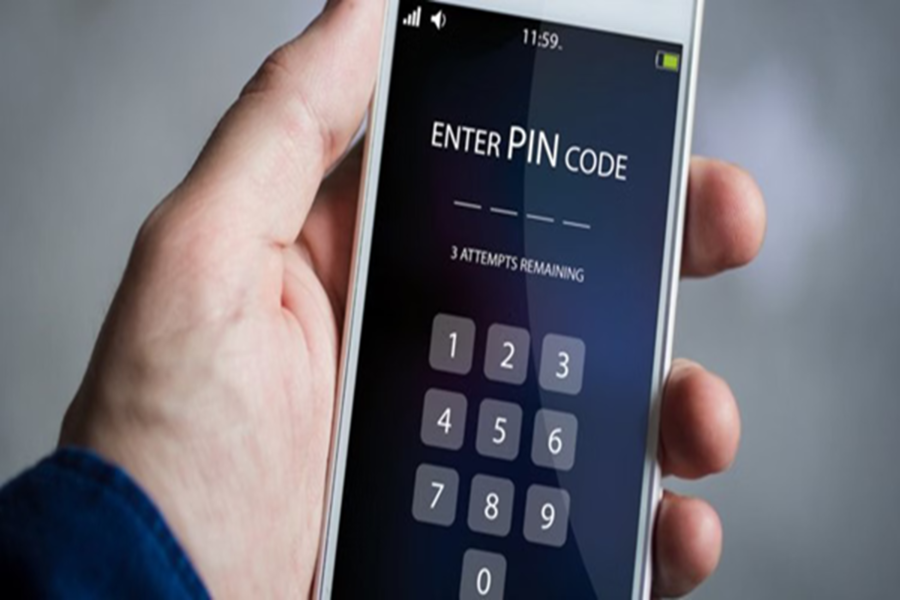
Often, in our haste—or after setting a new password or pattern—we end up forgetting it. Alternatively, young children at home sometimes set a password or pattern that they cannot recall, resulting in the phone becoming locked. When this happens, it can be baffling to figure out what to do next. However, there is no need to panic or rush immediately to a service center. If you own an Android smartphone, you can unlock your device right from the comfort of your home using a few simple methods. Let's find out how:
Method 1: Unlocking Your Phone via Google 'Find My Device'
If you wish to unlock your phone using Google 'Find My Device,' this is arguably the easiest and most effective method—provided, of course, that the locked phone has an active internet connection. To utilize this feature, begin by opening a web browser on another phone or computer and navigating to google.com/android/find. Once there, log in using the same Google account that is currently linked to your locked device.
As soon as the login process is complete, your phone's location and several options will appear on the screen. From these options, you must select 'Erase Device.' As soon as you confirm this action, all data on your phone—including the lock screen settings—will be completely deleted. Subsequently, your phone will restart as if it were a brand-new device and will be unlocked.
Method 2: Using 'SmartThings Find' for Samsung Users
For Samsung Galaxy smartphone users, 'SmartThings Find' is nothing short of a lifesaver, offering a specialized feature specifically designed for situations where the phone becomes locked. To use this tool, you must open a web browser on another device and visit the website smartthingsfind.samsung.com. Once on the site, log in by entering your Samsung account credentials.
After logging in, you will see options such as 'Unlock' or 'Erase data' displayed on the dashboard. By selecting the appropriate option, you can remotely remove your phone's lock screen from home, thereby regaining access to your device and resuming its use.
Method 3: Via the 'Factory Reset' Button (When Other Methods Fail)
When the methods mentioned above do not work, or if your phone's internet connection is disabled, performing a 'Factory Reset'—also known as entering Recovery Mode—remains the final and most effective solution. However, please be aware that this process will result in the complete deletion of all data stored on your phone. To initiate this process, first ensure your phone is completely powered off. Next, simultaneously press and hold the 'Power Button' and the 'Volume Down' button (or 'Volume Up' on some models) until the manufacturer's logo appears on the screen.
As soon as the logo appears, release the buttons; a recovery menu will then appear before you. Touch input will not function in this menu; therefore, use the Volume buttons to navigate up and down through the options, and use the Power button to select an option. Now, navigate to 'Wipe data/factory reset' within the menu, select it, and then confirm your choice by clicking on 'Factory data reset'. Within just a few minutes, your phone will be completely formatted, and the screen lock will be permanently removed.
Method 4: For Older Smartphones (Android 4.4 or Earlier)
If you are using a significantly older smartphone model, entering an incorrect unlock pattern multiple times may occasionally trigger a 'Forgot pattern' option to appear at the bottom of the screen. Simply tap on this option, enter the ID and password associated with your Google account, and you will be able to easily unlock your phone.
Important Considerations Before Performing a Factory Reset
One crucial point you must always keep in mind is that performing a factory reset will result in the permanent deletion of all data stored on your phone—including photos, videos, and contacts. Following the reset, the only data that will remain accessible is the data you have previously backed up to Google Drive. Furthermore, from a security standpoint, another critical detail to note is that once the reset is complete and the phone restarts, it will prompt you to enter the same Google account credentials (ID and password) that were logged into the device prior to it becoming locked. Therefore, you must remember those specific login credentials.
Disclaimer: This content has been sourced and edited from Amar Ujala. While we have made modifications for clarity and presentation, the original content belongs to its respective authors and website. We do not claim ownership of the content.
