
Lost Your Windows Laptop? Here’s How to Locate and Lock It Using Microsoft Find My Device
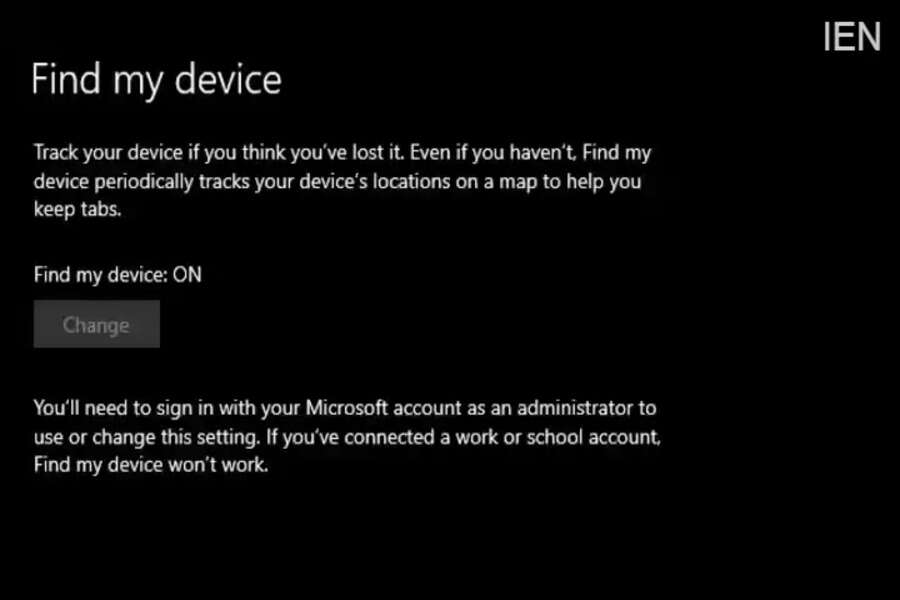
Losing a laptop can be stressful, especially when it contains personal data, office files, or sensitive information. Just like smartphones can be tracked using Google’s or Apple’s “Find My Device” feature, Windows laptops also come with a built-in security option that helps users locate and lock their device remotely. This feature, called Microsoft Find My Device, can prove extremely useful if your laptop is lost or stolen.
However, tracking a laptop is more challenging than tracking a smartphone. Smartphones are usually connected to mobile networks or Wi-Fi at all times, making location tracking easier. Laptops, on the other hand, are not always connected to the internet, which can delay location updates. Despite this limitation, Microsoft’s Find My Device feature offers a reliable way to secure your Windows laptop.
What Is Microsoft Find My Device?
Microsoft Find My Device is a security feature available on Windows PCs, laptops, and Surface devices. It allows users to:
-
Track the approximate location of a lost device
-
Lock the device remotely
-
Protect personal data from unauthorized access
The feature works only when the device is powered on and connected to the internet.
Important Requirements Before Using Find My Device
Before enabling or using this feature, make sure the following conditions are met:
-
Location services must be turned on
-
The laptop must have an active internet connection
-
The device must be linked to a personal Microsoft account
-
You must have administrator access
-
The feature does not work with school or work accounts
Without these requirements, the tracking and locking feature may not function properly.
How to Enable Find My Device on a Windows Laptop
There are two ways to enable Find My Device—during initial device setup or later through settings. Below are the steps to enable it from the Settings menu:
-
Open the Settings app on your Windows laptop
-
Go to Update & Security
-
Select Find My Device from the left menu
-
Turn the toggle ON
Once enabled, Windows will automatically save your device’s location periodically.
How to Locate Your Lost or Stolen Windows Laptop
If your laptop goes missing, follow these steps to locate it:
-
Open a web browser on another device
-
Visit the Microsoft account devices page
-
Sign in using the same Microsoft account linked to your laptop
-
Click on Find My Device
-
Select the device you want to locate
-
Click Find to view its last known location on a map
The location shown depends on when the laptop was last connected to the internet.
How to Lock Your Windows Laptop Remotely
If you find your device on the map or suspect unauthorized access, you can lock it immediately:
-
On the device location page, select Lock
-
Click Next to confirm
-
The laptop will be locked remotely
Once locked, anyone trying to access the laptop will need your Microsoft account credentials to unlock it.
Additional Safety Tips for Windows Laptop Users
-
Always keep your Windows system updated
-
Use a strong login password or PIN
-
Enable device encryption if available
-
Avoid using public Wi-Fi networks without protection
-
Regularly back up important files
Conclusion
Microsoft Find My Device is a powerful tool that helps users protect their Windows laptops from misuse. While it may not offer real-time tracking like smartphones, it still provides an effective way to locate and lock a lost device. Enabling this feature in advance can save you from data theft and unnecessary stress if your laptop ever goes missing.
