
Laptops Will Now Understand Voice, Take Notes, and Perform Smart Tasks—A Must-Know for Students and Office Users..
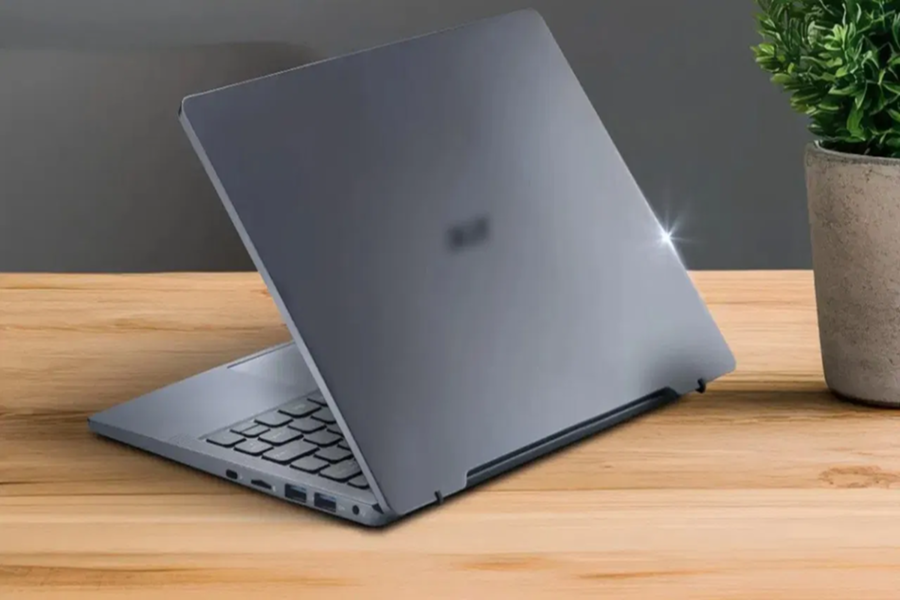
Following smartphones, AI features are now making a significant entry into laptops as well. These AI features do not merely modernize technology; they are also transforming the way users work. Today's new laptops are no longer limited to just typing and internet browsing.
They can now understand your voice, generate summaries of meetings, make video calls look more professional, and even adapt themselves to your specific workflow by learning your working habits.
Microsoft has integrated several such AI features into Windows 11 laptops, proving to be immensely useful for everyone—including students, office professionals, content creators, developers, and more.
**Microsoft Copilot**
Copilot is the most talked-about AI feature in Windows 11 laptops. It functions as a smart AI assistant that not only answers questions but also assists with a wide range of tasks. With the help of Copilot, you can draft emails, conduct research on specific topics, summarize lengthy documents, and even receive assistance with coding.
If you need to compile notes for a meeting or are looking for ideas for a presentation, Copilot can assist in just a few seconds. To utilize Copilot, it is essential that your laptop is running an updated version of Windows 11.
To enable it, simply click on the Copilot icon located on the taskbar or press **Windows + C**. Afterward, log in using your Microsoft account, and you can begin asking questions via text or voice commands. If this feature does not appear, navigate to **Settings > Windows Update** to update your system.
**Voice Access**
The Voice Access feature makes using a laptop even more effortless. With its help, users can control their system entirely using their voice, without the need for a keyboard or mouse. You can open applications, compose emails, browse the internet, and edit documents—all through voice commands. To enable this feature, open Settings, navigate to Accessibility, select the Speech option, and toggle on Voice Access. Once enabled, the feature can be activated by simply saying "Voice Access wake up." The system can then be controlled by issuing commands such as "Open Microsoft Word" or "Show all commands." This feature is particularly useful for individuals who wish to work hands-free.
**Snap Layouts**
In today's environment, people often work across multiple applications simultaneously. Windows 11's Snap Layouts feature helps you arrange multiple windows on your screen in an organized manner. This eliminates the need to constantly readjust windows, thereby making multitasking significantly easier.
To utilize this feature, simply hover your mouse cursor over the Maximize button of any open window. A selection of different layout options will appear. As soon as you select a layout that suits your needs, your other open applications will automatically snap into place on the screen. This feature can prove to be immensely beneficial for students attending online classes as well as employees working from home.
**Touch Gestures**
If you own a touchscreen laptop, Windows 11's AI-driven touch gestures make the user experience even more intuitive. With the help of these gestures, you can switch between applications, open the Start Menu, and zoom in or out on your screen—all using just your fingers.
To enable touch gestures, navigate to Settings > Bluetooth & devices > Touch, and toggle on the "Three- and four-finger gestures" option. Once enabled, you can control your laptop with greater ease using various swipes and gestures.
**Live Captions**
The "Live Captions" AI feature on your laptop can automatically generate subtitles for any video or audio content in real time. This feature is particularly useful for individuals who watch videos in various languages or who attend online classes and meetings. To enable this, press Windows + Control + L; alternatively, you can turn on Live Captions by navigating to Settings > Accessibility > Captions. Once enabled, subtitles will immediately appear on the screen alongside any video or audio content.
**Windows Studio Effects**
In the era of "work from home" and online meetings, Windows Studio Effects is an incredibly useful feature. This feature blurs the background, enhances facial lighting, and minimizes ambient noise. As a result, video calls appear much clearer and more professional.
To utilize this feature, go to Settings > Bluetooth & Devices > Cameras, and select a supported camera. You can then toggle on options such as Background Blur, Eye Contact, or Noise Suppression.
**Cocreator and Clipchamp**
On Windows 11 laptops, AI-powered features like Paint Cocreator and Clipchamp simplify the content creation process. Paint Cocreator can generate digital art based on text prompts, while Clipchamp makes video editing effortless.
To access these tools, update the respective apps via the Microsoft Store. Once updated, you can utilize the Cocreator option within the Paint app and the AI editing features within Clipchamp. These features can prove particularly beneficial for social media creators and students.
**AI-Enhanced Security**
As the digital landscape continues to expand, cyber threats are also escalating rapidly. Windows 11 laptops feature AI-driven security tools that help protect users against threats such as malware and ransomware. Smart App Control scans downloaded applications and can block potentially malicious software. Additionally, Windows Hello provides secure login capabilities through features like fingerprint and facial recognition.
To enable these features, navigate to Settings > Accounts > Sign-in options, and set up Face Recognition, Fingerprint authentication, or a PIN. This significantly enhances the security of your laptop.
Disclaimer: This content has been sourced and edited from Dainik Jagran. While we have made modifications for clarity and presentation, the original content belongs to its respective authors and website. We do not claim ownership of the content.
