
Laptop Tips: Avoid making these mistakes when cleaning your laptop keyboard..
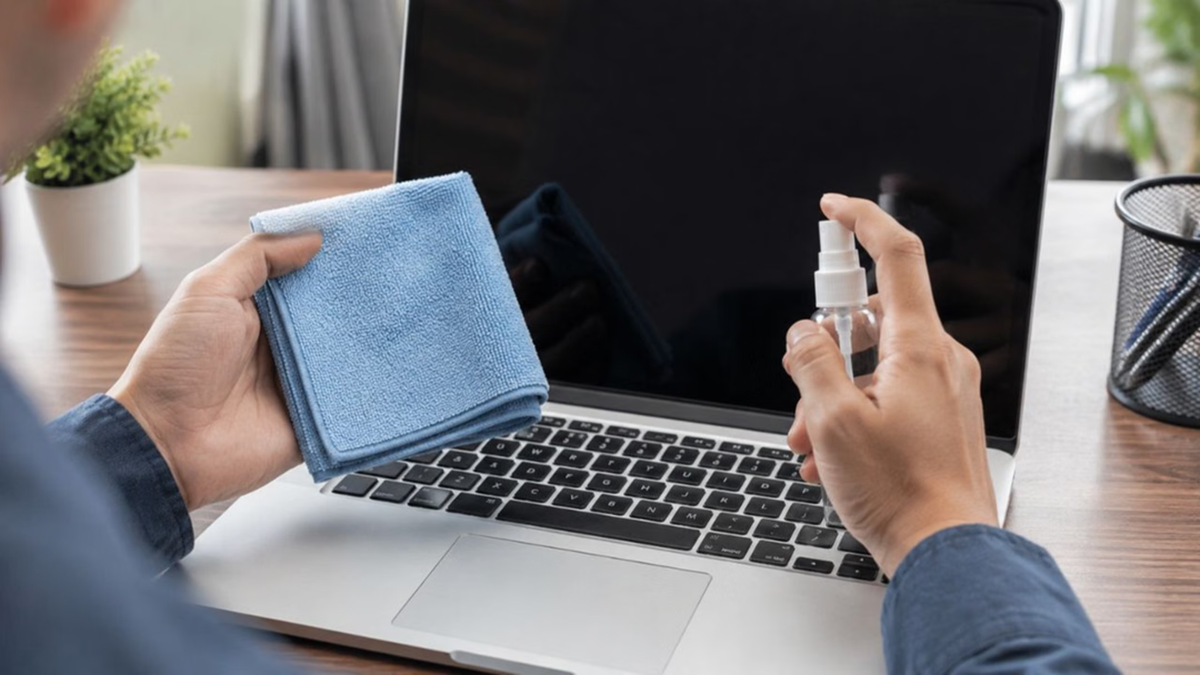
In today's world, laptops have become an integral part of our lives. Whether for office work or personal tasks, we spend hours in front of laptop screens. Continuous use often leads to the accumulation of dust, dirt, and tiny food particles between the keyboard keys—a very common issue. Regular cleaning is essential for maintaining hygiene and ensuring the device's longevity. However, a minor oversight during cleaning, caused by a lack of knowledge, can cause significant damage to your expensive laptop. Let’s explore in detail the major mistakes to avoid at all costs when cleaning a laptop keyboard and the correct, safe way to do it.
**Never clean while the laptop is on**
Many people start cleaning the screen or keyboard while in the middle of work, which is a major mistake. Before cleaning the keyboard, you should completely shut down the laptop and unplug the charger. Cleaning while the laptop is powered on could lead to accidental key presses, potentially deleting important data or executing unintended commands. Furthermore, if even a single drop of liquid accidentally seeps inside during cleaning, the risk of a short circuit in an active device increases significantly.
**Directly spraying liquid cleaner is dangerous**
To remove dust and stains, never spray water or any liquid cleaner directly onto the keyboard. Direct spraying allows the liquid to seep through the gaps between the keys and potentially reach the motherboard. Moisture entering these sensitive internal components can permanently damage or "kill" your laptop. If you must use a cleaning liquid, lightly spray it onto a clean, soft microfiber cloth first, and then use that cloth to wipe the keyboard.
**Avoid vigorous shaking or tapping**
People often turn the laptop upside down and shake or tap it vigorously to dislodge dirt trapped beneath the keys. According to technical experts, this method is not safe at all. Inside the laptop, there are very fine and delicate wires beneath the hard drive, fan, and keyboard. Shaking it vigorously can cause these wires to snap or keyboard keys to dislodge. Instead, hold the laptop carefully and tilt it slightly so that loose dust falls out on its own.
Avoid using harsh brushes and chemicals
Never use harsh laundry brushes, strong chemicals, or acidic cleaners in an attempt to make the keyboard shine. Using such items can erase the letters and markings printed on the keys. Additionally, the keyboard's surface can become rough and unsightly. Always prioritize using a brush with very soft bristles or a clean, dry cotton cloth for cleaning.
What is the correct way to clean the keyboard?
To clean the laptop keyboard safely, first shut down the system. If the laptop is charging, disconnect the power cable. Next, use a soft brush with a gentle touch to dislodge dirt trapped between the keys. If you have an air blower or a can of compressed air, you can use it very carefully from an appropriate distance. After removing dry dust, lightly wipe the keyboard surface with a clean, soft cloth that has been slightly dampened (and wrung out so no water drips). Do not rush the process; allow the laptop to dry for a while before using it again after cleaning.
Disclaimer: This content has been sourced and edited from Amar Ujala. While we have made modifications for clarity and presentation, the original content belongs to its respective authors and website. We do not claim ownership of the content.
