
Jalandhar accident: How does the iPhone’s Crash Detection feature work during fatal accidents? Find out..
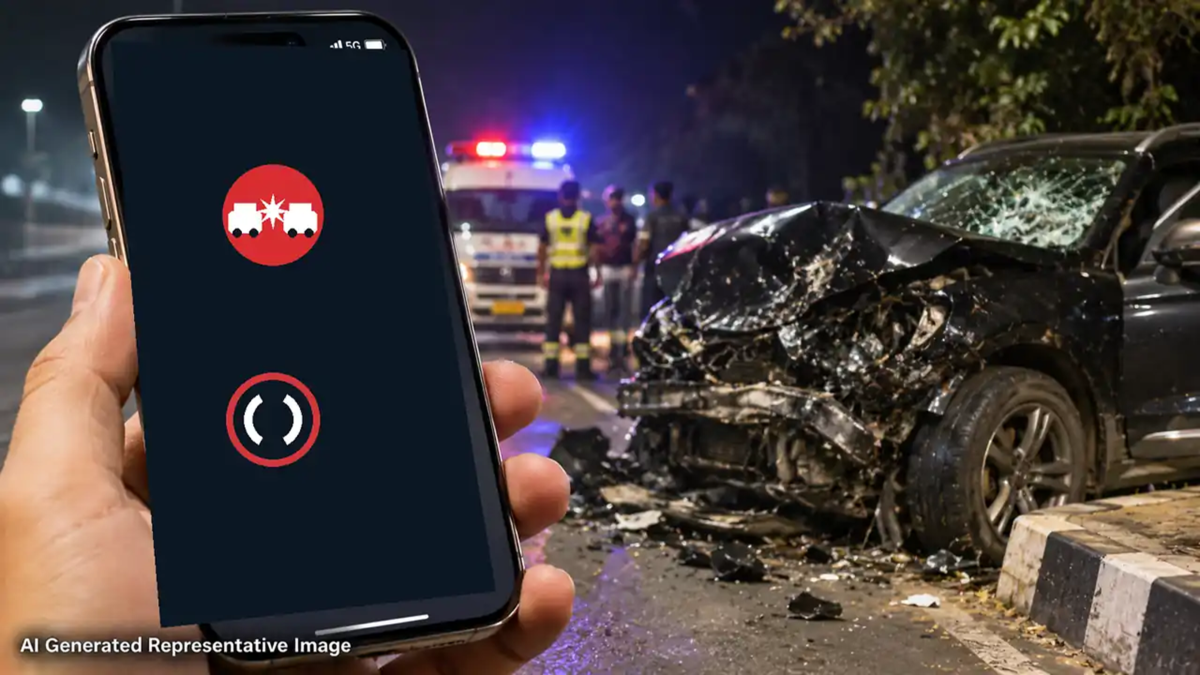
Following the death of Divit Aulakh—nephew of Punjabi singer Honey Singh—in a road accident in Jalandhar, Punjab, a specific feature on the iPhone has garnered attention. Immediately after the accident, Divit’s iPhone sent an alert to his mother’s mobile phone. Divit had enabled Apple’s 'Crash Detection' feature on his device and had saved his mother’s number as an emergency contact. Consequently, the family was the first to be notified about the accident through this alert.
This feature can detect severe car accidents and send alerts to a user’s emergency contacts. If necessary, it can also automatically call emergency services. Let’s explore how this Apple feature works and which devices it is available on.
Divit’s iPhone sent an alert to his mother following the accident
According to reports, Divit was on his way to a birthday party with friends on Saturday night when his car collided with a municipal corporation tractor-trolley. Divit lost his life in the accident.
Following the collision, his iPhone sent an alert to his mother’s mobile. Upon waking up, she informed other family members. The family attempted to call Divit’s phone but could not get through. Later, they learned from one of his friends that an accident had occurred and that Divit was being taken to the Civil Hospital.
Divit was the son of Dinesh Aulakh, the owner of 'Speed Records,' and the nephew of singer-rapper Yo Yo Honey Singh. On Monday, Honey Singh and singer Gurnam Bhullar visited Dinesh Aulakh’s home to offer their condolences to the family. Divit’s funeral is scheduled for November 3rd.
What is Apple’s 'Crash Detection' feature?
Apple’s 'Crash Detection' is a safety feature designed to identify severe vehicle accidents. It utilizes sensors built into the iPhone and Apple Watch to detect signs of a high-impact collision or a serious crash. When the device detects a serious accident, an alert appears on its screen, accompanied by a loud alarm. It then asks the user whether they require assistance.
If the user does not respond to the alert, the device begins a countdown. Once the countdown concludes, the iPhone or Apple Watch automatically attempts to call emergency services.
Sending location to emergency contacts
Another key aspect of this feature is its ability to notify emergency contacts saved on the user's phone. This notification includes the user's location, allowing family members to determine where the accident occurred.
However, network connectivity is required for emergency calls and location sharing. This functionality relies on available cellular networks, Wi-Fi calling, or supported satellite connectivity.
Which iPhones and Apple Watches include this feature?
The Apple Crash Detection feature is available on the following devices:
- iPhone: iPhone 14 and all subsequent models.
- Apple Watch Series: Series 8 and later models.
- Apple Watch SE: Second generation.
- Apple Watch Ultra: All Ultra models.
Setting up Medical ID and emergency contacts is also essential
Apple advises users to set up a Medical ID and emergency contacts via the Health app on their iPhone. A Medical ID can store details such as blood type, allergies, and other critical medical information; this data can assist medical personnel in providing treatment during an emergency. Additionally, you can add a family member or a close contact as an emergency contact, ensuring they are notified in the event of an accident.
How to enable the Crash Detection feature?
On the iPhone 14 and later models, the Crash Detection feature is enabled by default. You can verify this in your settings.
1. Open the Settings app on your iPhone.
2. Scroll down and tap on Emergency SOS.
3. Look for the 'Call After Severe Crash' option here.
4. If it is turned off, enable it by toggling the switch next to it.
How to add emergency contacts?
1. Open the Health app.
2. Tap on your profile photo at the top.
3. Select 'Medical ID' and go to 'Edit'.
4. Add the phone numbers of your family members or friends under 'Emergency Contacts'.
5. Save the changes.
Disclaimer: This content has been sourced and edited from NDTV India. While we have made modifications for clarity and presentation, the original content belongs to its respective authors and website. We do not claim ownership of the content.
