
Is your computer not turning on? Try these methods; check for the problem yourself before going to a technician..
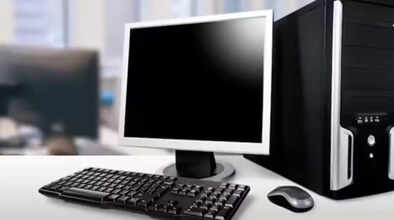
Computer Not Starting: Possible Reasons: If your Windows computer is not turning on, there's no need to panic. Sometimes, you press the power button, but the computer doesn't start. Sometimes it turns on briefly and then shuts down immediately. Everything looks fine from the outside, but the computer doesn't work. In such a situation, before buying a new computer or going to a service center, you can try some simple methods yourself. These might solve your problem. It's possible that your PC or computer will be fixed.
Check the Power Supply
According to a PC Mag report (Ref.), first check if the computer is receiving a proper power supply. If the laptop is not turning on at all, there's no fan noise, no lights are on, and the screen is blank, then a power problem is the most common issue. In this case, plug the computer or PC into a different outlet. If the computer still doesn't work, there may be a problem with the power supply.
Check the Monitor
Sometimes the computer turns on, but nothing appears on the screen. There's sound, but no picture, so check the monitor. Check if the monitor is receiving power. Is it switched on? Is the cable loose or damaged? Try connecting it to another monitor or TV. If everything looks fine there, then you will have to replace the old monitor. On a laptop, try increasing the brightness. Sometimes, low brightness makes the screen appear completely black, and it seems like the computer is broken.
Pay Attention to the Beep Sounds
When a computer starts, there is often a short beep sound, which indicates that everything is fine. If there is a problem, several beeps are heard. These beeps are like a code that tells you what is wrong. Check your computer's manual to find out what they mean. If you don't have a manual, download it from the company's website. Some computers don't have beep sounds; in that case, a code is displayed on the motherboard. This helps in quickly identifying the problem. Remove USB devices
Before starting the computer, remove all USB devices. Remove devices such as webcams, printers, external drives, headsets, etc. Try starting the computer with only the keyboard and mouse connected. Sometimes, USB devices can prevent the computer from starting. You can connect them after the computer has started.
Boot into Safe Mode
If you are seeing a blue screen, there might be a software or driver issue. Google the error code. Try fixing it by booting into Safe Mode. Interrupt the startup process three times, and the repair screen will appear. From there, select Advanced Options and proceed. This usually fixes most software problems.
Disclaimer: This content has been sourced and edited from Navbharat Times. While we have made modifications for clarity and presentation, the original content belongs to its respective authors and website. We do not claim ownership of the content.
