
Is the font size on your grandparents' phone too small? This setting will help.
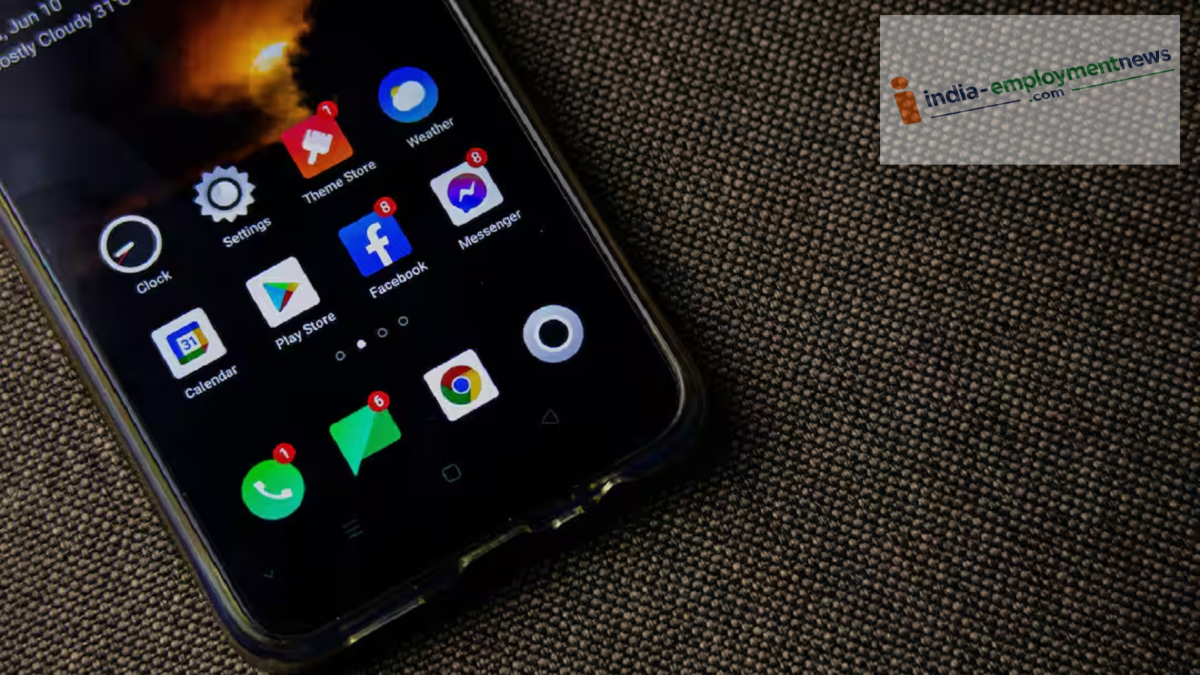
Using a smartphone is about to become easier for the elderly. If the small font size is causing trouble, simply change these specific settings; large, bright characters will appear clearly on the screen, even without glasses.
Using a smartphone can often be a challenge for elderly family members. The biggest reason for this is the small font size on the screen, which makes reading difficult for them. Often, this causes grandparents to shy away from reading messages, saving contacts, or using apps. However, the good news is that smartphones have a setting that allows you to increase the font size and easily resolve this issue.
How to increase font size on Android phones
If your elderly family members use Android phones, increasing the font size is very easy. First, go to the phone's settings. Then, tap on the 'Display' or 'Screen' option. Here, you will see an option labeled 'Font size.' Clicking on it opens a slider that can be moved back and forth to make the font smaller or larger. Sliding it to the right makes all the text on the phone appear larger and clearer. Many phones also offer a 'Display size' option near this setting, which allows you to increase the size of icons and other elements as well.
How to change font size on iPhones
This setting is also available for elderly iPhone users. To use it, go to Settings and tap on 'Display & Brightness.' Here, you will find a 'Text Size' option where you can use a slider to enlarge the font according to their needs. Additionally, you can go to Accessibility settings and enable the 'Larger Text' feature under 'Display & Text Size' to make the font even bigger.
The Bold Text Feature is Also Helpful
Along with increasing the font size, the bold text feature can also prove very useful for the elderly. This feature makes the text darker and thicker, making it easier to read. This setting is available under the display options on both Android and iPhone devices. Enabling it makes messages, contact lists, and app names on the screen appear much clearer.
Font Size Can Also Be Changed in WhatsApp
Since the elderly use WhatsApp frequently, the app includes an option to adjust the font size. To do this, go to WhatsApp settings and select the 'Chats' option. Here, you will find a 'Font size' setting with three choices: Small, Medium, and Large. Selecting 'Large' displays incoming messages in a larger font, making it much easier for the elderly to read and understand them.
