
iPhone Trick: Don't like the standard charging sound? Now Siri can speak or a song can play when you plug in your iPhone, Learn how..
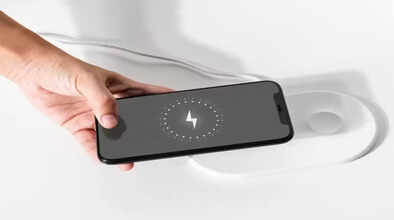
Apple doesn't directly offer users the option to change the charging sound, but you can set up an automation using the Shortcuts app. This will allow you to play your favorite music, a short audio clip, or a custom text spoken by Siri whenever you plug in or unplug your iPhone. This trick works on all modern iPhones and iPads.
The best part is that you don't need to install any app to try this fun trick. You just need Apple's own Shortcuts app. This app is usually pre-installed on every iPhone, but if you've deleted it, you can download it again for free from the App Store. You can then use this app to change your boring charging sound to your preferred audio or Siri's voice.
How to set up the automation?
First, open the Shortcuts app. Then click on the Automation tab at the bottom and select New Automation. You will see several options, but scroll down and tap on the Charger option. You will then be asked when you want to hear this sound. You will have the option of when the phone is connected to the charger (Is Connected) or when the charger is disconnected (Is Disconnected). It's important to select the "Run Immediately" option so that the phone doesn't ask for permission via a notification before playing the sound, and it starts playing immediately. After that, tap Next.
Have Siri speak your favorite message
If you want to hear Siri speak when you plug in your phone to charge, go to New Blank Automation and type "Speak Text" in the search bar. Add it to the action list. In the text box, you can type any message you like, such as "Welcome Master" or a positive thought like "I choose to be happy." After that, you can tap on the blue arrow to customize Siri's pitch, speaking speed, and language (such as English India) according to your preference. Don't forget to tap Done at the top after completing the setup.
Follow these steps to set your favorite song:
For music lovers, any song from Apple Music can become your charging sound. To do this, select the Play Music option in the search bar and choose the song you want to hear from your library. After selecting, don't forget to tap the small arrow next to the song title and set Shuffle to Off and Repeat to None. This will ensure that the selected song plays as soon as the charger is connected. Finally, tap Done at the top.
For a short audio clip or funny sound:
If you want to set a short 1-2 second funny sound or meme music (like a cartoon sound) instead of a full song, first find that audio file (MP3 or WAV) in your Files app. Long-press on it and tap the Copy button. Now go back to the Shortcuts app and select the Play Sound action while creating the automation. Tap the arrow next to Play Sound and select Clipboard. The process will then be complete.
A smart way to mute the original sound:
Apple doesn't allow you to completely replace its system's default ding sound, so your custom sound will always play immediately after the default sound. If you only want to hear your set song or Siri's voice, simply put your iPhone on Silent mode using the side button before plugging it in to charge. Being in Silent mode will mute Apple's default sound, and only your custom automation will play.
Disclaimer: This content has been sourced and edited from Amar Ujala. While we have made modifications for clarity and presentation, the original content belongs to its respective authors and website. We do not claim ownership of the content.
