
Internet suspended at Jantar Mantar! Here’s how to use Google Maps without the internet; discover 8 useful secret features..
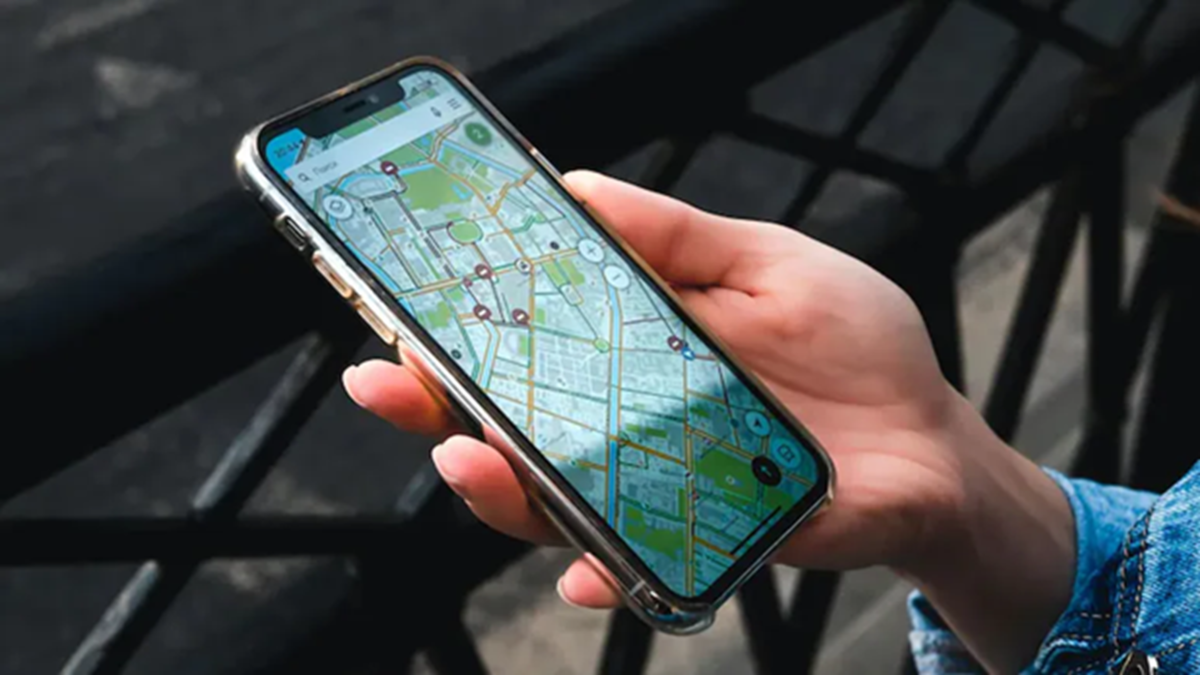
Student protests are ongoing at Jantar Mantar. Recently, thousands of students gathered there to demonstrate against the government's education policies. The situation escalated, and to prevent the spread of rumors amidst the protest, internet services in the area were suspended. However, the internet ban is causing significant inconvenience to the general public. People frequently rely on Google Maps for navigation while on the road, and the lack of internet access has made commuting difficult.
It is worth noting, however, that Google Maps can be used without an internet connection. There are several offline features available that you can utilize without being online. Let’s take a look at them.
**How to use Google Maps without the internet**
To use Google Maps offline, first open the Google Maps app. Tap on your profile picture to view the available options, then select 'Offline Maps.' From there, you can download the specific map area you need. You can also utilize several other features.
**Save Parking**
It is common to struggle to locate your vehicle after parking in crowded areas or at malls. To avoid this, after parking, tap the blue location dot on the screen and select 'Save Parking.' This saves the location, making it easier to find your vehicle later.
**Toll Cost Estimate**
When embarking on a long trip, you may not know how many toll plazas lie ahead or what the associated costs will be. Google Maps provides an estimate of the toll expenses for your route before you even begin your journey.
**Add Stops**
To include additional stops along your route, set your destination and then select the 'Add Stop' option from the three-dot menu. Location Sharing
If you are traveling alone and wish to keep someone informed about your journey, you can enhance your safety by tapping the profile icon and sharing your real-time location with family or friends via the 'Location Sharing' feature.
Fuel-Efficient Routes
Often, a lack of route knowledge leads to choosing longer paths, resulting in excessive fuel consumption. To avoid this, you can opt for fuel-efficient routes. Simply go to Settings > Navigation Settings and enable 'Prefer fuel-efficient routes'; the app will then suggest a path with less traffic and lower fuel consumption.
One-Finger Zoom
You can easily zoom in or out on the map by double-tapping the screen with a single finger and swiping up or down.
Group Trip Lists
To plan trips with friends or family, use the 'Lists' feature found within the 'Saved' tab.
Disclaimer: This content has been sourced and edited from Amar Ujala. While we have made modifications for clarity and presentation, the original content belongs to its respective authors and website. We do not claim ownership of the content.
