
If your phone is lost, this Google feature will help you locate it even after it has been switched off..
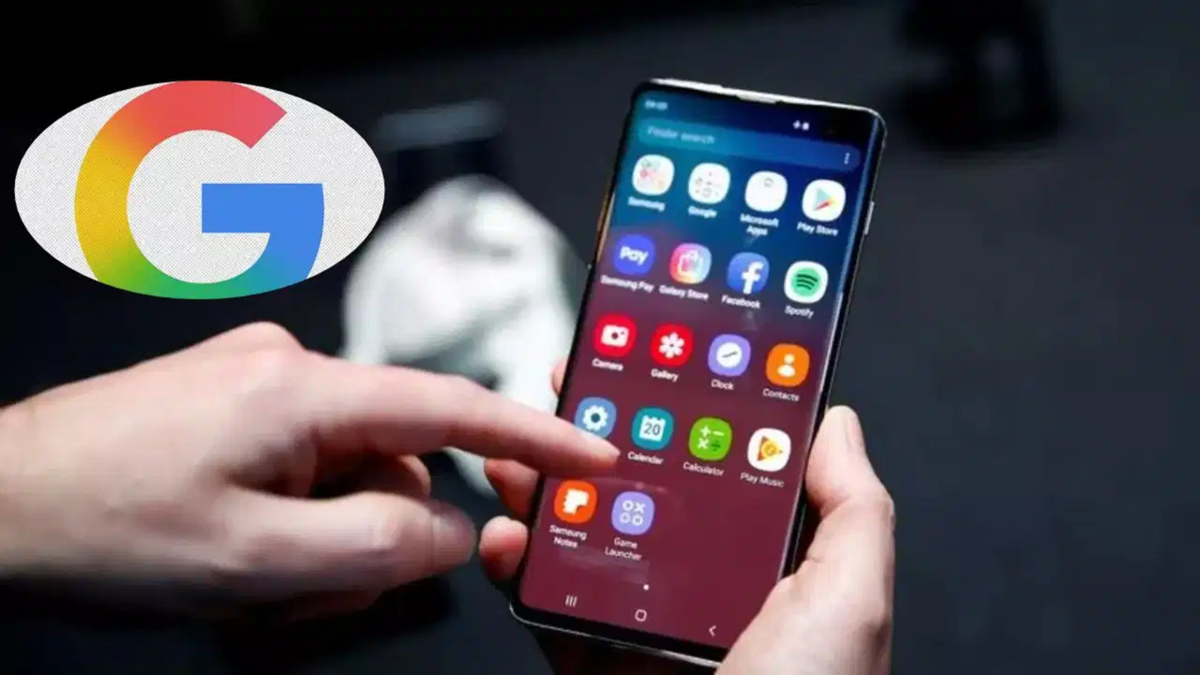
In today’s world, smartphones have become a necessity. From important documents and banking information to personal photos, a phone contains a wealth of sensitive data that could cause serious trouble if it fell into the wrong hands. Naturally, everyone is concerned about the security of their device. But have you ever wondered what the first step should be if your phone is lost or stolen—and how you might get it back? If not, let’s explore the answer.
If an Android phone is lost or stolen, the first priority is to determine its location. Fortunately, Google offers a specialized feature to assist with this: "Google Find Hub." Using this tool, you can track your lost device via another Android phone, a laptop, or even a browser on an iPhone. But how does it work? Here is the full explanation and the process.
What is Google Find Hub, and how does it work?
Previously known as "Find My Device" on Android smartphones, Google Find Hub is a device-tracking feature. It allows users to locate lost smartphones, earbuds, and tracker tags. To do this, Google leverages a vast network of millions of Android devices. These devices detect Bluetooth signals from nearby lost phones and relay that location data back to the network.
According to Google, the location information gathered through this network is end-to-end encrypted. In simpler terms, only the owner of the smartphone can view it; even Google itself cannot access this data.
Essential settings to configure before a phone is lost
For this feature to be effective on an Android device, certain settings must be enabled in advance. You should ensure that both Location and Bluetooth are turned on. Additionally, navigate to the Find Hub settings and enable the "Allow device to be located" option. You will find an 'Offline finding' option here, where you can choose between 'With network in busy places only' or 'With network everywhere.' It is also essential to have a PIN, pattern, or password set on your phone. Additionally, ensure you remember your Google account password and login credentials. Please note that the names of these settings may vary slightly depending on the phone manufacturer.
How to view the location of a lost phone on a map
If your phone is lost or stolen, open the 'Find My Device' (Find Hub) app on another Android device or visit the Google 'Find My Device' website. Log in using the same Google account that was linked to the lost phone. Once you select your phone from the list of devices, its last known location will appear on the map. You can also get directions to that location via Google Maps.
If the phone is nearby, you can use the 'Play Sound' option. This will cause the phone to ring at full volume for 5 minutes, even if it is set to silent mode. Furthermore, the 'Find Nearby' feature can help you locate the device if it is within a 10-meter radius.
What to do if your phone is stolen
If the chances of recovering your phone are slim, you should select the 'Mark as lost' option. This will lock the device and allow you to display a message along with a phone number on the screen. Even without your Google password, you can use the 'Remote Lock' feature to lock the screen.
The final option is 'Factory Reset,' which permanently deletes all data from the phone. However, once a phone has been reset, it can no longer be tracked via 'Find My Device.' Therefore, this option should be used with caution.
Disclaimer: This content has been sourced and edited from Dainik Jagran. While we have made modifications for clarity and presentation, the original content belongs to its respective authors and website. We do not claim ownership of the content.
