
iCloud Backup Made Easy: A Complete Step-by-Step Guide to Secure Your iPhone and iPad Data
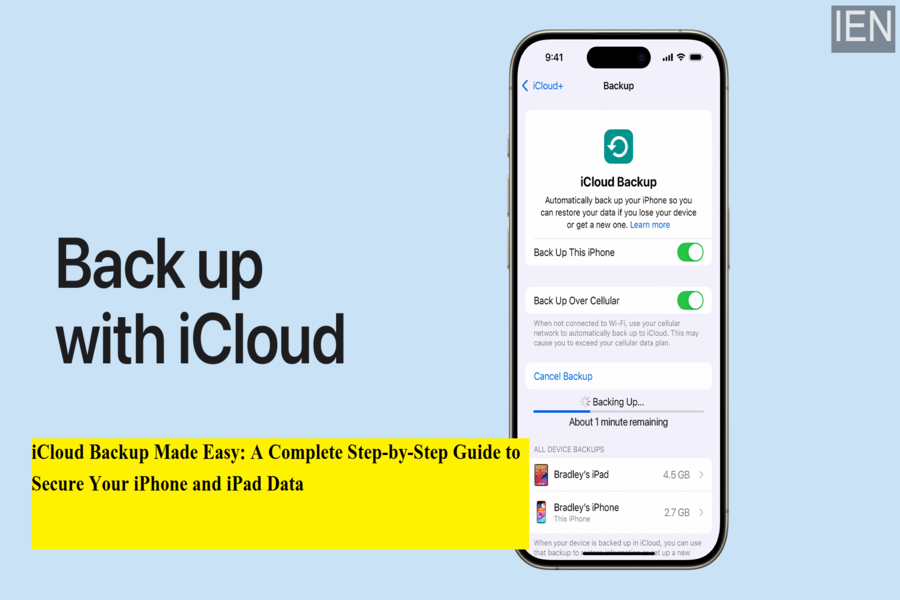
Backing up your smartphone or tablet is no longer optional—it’s a necessity in today’s digital world. Whether it’s personal photos, important contacts, app data, or device settings, losing data can be stressful and sometimes irreversible. Thankfully, Apple offers a built-in and reliable solution through iCloud, making it simple to protect everything stored on your iPhone or iPad.
In this detailed guide, we explain how iCloud Backup works, why it’s important, and how you can manually or automatically back up your device without any hassle.
Why iCloud Backup Is Important
iCloud Backup is designed to keep your data safe and accessible at all times. Once enabled, it automatically saves a copy of your device’s information whenever your phone or tablet is connected to Wi-Fi, plugged into a power source, and locked. This background process ensures that you never forget to back up your data.
An iCloud backup includes photos, videos, app data, device settings, messages, and more. If your device is lost, damaged, or replaced, you can restore everything seamlessly to a new device. This makes switching phones or upgrading to a newer model far easier and stress-free.
For users who rely on their devices for work, communication, or personal memories, iCloud Backup provides peace of mind by keeping your digital life secure and recoverable.
What Happens After You Back Up Your Device?
Once your iPhone or iPad is backed up, your data is stored safely in the cloud. This backup can be used to restore your information during device setup, especially when buying a new phone or tablet. You can choose to back up your device manually whenever needed or enable automatic backups for continuous protection.
How to Back Up Your iPhone or iPad Manually Using iCloud
If you prefer to control when your data is backed up, you can start the process manually by following these steps:
-
Connect your iPhone or iPad to a stable Wi-Fi network.
-
Open the Settings app and tap on your name at the top.
-
Select iCloud, then tap iCloud Backup.
-
Tap Back Up Now and stay connected to Wi-Fi until the backup completes.
Once finished, the date and time of your most recent backup will appear under the “Back Up Now” option. If you see a message saying that you don’t have enough iCloud storage, simply follow the on-screen instructions to upgrade your storage plan.
How to Enable Automatic iCloud Backup
Automatic backups are ideal for users who want their data protected without having to remember anything. Here’s how to turn it on:
-
Open Settings and tap your name.
-
Go to iCloud and then tap iCloud Backup.
-
Make sure Back Up This Device is switched on.
-
Connect your device to a power source.
-
Ensure it’s connected to Wi-Fi and that the screen is locked.
Once enabled, your device will automatically back up daily when all conditions are met. If storage space runs low, you’ll receive a notification with options to purchase additional iCloud storage.
Final Thoughts
Backing up your iPhone or iPad with iCloud is one of the simplest yet most effective ways to safeguard your data. With both manual and automatic options available, users can choose what works best for their needs. Whether you’re upgrading devices, preparing for emergencies, or just staying organized, iCloud Backup ensures that your information is always protected and ready when you need it.
Taking a few minutes to enable iCloud Backup today can save you hours of stress tomorrow.
