
How to Transfer WhatsApp Chats from iPhone to Android Easily: A Complete Step-by-Step Guide
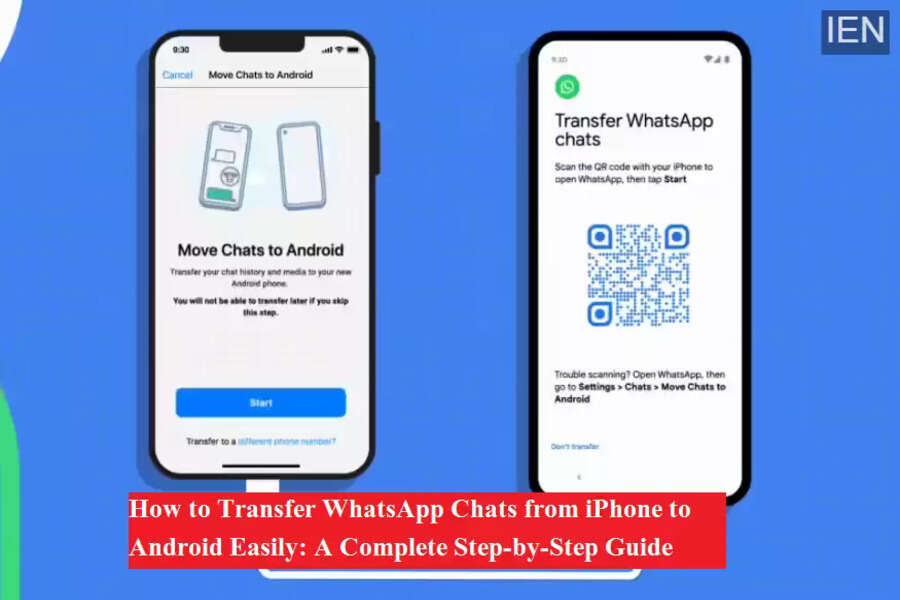
Switching from an iPhone to an Android smartphone no longer means losing your important WhatsApp chats. WhatsApp, in collaboration with Google, has introduced an official chat migration feature that allows users to securely move their chat history from iPhone to Android devices. This long-awaited solution makes transitioning between platforms smoother and stress-free.
Google officially confirmed through its blog that Android smartphones running Android 12 or later can support WhatsApp chat transfers from iOS devices. Additionally, smartphone manufacturers are allowed to integrate this feature into their Android 12 updates, meaning even some existing devices may receive support in the future.
If you are planning to change your phone and wondering how to move WhatsApp chat backup from iPhone to Android, here is everything you need to know.
WhatsApp Chat Migration: What You Need to Know
The WhatsApp chat transfer feature allows users to move:
-
Personal and group chats
-
Photos, videos, and media files
-
Voice messages and chat history
However, call history and peer-to-peer payment messages may not be transferred.
To ensure a smooth transfer, the Android phone must either be brand new or factory reset. This is a crucial requirement set by WhatsApp and Google for security reasons.
Requirements Before You Start
-
An iPhone with the latest version of WhatsApp
-
A new or factory-reset Android phone running Android 12
-
A USB Type-C to Lightning cable
-
Both devices charged sufficiently
-
The same phone number active on WhatsApp
Step-by-Step Guide to Move WhatsApp Chats from iPhone to Android
Step 1: Set up your new Android phone
Turn on your Android device and begin the initial setup process. Follow the on-screen instructions until you reach the data transfer screen.
Step 2: Connect both phones using a cable
Use a USB Type-C to Lightning cable to connect your iPhone to the Android phone when prompted.
Step 3: Scan the QR code
A QR code will appear on your Android device. Scan this code using your iPhone to launch WhatsApp and begin the chat transfer process.
Step 4: Complete the transfer
Once the process starts, your chats and media will automatically move to the Android device. After completion, log in to WhatsApp on Android using the same phone number.
Alternative Method If QR Code Fails
If the QR code does not scan or you face any issues:
-
Open Settings on your iPhone
-
Go to Chats
-
Select Move Chats to Android
-
Scan the QR code again to initiate the transfer
Special Option for Samsung Users
Samsung Galaxy smartphone users can also transfer WhatsApp chats using the Samsung Smart Switch app. This tool simplifies data migration and supports WhatsApp chat transfer when switching from iPhone to Samsung devices.
Final Thoughts
The official WhatsApp chat migration feature has made switching from iPhone to Android easier than ever. With just a cable and a few simple steps, users can safely transfer their conversations without relying on third-party apps. As more manufacturers adopt Android 12 updates, this feature is expected to become widely available, benefiting millions of users worldwide.
