
How to take a screenshot on an iPhone? Few people know the correct method, and there's a different trick for full-page screenshots..
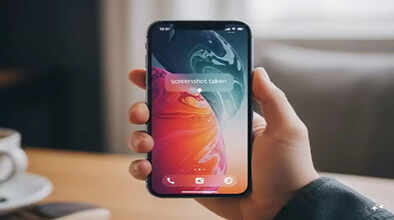
If you're an iPhone user and are confused about taking screenshots, you're not alone. Taking screenshots on an iPhone is quite easy, but the method is slightly different from Android phones, which can be confusing for new users, especially if you've recently switched from Android to iPhone.
The good news is that there are several easy ways to take screenshots on an iPhone. Here are three of the easiest tricks to take screenshots on your iPhone.
How to take a screenshot on an iPhone with Face ID
If your iPhone has Face ID (like the iPhone X and later models), taking a screenshot is very simple.
You just need to quickly press and release the side button and the volume up button simultaneously.
As soon as you do this, the screenshot will be automatically captured, and a small thumbnail will appear in the bottom left corner of the screen.
You can tap on the thumbnail to view the screenshot or swipe left to dismiss it. You can also edit, share, or delete the screenshot from here.
Screenshot on an iPhone with Touch ID
If you are using an older iPhone with a Home button (Touch ID), the method is slightly different.
For this, you need to quickly press and release the side button and the home button simultaneously.
After this, the screenshot will be captured, and a thumbnail will appear in the bottom corner, allowing you to view or edit it immediately.
How to take a Full Page Screenshot
On an iPhone, you can also take a full-page screenshot of a webpage or a long document.
First, take a screenshot on your Face ID iPhone by pressing the side button and the volume up button.
Now tap on the thumbnail and select the Full Page option at the top.
After that, tap on Done to save it to the Photos app.
Where are screenshots saved on an iPhone?
All screenshots taken on an iPhone are automatically saved to the Photos app.
To find them, open the Photos app, go to Albums, and then tap on the Screenshots section at the bottom. With these simple methods, you can take screenshots on your iPhone without any hassle, whether you're a new user or just learning the basics.
Disclaimer: This content has been sourced and edited from News18 Hindi. While we have made modifications for clarity and presentation, the original content belongs to its respective authors and website. We do not claim ownership of the content.
