
How to Stop Ads: Do you see ads for things you’ve discussed on your phone? Change these settings immediately.
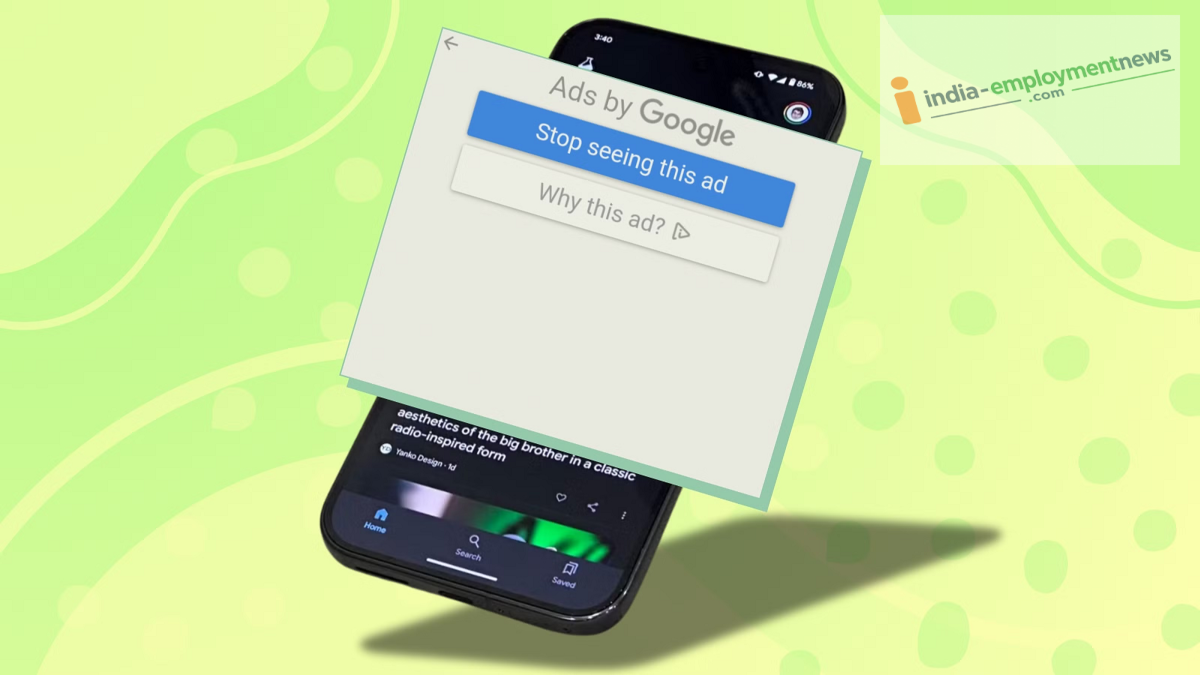
How to Stop Ads: Do you ever feel like your smartphone is secretly listening to everything you say? You can put an end to this for good by making a few simple changes to your phone. Here’s how.
How to Stop Ads: Has it ever happened that you mentioned buying new shoes or planning a trip to a friend over the phone, only to find ads for those very things appearing on your screen moments later when you open Instagram or YouTube? Many people suspect that their smartphone is eavesdropping on their conversations. However, tech experts explain that it’s not necessarily the phone’s microphone listening to you; rather, it’s the result of highly advanced data-tracking algorithms used by companies.
By analyzing your location, search history, activity on shopping apps, and your social network, these systems can predict what you might be planning to buy. If you’re tired of these targeted ads, you can protect your privacy by adjusting your phone’s settings. Here’s how to do it.
Remove Microphone Permissions and Disable Voice Tracking
Often, in our haste to install new apps, we grant them permission to access our camera, location, and microphone. Apps like shopping, gaming, or photo-editing tools have no real need for your microphone, yet they may still maintain access to it in the background. To stop this, go to your phone’s 'Settings' and tap on 'Privacy' or 'App Permissions.' From there, select 'Microphone' to see which apps have been granted access.
For any app that doesn’t require the microphone, set its permission to 'Don't Allow.' Additionally, if you use an Android phone, go to your Google Account’s 'Data & Privacy' settings, navigate to 'Web & App Activity,' and uncheck the box labeled 'Include Audio and Voice Activity' to ensure your voice is not being recorded.
Disable Google’s Advertising ID and Personalized Ads
Google creates a profile based on what you view or search for online, which is then used to show you ads tailored to your preferences. To stop this tracking, scroll down in your phone’s settings and tap on the 'Google' option. From there, select 'Ads.' You will then see options to 'Delete advertising ID' or 'Reset advertising ID.'
You can tap on these to remove your existing tracking ID. Additionally, go to the 'My Ad Center' within your Google account and toggle off 'Personalized ads.' Once this is done, Google will no longer display ads based on your search history or location; instead, you will only see generic (non-personalized) ads.
Disable Off-Platform Tracking by Social Media Apps
It is not just Google; social media platforms like Facebook and Instagram also monitor your online activity. Data regarding what you view on other websites or the items you add to your cart in various shopping apps is also accessible to these platforms. To prevent this, go to the settings in your Instagram or Facebook app and open the 'Accounts Center.'
From there, tap on 'Your information and permissions,' where you will find an option labeled 'Your activity off Meta technologies.' Select this, choose 'Disconnect future activity,' and clear your existing history. Once this is done, these social media apps will no longer be able to collect data from external websites to show you targeted ads.
