
How to Organise Emails into Categories in Gmail: A Simple Guide to a Cleaner Inbox
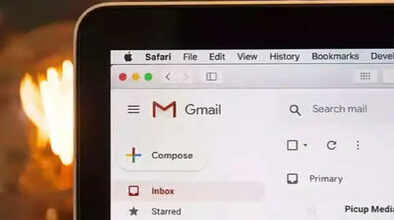
A crowded email inbox has become a daily challenge for many users. With work updates, promotional offers, social notifications, and automated alerts arriving constantly, important emails often get lost in the clutter. To solve this problem, Google offers a built-in category system in Gmail that helps users automatically sort emails into different tabs. This smart organisation feature allows you to separate priority messages from less urgent ones, making your inbox more manageable and stress-free.
By switching to a structured inbox layout, Gmail users can reduce distractions and focus on what truly matters. In this guide, we explain how Gmail’s email categories work, what each category means, and how you can enable, customise, and use them effectively to improve productivity.
Understanding Gmail’s Default Email Categories
Gmail comes with several predefined categories designed to automatically organise incoming emails. These categories are enabled through the “Default” inbox type and help filter messages based on their content and sender.
Primary
This tab contains emails from people you know and messages that do not fit into other categories. Personal conversations, direct replies, and important communications usually appear here.
Social
Emails from social networking platforms, media-sharing websites, and online communities are grouped under this tab. These messages are informative but rarely urgent.
Promotions
This category includes marketing emails such as deals, discounts, offers, newsletters, and advertisements sent by brands and businesses.
Updates
Automated emails like order confirmations, payment receipts, account notifications, statements, and reminders are sorted into this section. These emails may be important but don’t always require immediate action.
Forums
Messages from online discussion boards, mailing lists, and group conversations are placed here, helping keep bulk discussions away from your main inbox.
In addition to these, Gmail may show an Important label based on your email-reading habits. However, users cannot create custom categories and can only choose from the existing ones.
How to Enable or Change Gmail Categories on a Computer
To organise your emails using categories, follow these steps on a desktop or laptop:
-
Open Gmail in your web browser.
-
Click on Settings (gear icon) at the top right.
-
In the Quick settings panel, find Inbox type and select Default.
-
Click on Customize.
-
Choose the categories you want to display.
-
Scroll down and click Save.
Once enabled, Gmail will automatically start sorting incoming emails into the selected tabs.
Important Note:
If your inbox contains more than 250,000 emails, Gmail will not allow you to use the Default inbox type. To fix this, you must archive or delete emails to reduce the total count.
How to Manually Move Emails Between Categories
Sometimes Gmail may place an email in the wrong category. You can correct this manually:
-
Open Gmail on your computer.
-
Drag and drop the email into the correct category tab.
-
A confirmation message will appear at the bottom.
-
Click Undo if you want to reverse the action.
Over time, Gmail learns from these actions and improves its sorting accuracy.
Use Filters for Better Email Management
For even more control, Gmail allows users to create filters. Filters can automatically:
-
Mark emails from specific senders as important
-
Send emails directly to a chosen category
-
Skip the inbox and archive emails
Creating filters is especially useful for recurring emails like bills, reports, or newsletters.
Final Thoughts
Organising emails into categories in Gmail is one of the simplest ways to regain control over a busy inbox. By using Gmail’s default categories, manual sorting, and filters, users can significantly reduce clutter and improve focus. A well-organised inbox not only saves time but also enhances productivity by ensuring important emails never get overlooked.
