
How to Limit Instagram Screen Time on Android and iPhone Without Deleting the App
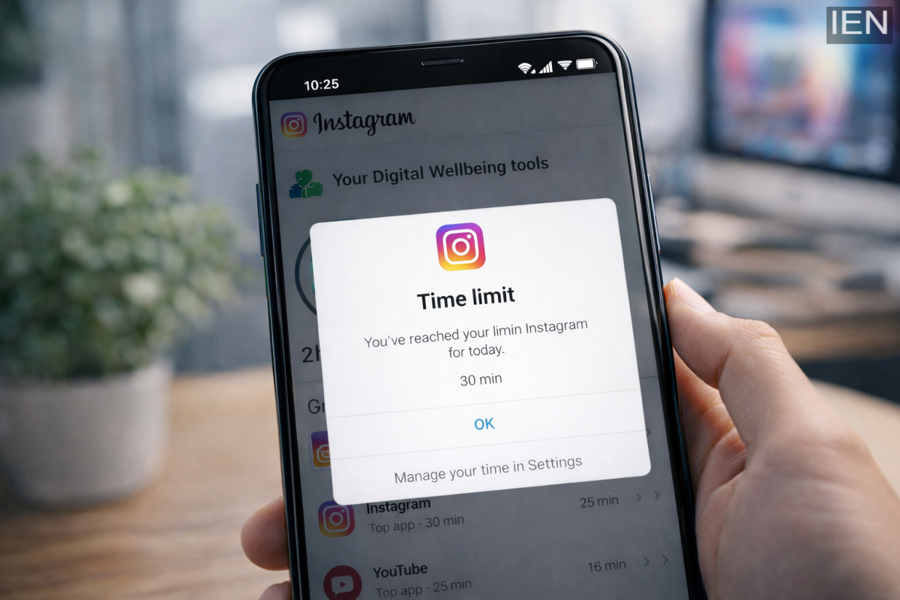
In today’s always-connected world, Instagram has become a daily habit for millions of users. From scrolling Reels to checking Stories and responding to messages, it’s easy to lose track of time on the platform. While some users consider uninstalling the app to regain control, deleting Instagram isn’t always practical—especially if you rely on it for communication, business, or content creation.
The good news is that both Android and iOS devices offer built-in tools that allow you to restrict Instagram usage without removing the app. By setting app time limits, you can build healthier digital habits while still staying connected.
Here’s a complete step-by-step guide to help you manage your Instagram screen time effectively.
Why Limiting Instagram Usage Matters
Excessive social media use can affect productivity, sleep quality, and overall well-being. Studies have linked prolonged screen time with reduced concentration and increased stress levels. Setting daily limits can help you:
-
Improve focus and productivity
-
Reduce unnecessary scrolling
-
Maintain better sleep routines
-
Create a healthier balance between online and offline life
Instead of quitting Instagram entirely, smart usage management can offer a more sustainable solution.
How to Set Instagram Time Limits on iPhone (iOS)
Apple devices come with a built-in feature called Screen Time, which allows users to monitor and control app usage.
Follow these steps:
Step 1: Open Settings
Unlock your iPhone and tap on the Settings app.
Step 2: Tap on Screen Time
Scroll down and select Screen Time.
Step 3: Enable Screen Time (If Not Active)
If you haven’t set it up before, tap Turn On Screen Time and follow the on-screen instructions.
Step 4: Select Your Device
Tap on your device name at the top of the Screen Time menu.
Step 5: Add an App Limit
Under the App Limits section, tap Add Limit.
Step 6: Choose Instagram
You can either select Social Networking or manually locate Instagram under “All Apps & Categories.”
Step 7: Set Your Daily Time Limit
Adjust the time slider or manually enter your preferred daily usage limit.
Step 8: Save the Settings
Tap Add to confirm. Once the limit is reached, Instagram will be temporarily restricted for the day.
You can override the limit if necessary, but staying consistent is key to maintaining discipline.
How to Restrict Instagram Usage on Android
Android smartphones offer a similar feature called Digital Wellbeing & Parental Controls, which tracks and limits app usage.
Follow these steps:
Step 1: Open Settings
Go to your Android phone’s Settings menu.
Step 2: Select Digital Wellbeing & Parental Controls
Scroll down and tap Digital Wellbeing & Parental Controls.
Step 3: Set Up Digital Wellbeing (If Needed)
If this is your first time using it, follow the setup instructions.
Step 4: Access the Dashboard
Tap on Dashboard or Your Digital Wellbeing Tools.
Step 5: Find Instagram
Locate Instagram from the list of installed apps.
Step 6: Set an App Timer
Tap Set Timer or App Timer next to Instagram.
Step 7: Choose a Time Limit
Adjust the slider or manually set your desired daily time allowance.
Step 8: Confirm
Tap OK or Set to save your limit.
Once the time limit is reached, the app icon will appear greyed out, indicating restricted access until the next day.
Additional Tips for Better Social Media Control
-
Turn off non-essential Instagram notifications.
-
Avoid opening the app immediately after waking up.
-
Keep your phone away during work or study hours.
-
Schedule specific time slots for social media use.
These small changes can significantly improve digital discipline.
Final Thoughts
Restricting Instagram usage doesn’t require deleting the app entirely. With built-in tools like Screen Time on iOS and Digital Wellbeing on Android, users can manage their screen time more effectively while maintaining access to important connections.
By setting realistic daily limits and sticking to them, you can build healthier habits and ensure social media enhances your life rather than disrupts it.
