
How to Download Your Aadhaar Card via WhatsApp? Here Is the Step-by-Step Process—Get It Done in Minutes..
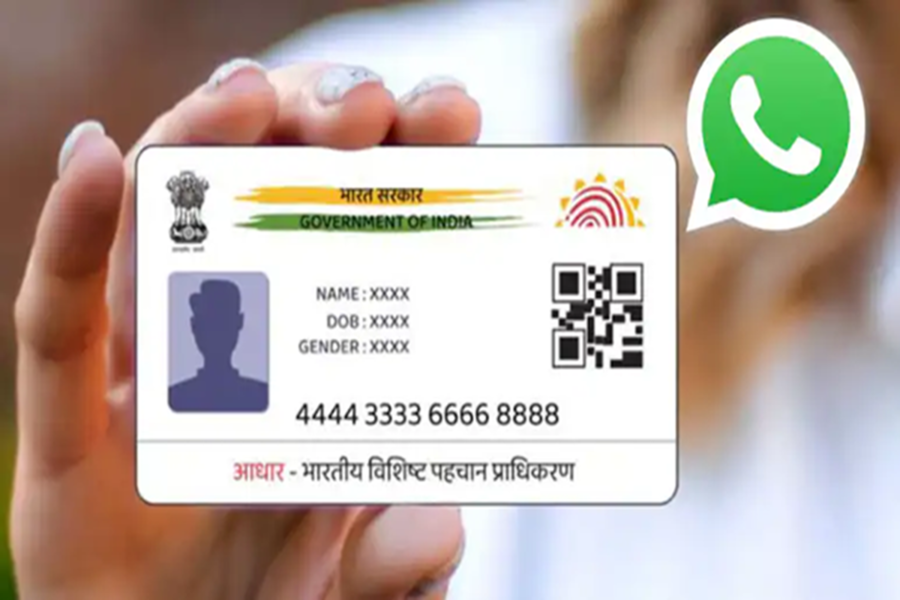
How to Download Your Aadhaar Card via WhatsApp: In today's times, the Aadhaar card is no longer merely an identity card; it has become the strongest foundation of our digital and financial identity. From opening a bank account to availing the benefits of government schemes, Aadhaar is required for numerous essential services such as mobile connections, passports, pensions, and subsidies. Consequently, if you happen to lose your Aadhaar card or find yourself in urgent need of a copy, there is no longer any need to panic. In fact, you can now download your Aadhaar card directly through WhatsApp. In this guide, we will walk you through the simple process of downloading your Aadhaar card using WhatsApp. Let's explore the step-by-step procedure...
Step-by-Step Process to Download Aadhaar Card via WhatsApp
First, save the number +91‑9013151515 to your mobile phone's contact list.
Now, open the WhatsApp app and send a message containing 'Hi' or 'Namaste' to this number.
Subsequently, the chatbot will display a menu of DigiLocker services. From this menu, select the 'DigiLocker' option.
You will then be prompted to create a DigiLocker account. Confirm this request.
Once the account is set up, you will need to enter your 12-digit Aadhaar number.
Following this, a One-Time Password (OTP) will be sent to the mobile number linked to your Aadhaar.
Enter this OTP to verify your identity.
As soon as the OTP verification is complete, a list of all documents linked to your Aadhaar will appear.
Select 'Aadhaar' from the list and download it in PDF format.
Once downloaded, your Aadhaar card will be saved directly within your WhatsApp chat.
How to Download Aadhaar from the UIDAI Website
First, visit the official UIDAI website.
Next, click on the 'Download Aadhaar' option provided on the site.
Now, enter either your Aadhaar Number, Enrollment ID (EID), or Virtual ID (VID).
Afterward, enter the Captcha code displayed on the screen.
Now, click on the 'Send OTP' option.
An OTP will be sent to the mobile number linked to your Aadhaar.
Finally, enter the OTP and download your e-Aadhaar PDF.
Disclaimer: This content has been sourced and edited from NDTV India. While we have made modifications for clarity and presentation, the original content belongs to its respective authors and website. We do not claim ownership of the content.
