
How to Create a Photo Collage for Instagram Story: Step-by-Step Guide
Instagram Stories have become one of the most popular ways to share daily moments, updates, and creative content. Introduced a few years ago, the Stories feature allows users to post photos and videos that disappear automatically after 24 hours. These Stories appear at the top of the Instagram feed, making them highly visible and engaging.
Over time, Instagram has enhanced Stories with multiple creative tools such as stickers, filters, text styles, music, polls, and link-sharing options. One particularly useful yet often overlooked feature is the ability to create a photo collage directly within Instagram Stories, without using any third-party apps.
A photo collage lets you combine multiple images into a single Story frame, helping you tell a better story, showcase highlights from an event, or share multiple moments at once. In this article, we explain how to make a photo collage for Instagram Story using Instagram’s built-in Layout feature on both Android and iOS devices.
Why Use a Photo Collage on Instagram Stories?
Creating a collage offers several benefits:
-
Share multiple photos in a single Story
-
Save time and avoid uploading several Stories
-
Create visually appealing and organized content
-
Highlight events, trips, celebrations, or product showcases
For creators, influencers, and everyday users alike, collages add creativity and variety to Stories.
Devices That Support Instagram Story Collage
The collage feature is available on:
-
Android smartphones
-
iOS (iPhone) devices
As long as your Instagram app is updated to the latest version, you can access this feature easily.
Step-by-Step Guide: How to Make a Photo Collage for Instagram Story
Follow these simple steps to create a collage using Instagram’s Layout tool:
Step 1:
Open the Instagram app on your Android or iOS smartphone and log in to your account.
Step 2:
Tap on the ‘+’ (Plus) icon at the top of the home screen and select the Story option.
Step 3:
On the Story camera screen, tap the arrow icon located on the left side to open additional Story tools.
Step 4:
From the menu, select the Layout option, which is usually placed below the Boomerang option.
Step 5:
A default four-grid layout will appear on the screen. To change the number of sections, tap on the Change Grid option and choose your preferred layout.
Step 6:
Once the grid is selected, the camera window will open in the first section. You can either:
-
Click a new photo using the camera, or
-
Upload an existing photo from your gallery
Step 7:
After filling the first section, the app will automatically move to the next section. Repeat the process until all grid sections are filled.
Step 8:
Once all sections are complete, tap on the tick (✔) icon at the bottom of the screen.
Step 9:
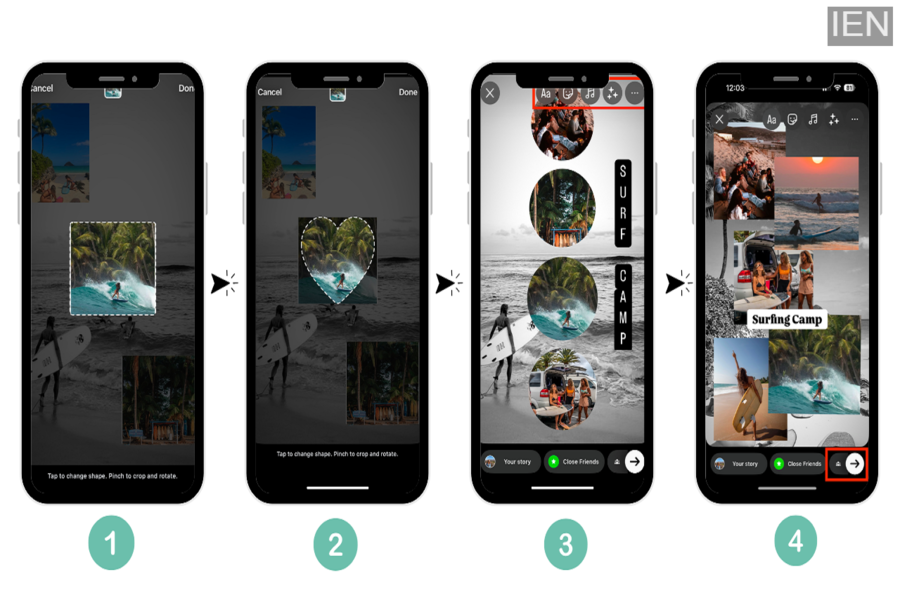
Now, edit your collage just like a regular Story. You can add text, stickers, filters, music, or effects.
Step 10:
Finally, share the Story with Your Story or Close Friends.
Tips for Better Instagram Story Collages
-
Use photos with similar lighting or color tones
-
Avoid overcrowding small grids with too many details
-
Add minimal text for a clean look
-
Use Instagram filters sparingly
Conclusion
Instagram’s built-in collage feature makes it easy to create attractive Stories without installing extra apps. Whether you’re sharing memories, promoting content, or simply expressing creativity, photo collages help you make your Stories more engaging and visually appealing. With just a few taps, you can turn multiple images into a single, well-designed Story.
