
How to Create a Gmail Signature: Step-by-Step Guide to Add a Professional Touch to Your Emails
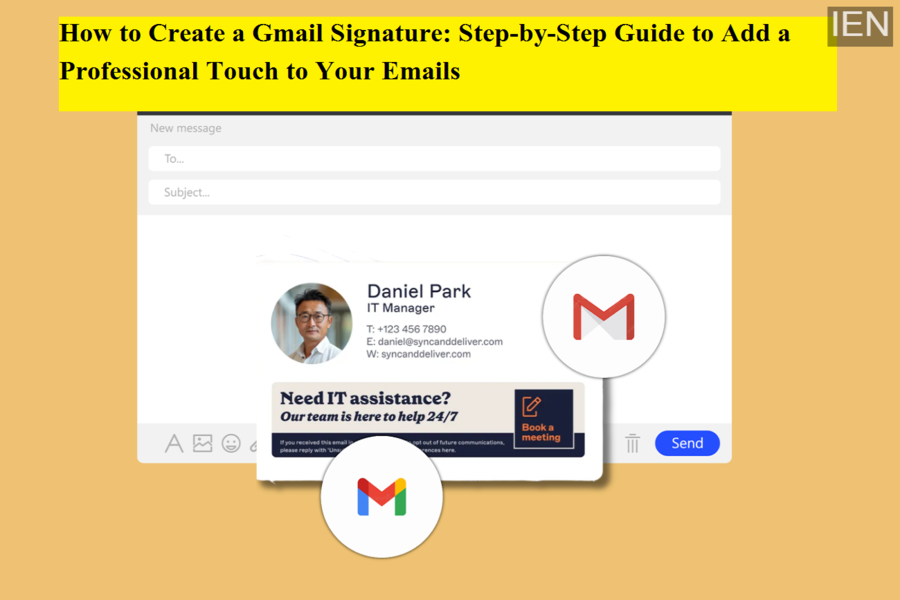
Email remains one of the most important tools for personal and professional communication. Whether you are applying for jobs, managing clients, or sending official updates, the way your email looks matters. One simple feature that can instantly make your emails look polished and credible is a Gmail signature. With the built-in signature option in Gmail, you can automatically add your name, contact details, and branding to every email you send.
In this complete guide, we explain what a Gmail signature is, why it matters, and how you can create, edit, manage, or remove signatures with ease.
What Is a Gmail Signature and Why Is It Important?
A Gmail signature is a block of text or media that appears automatically at the bottom of your emails. It saves time by eliminating the need to type your details repeatedly and ensures consistency across all your communications. A well-designed signature can include your name, designation, company name, phone number, website, and even social media links.
Gmail also allows you to customize your signature using different fonts, colors, images, and logos. This flexibility makes it suitable for everyone—from students and freelancers to corporate professionals and business owners. Once set up, your signature will appear in new emails as well as replies, depending on your settings.
It’s worth noting that Gmail allows up to 10,000 characters in a signature. Images and logos also count toward this limit, so it’s best to keep your design clean and lightweight.
How to Create a Gmail Signature (Step-by-Step)
Creating a signature in Gmail is quick and straightforward. Follow these steps:
-
Open Gmail on your web browser and sign in to your account.
-
Click on the Settings icon at the top right and select See all settings.
-
Under the General tab, scroll down to the Signature section.
-
Click Create new and enter your signature text in the provided box.
-
Use formatting options to adjust font style, size, color, or to add an image or logo if needed.
-
Scroll to the bottom of the page and click Save Changes.
Once saved, your signature will automatically appear in your outgoing emails.
How to Edit an Existing Gmail Signature
If your contact details or job role change, updating your Gmail signature is just as easy:
-
Open Gmail and go to Settings > See all settings.
-
Under the General section, scroll to Signature.
-
Click on the signature you want to edit.
-
Make the required changes in the text box.
-
If you want to rename the signature, click Edit next to its name.
-
Click Save Changes at the bottom.
You can also choose which signature appears by default for new emails and replies.
How to Use Multiple Signatures in Gmail
Gmail allows users to create and manage multiple signatures. This is especially useful if you send different types of emails, such as personal, professional, or client-specific messages.
You can:
-
Set one signature as default for new emails
-
Use a different signature for replies and forwards
-
Manually select a signature while composing an email by clicking Insert signature at the bottom of the compose window
This feature helps you tailor your communication based on the recipient.
Adding Signatures for “Send Mail As” Addresses
If you use Gmail’s “Send mail as” feature to send emails from multiple addresses, you can assign a unique signature to each email address.
To do this:
-
Go to Settings and open the Accounts and Import tab
-
Ensure your email addresses are listed under Send mail as
-
Use the drop-down menu in the Signature section to select an address and add a custom signature
This is useful for users managing multiple roles or brands from a single Gmail account.
How to Remove a Gmail Signature
If you no longer need a signature, you can remove it easily:
-
Open Gmail and go to Settings > See all settings.
-
Under General, scroll to Signature.
-
Select the signature you want to delete.
-
Click Delete.
-
Scroll down and click Save Changes.
Final Thoughts
A Gmail signature is a small feature with a big impact. It improves professionalism, saves time, and ensures your contact details are always visible. With options to customize, manage multiple signatures, and assign them to different email addresses, Gmail makes it easy to tailor your email communication to any situation.
Taking a few minutes to set up or update your Gmail signature can greatly enhance how your emails are perceived—making every message clearer, more consistent, and more professional.
