
How to Backup WhatsApp Chats, Photos and Videos on iPhone: A Complete iOS Guide
WhatsApp has become an essential communication platform for millions of users worldwide. From personal conversations to work-related discussions, people rely on WhatsApp not only for text messages but also for sharing photos, videos, documents, and voice notes. Over time, these chats often turn into valuable digital memories and important records.
Now imagine switching to a new iPhone, resetting your device, or changing the phone number linked to your WhatsApp account—and suddenly losing all your chats and media. Such data loss can be stressful and irreversible if you haven’t backed up your account. This is why regular WhatsApp backups are extremely important, especially for iPhone users.
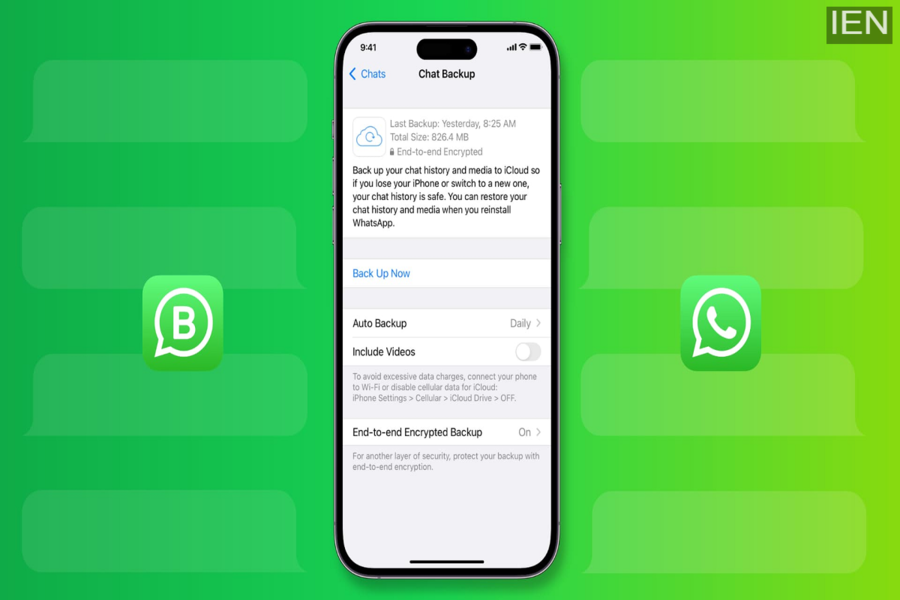
For iOS devices, WhatsApp offers a built-in backup solution using Apple’s iCloud service. This ensures that your chats, photos, and videos remain safe and can be restored easily when needed. In this article, we explain how to back up WhatsApp chats, photos, and videos on iOS, along with key requirements and useful tips.
Why Backing Up WhatsApp on iPhone Is Important
Backing up WhatsApp data helps you:
-
Restore chats when switching to a new iPhone
-
Recover data after reinstalling WhatsApp
-
Protect photos and videos from accidental deletion
-
Avoid permanent data loss during software issues
Since WhatsApp does not store chat histories on its own servers, backups are the only way to safeguard your data.
Things to Check Before Backing Up WhatsApp on iOS
Before starting the backup process, make sure the following requirements are met:
-
You are signed in with the same Apple ID that you use for iCloud
-
Your iPhone is running iOS 10 or later
-
iCloud Drive is turned on
-
There is enough free storage space on both your iPhone and iCloud
-
You have at least 2.05 times more free space than the size of your WhatsApp backup
WhatsApp also clarifies that deleted messages cannot be recovered, as chat histories are not stored on WhatsApp servers.
Step-by-Step Guide: How to Backup WhatsApp Chats on iPhone
Follow these simple steps to back up your WhatsApp data on iOS:
Step 1:
Open the WhatsApp app on your iPhone.
Step 2:
Tap on Settings, located at the bottom-right corner of the screen.
Step 3:
Select Chats from the list of options.
Step 4:
Tap on Chat Backup.
Step 5:
Now, tap on Back Up Now to start the manual backup process.
Once completed, your WhatsApp chats, photos, and videos will be saved to your iCloud account.
Enable Automatic WhatsApp Backups
WhatsApp also allows users to schedule automatic backups, so you don’t have to worry about backing up manually every time.
You can choose:
-
Daily backups for maximum safety
-
Weekly backups for regular protection
-
Monthly backups if you prefer minimal storage usage
Automatic backups ensure that your latest conversations and media files are always protected.
Important Tips for iOS WhatsApp Backup
-
Keep your iPhone connected to Wi-Fi during backup
-
Ensure sufficient battery or connect to a charger
-
Large video files may take longer to back up
-
iCloud storage limits may affect backup completion
Conclusion
Backing up WhatsApp chats, photos, and videos on iOS is a simple yet essential step for every iPhone user. With iCloud integration, WhatsApp makes it easy to secure your data and restore it whenever needed. Whether you’re upgrading your device or safeguarding important conversations, regular backups help you stay stress-free and prepared for unexpected situations.
