
How to Add Memoji Stickers to Instagram Stories: Step-by-Step Guide for iPhone Users
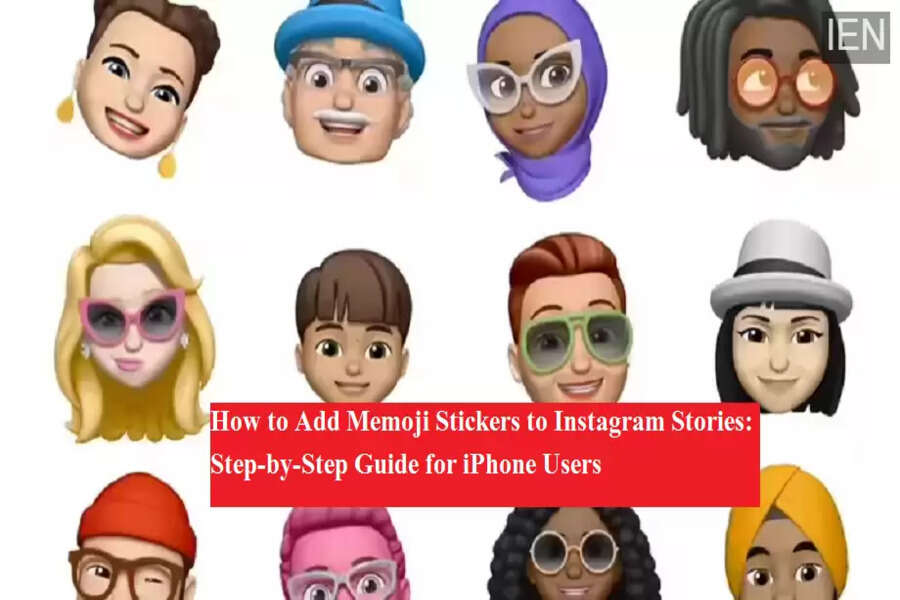
Instagram Stories have become one of the most popular ways to share moments, thoughts, and creativity with followers. From filters and music to polls and GIFs, Instagram offers several tools to make Stories more engaging. One lesser-known but fun feature is the ability to add Apple Memoji stickers to Instagram Stories.
Apple introduced Memojis a few years ago as personalized Animoji stickers that reflect a user’s facial features and expressions. These animated stickers allow iPhone users to create a digital version of themselves and use it across different apps. While Snapchat does not support Apple Memojis due to its own Bitmoji feature, Instagram users can still use Memojis creatively in their Stories.
What Are Memojis and Which iPhones Support Them?
Memojis are customizable Apple stickers that users can design based on their appearance. You can personalize them by selecting:
-
Head shape
-
Hairstyle and hair color
-
Eye color and eyebrows
-
Nose, lips, facial hair, and accessories
All iPhone models running iOS versions released in 2018 or later support Memojis. Users can create and manage their Memojis through the Messages app on iPhone.
Once created, these stickers can be used almost anywhere emojis are supported—including Instagram Stories.
Why Use Memojis on Instagram Stories?
Adding Memojis to Instagram Stories helps users:
-
Make Stories more personal and expressive
-
Stand out from regular GIFs and stickers
-
Add a fun, animated touch to photos and videos
-
Show personality without using a camera
For creators and casual users alike, Memojis offer a unique way to connect with followers.
How to Add Memoji Stickers to Instagram Stories
Follow these simple steps to use Memojis in your Instagram Stories:
Step 1: Open Instagram Stories
Launch the Instagram app and tap on your profile picture or swipe right to open the Story section.
Step 2: Capture or Select Content
Take a photo or video using the camera, or choose an existing photo or video from your gallery.
Step 3: Tap the Text Tool
Once your Story content is ready, tap on the Text (Aa) icon at the top-right corner of the screen.
Step 4: Open the Emoji Keyboard
When the keyboard appears, tap on the emoji icon to open the emoji section.
Step 5: Swipe to Access Memojis
Swipe right on the emoji keyboard until you reach the Memoji stickers section.
Step 6: Choose a Frequently Used Memoji
You will see Memojis that you’ve used recently.
Step 7: View All Available Memojis
Tap on the three-dot icon to see the full list of Memojis available on your iPhone.
Step 8: Select a Memoji
Choose the Memoji sticker you want to add to your Story.
Step 9: Adjust the Sticker
The selected Memoji will appear on your Story. You can resize it, rotate it, or move it anywhere—just like any other Instagram sticker.
Step 10: Add More Memojis (Optional)
If you want to use multiple Memojis, simply repeat the same steps.
Additional Tip for Android Users
If you are using a Samsung smartphone, you can add personalized AR Emojis to Instagram Stories in a similar way. Samsung’s AR Emoji feature allows users to create animated avatars and use them across apps.
Final Thoughts
Using Memoji stickers on Instagram Stories is a simple yet creative way to personalize your content. Whether you want to add humor, emotion, or individuality to your Stories, Memojis offer a fun alternative to standard stickers and GIFs. With just a few taps, you can make your Instagram Stories more expressive and engaging.
