
Google Voice Activity: Is Google secretly recording everything you say? Learn how to find and delete these recordings..
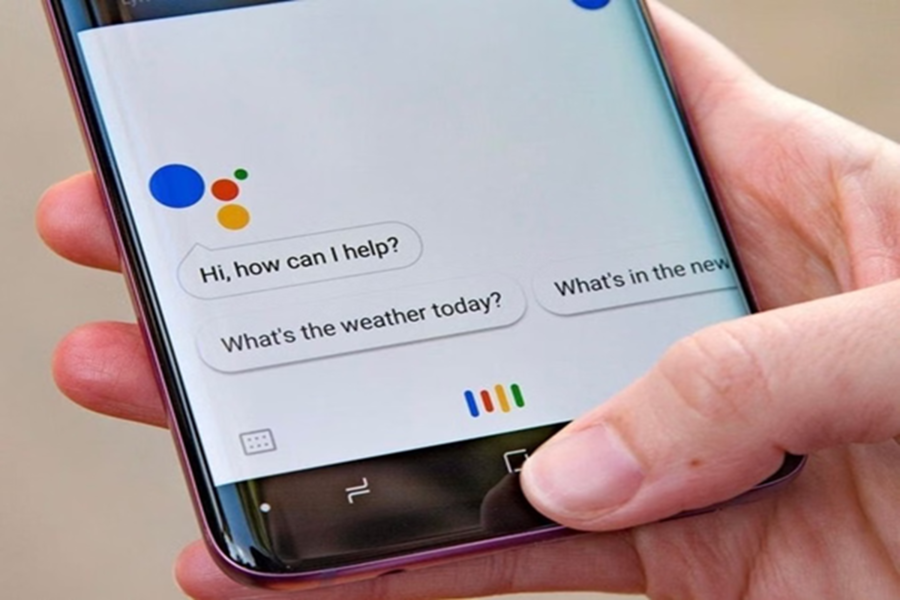
In this era of privacy concerns, many questions arise regarding digital security. Following recent legal disputes and privacy concerns surrounding Google, the discussion has intensified about whether this tech giant records users' voices without their knowledge. In fact, Google often records small snippets of your voice to improve its 'Voice Assistant' and speech recognition technology. This situation arises because the 'Voice & Audio Activity' option is often enabled by default during account setup, leading to the unintentional storage of data.
Thousands of voice recordings may be present in your account
In this age of digital privacy, it has come to light how extensively Google Assistant can record user activity. Recent analyses have shown that a typical user's Google account can contain years of data, including thousands of voice recordings.
The most serious aspect of this data collection is that it is not limited to written search history. The Google account history actually includes a 'play button' option, meaning the system has saved the user's voice as an audio file. This process is not limited to smartphones; it also silently collects information through other connected devices, such as 'Android Auto' in cars and 'Google TV' at home.
According to privacy experts, this audio data accumulated over the years is proof that we are unknowingly sharing a significant portion of our private conversations and habits with tech companies.
What does Google do with these recordings?
Google argues that it saves your voice to improve its services. The company says that all of this happens with your permission, even if you don't remember when you said "yes." But the biggest question here is about privacy, as some Google employees can also listen to these recordings.
How to find your voice recordings? If you also want to check what information Google has recorded about you, the process is very simple. First, go to Google's 'Web & App Activity' page (myactivity.google.com). Scroll down, and you'll find the 'Filter by date and product' option. Click on it and select 'Assistant' from the list. Now you will see all the conversations you've had with Google Assistant. Any entry with a small microphone icon next to it indicates that an audio recording exists. To listen to it, simply click on 'Details' and then press the 'View recording' button to hear your recording.
How to turn off and delete voice recordings?
If you want Google to stop saving your voice in the future, you can easily prevent this. Simply go to the 'Google My Activity' page and uncheck the 'Include voice and audio activity' box. This will allow Google to hear your commands but not record them on its servers. If you want to delete old recordings, filter your history by 'Assistant' and press the 'Delete' button. You can also delete your entire activity history at once.
Should you delete them?
There's no particular benefit to keeping these recordings. Besides privacy concerns, there's also a security risk; if your account is ever hacked, these recordings could fall into the wrong hands. According to Google, once deleted, this data is permanently removed from your account. No matter how careless you are about your online privacy, checking how much information Google has about you is always a wise step.
Disclaimer: This content has been sourced and edited from Amar Ujala. While we have made modifications for clarity and presentation, the original content belongs to its respective authors and website. We do not claim ownership of the content.
