
Google Meet Host Controls Explained: How to Disable Participants’ Video During a Meeting
Google Meet has become one of the most widely used video conferencing platforms for businesses, schools, and remote teams. The platform offers a variety of features designed to improve meeting management and give hosts better control over participants.
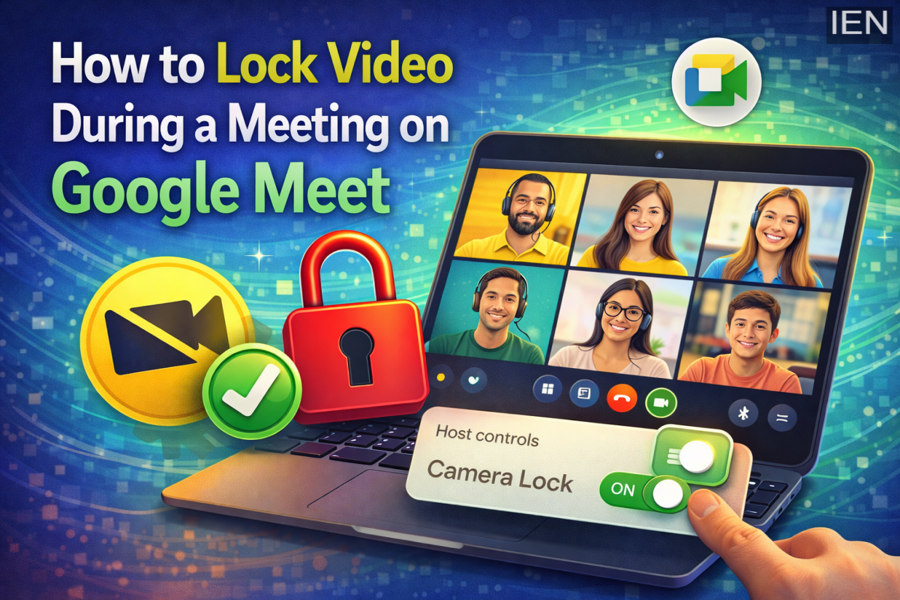
One such useful feature is Camera Lock, which allows meeting hosts to disable the video cameras of participants during a meeting. This feature helps maintain order and prevent disruptions, especially in large meetings or virtual classrooms where participants may unintentionally turn on their cameras.
By using Camera Lock, hosts and co-hosts can decide when participants are allowed to use their cameras and when video feeds should remain disabled.
If you want to manage video access during a Google Meet session, here is a detailed guide explaining how to lock participant videos during a meeting.
What Is the Camera Lock Feature in Google Meet?
The Camera Lock feature in Google Meet allows hosts or co-hosts to restrict participants from turning on their cameras during a meeting.
When this option is enabled:
-
Participants cannot activate their video cameras
-
Video feeds remain disabled for all attendees
-
Hosts and co-hosts can still keep their cameras on
This feature is especially useful for:
-
Large online meetings
-
Virtual classrooms
-
Presentations and webinars
-
Managing disruptive participants
Once the host turns off the Camera Lock setting, participants can again use their video cameras.
Important Things to Know Before Enabling Video Lock
Before activating Camera Lock during a meeting, there are a few things you should keep in mind.
When Video Lock is turned on, some mobile users may face issues if their device does not meet certain requirements.
Participants using mobile devices may be removed from the meeting if their device does not have:
-
The latest version of the Google Meet or Gmail app
-
Android version M (Android 6.0) or newer
-
iOS version 12 or later
If participants are removed due to these compatibility issues, they can rejoin the meeting once Video Lock is disabled.
Therefore, it is recommended that participants update their apps and operating systems before joining meetings.
How to Lock Video During a Google Meet Meeting
If you are hosting a meeting and want to disable video for participants, follow these steps.
Step 1: Open Host Controls
While the meeting is ongoing, move your cursor to the bottom-right corner of the screen.
Step 2: Click on Host Controls
Select Host Controls from the meeting options.
Step 3: Access the Control Panel
A side panel will appear on the screen displaying different meeting management settings.
Step 4: Enable Camera Lock
From the side panel, toggle the option to turn off participant video feeds.
Once enabled, all participants in the meeting will be unable to activate their cameras.
How to Allow Video Again
If you want participants to use their cameras again:
-
Open Host Controls
-
Go to the Camera Lock setting
-
Turn the option off
After disabling the lock, participants will be able to turn on their video cameras again.
Why This Feature Is Useful
Camera Lock can be helpful in several situations.
For example:
-
During presentations, when only the speaker should appear on video
-
In online classrooms, where teachers want to reduce distractions
-
During large meetings, to improve meeting focus
-
When managing unwanted disruptions
By controlling participant video access, hosts can ensure smoother and more organized meetings.
Final Thoughts
Google Meet continues to add useful host control features to improve virtual meeting experiences. The Camera Lock option gives meeting organisers the ability to control when participants can use their cameras.
This feature is particularly valuable for large meetings, online classes, and professional presentations where maintaining order is essential.
By understanding and using host controls effectively, meeting organisers can create a more productive and distraction-free virtual environment.
