
Google Maps' AQI feature: Here's how to check the real-time AQI of your area, the method is very easy..
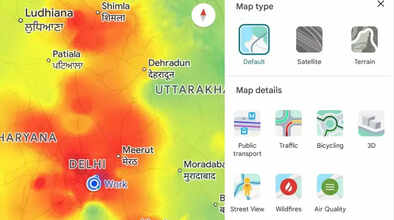
How to Check Real-Time AQI on Google Maps: Air pollution in North India, especially Delhi, is becoming increasingly severe. People are facing difficulties due to poor air quality. Therefore, checking the air quality before leaving home has become extremely important. Google Maps' Air Quality Index (AQI) feature shows users the real-time AQI, allowing you to take necessary precautions before going outside.
Why Checking AQI on Google Maps is Important
In large cities like Delhi, air quality changes throughout the day. Google Maps' AQI feature provides information about the most polluted areas around you. This helps you decide whether it's safe to go outside. For daily commuters, this feature becomes a crucial health tool.
How to See AQI Directly on Google Maps
After opening the Google Maps app, tap on the Layers option located below your profile picture. Selecting the Air Quality option will display the AQI of your area on the map. This method works for both Android and iPhone users. You can find out the air quality in your surroundings in just a few seconds.
An Easy Way to See AQI from the Weather Section
On the Google Maps homepage, in the Explore section, you'll find an icon related to weather and AQI. Clicking on this will first show the temperature, and below that, you'll find the Air Quality option. Tapping on this option will display the air quality of your area on the screen. This method is also quite easy and fast.
What the Colors Mean in Google Maps
In Google Maps, the AQI is displayed on a scale of 0 to 500, with different colors. Green indicates good and safe air quality between 0 and 100. Yellow, orange, and red indicate increasing levels of pollution. If the map is completely red and the AQI is close to 500, it's important to take precautions before going outside. According to Google, this data is updated every few minutes to provide users with the latest information.
Disclaimer: This content has been sourced and edited from TV9. While we have made modifications for clarity and presentation, the original content belongs to its respective authors and website. We do not claim ownership of the content.
