
Even if your phone is stolen or lost, the thief won't be able to switch it off! Enable this secret setting immediately..
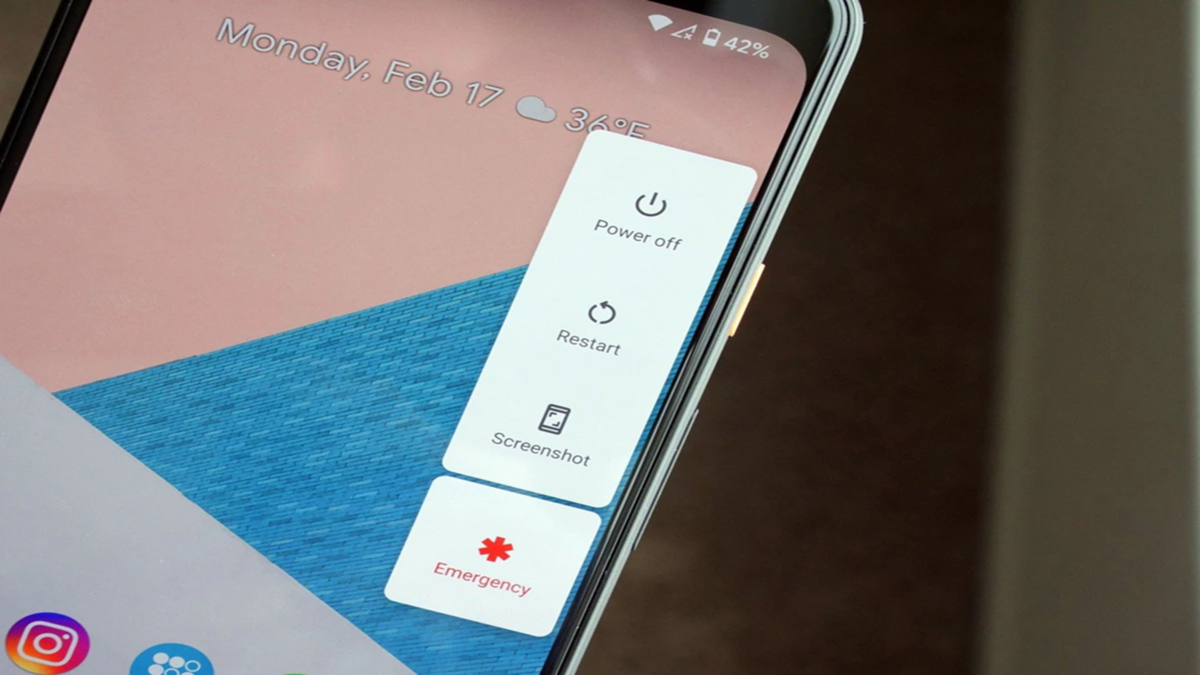
The biggest risk when a phone is stolen or lost is that someone might turn it off or cut off its internet and network connections, making it difficult to track the device's location. However, both Android and iPhone devices offer security settings that restrict access to quick settings and other essential options from the lock screen, making it harder for a thief to switch off the phone. Additionally, tools like Google's "Find My Device" and Apple's "Find My Network" can assist in locating the phone.
**Disable Control Panel Access from the Lock Screen on Android**
Many Android phones—such as those from Samsung, Realme, OnePlus, and Vivo—allow you to restrict access to quick settings and network controls from the lock screen. Check the "Lock Screen & Security" or "Notification Center" options within your phone's settings. Some phones let you disable the option to swipe down on the lock screen; this prevents anyone from easily toggling settings like Wi-Fi, mobile data, or Airplane mode while the phone is locked.
**Lock the Control Panel**
Go to your phone's **Settings** and tap on **Lock Screen & Security** (or **Notification Center**).
Look for the **"Lock Network and Security"** or **"Swipe down on Lock screen"** option and turn it **Off** (or disable it).
This ensures that no one can swipe down to toggle Wi-Fi, mobile data, or Airplane mode while the phone is locked.
**Require a Password to Power Off**
On Samsung phones, go to **Settings > Lock Screen > Secure Lock Settings** and enable **"Lock options."**
On many other brands, you can enable the password requirement by going to **Settings > System > Power Button**.
**Secure the Power-Off Function**
Some phones offer an option to require a password for powering off or accessing other security settings while the device is locked. On Samsung phones, you can find this under **Secure Lock Settings** within the **Lock Screen** menu. However, the specific names and locations of these settings may vary by manufacturer, so be sure to check the lock screen and security settings on your specific device for power-off-related options. The aim is to prevent anyone from changing critical settings without a passcode if the phone is stolen.
Make sure to enable these two settings on your iPhone
Go to the "Face ID & Passcode" section within your iPhone's Settings and look for the "Allow Access When Locked" option. Here, you can disable access to the Control Center and USB accessories. This makes it difficult for someone to access the Control Center from the lock screen and change settings like Airplane Mode. Additionally, you can enable "Stolen Device Protection." This ensures that even if someone else knows your passcode, extra security measures—such as Face ID—are required to make sensitive security changes.
Disable Control Center on your iPhone
Open Settings.
Go to Face ID & Passcode.
Enter your passcode.
Scroll down to "Allow Access When Locked."
Turn off Control Center.
You can also turn off USB Accessories if desired.
How to enable Stolen Device Protection on your iPhone
Open Settings.
Go to Face ID & Passcode.
Tap on Stolen Device Protection.
Turn it on.
This ensures that even if a thief knows your passcode, they cannot alter critical security settings without biometric authentication (Face ID).
An extra tip that comes in handy
Always keep Google’s "Find My Device" enabled on your Android phone and "Find My Network" enabled on your iPhone. On the iPhone, this feature helps track the phone's location for several hours even after it has been switched off.
Disclaimer: This content has been sourced and edited from TV9. While we have made modifications for clarity and presentation, the original content belongs to its respective authors and website. We do not claim ownership of the content.
